
How to Set Up Slack and Discord Alerts for Downtime Incidents (Step-by-Step Guide)
Learn how to connect Slack downtime alerts and Discord webhooks to your monitoring tool for faster incident notifications and less alert noise.
How to set up Slack downtime alerts and Discord incident alerts: a step-by-step guide
To get Slack downtime alerts flowing to your team, connect your monitoring tool to your workspace using a native integration, usually a one-click OAuth connection. For Discord, you can use an incoming webhook URL. Once connected, you can customise which monitors trigger alerts, set escalation rules, and route different incident types to different channels, so your team sees critical failures the moment they happen, not 20 minutes later in an inbox nobody's watching.
I've lost count of how many times I've heard some version of "wait, the site's been down since when?" It's rarely because nobody was paying attention. It's because the alert landed in an inbox nobody checks in real time, sitting quietly between a newsletter and a calendar invite. Let's fix that. Grab a coffee and I'll walk you through exactly how to set up downtime alerts in Slack and Discord, step by step, plus how to keep those incident notifications useful instead of noisy.
Before you start, it helps to have three things sorted: a monitoring tool with at least one check already configured, admin or integration-level permissions on your Slack workspace or Discord server, and someone on your team who's actually agreed to own incident response. That last one sounds obvious, but I've seen plenty of setups where alerts fire perfectly and land in a channel nobody's explicitly responsible for watching.
Why chat-based alerts beat email for incidents
Email was never built for urgency. It's designed for things that can wait, which is exactly the problem when your API goes down at 2pm on a Tuesday. Emails get buried under promotional junk, filtered into folders you forgot existed, or just sit there while everyone's heads-down in a sprint. By the time someone opens their inbox, the outage might have already cost you customers.
Slack and Discord alerts, on the other hand, show up where your team already spends its day. If your engineers are chatting about a deploy in #dev-ops, that's where the incident notification should land too, not in a separate app they only open twice a day. There's a real difference between an unread email sitting quietly in a folder and a red notification popping up in the channel someone's already looking at.
The speed difference matters more than people expect, though it's worth being precise about what it actually improves. A few minutes of downtime on a marketing site is annoying. A few minutes of downtime on a payment API can mean lost revenue and an uncomfortable conversation with your boss. Real-time alerting is one of the biggest levers you have on mean time to acknowledge (MTTA), the gap between an alert being generated and a human actually acknowledging it. It won't shrink how long it takes to detect a problem or fix it, but it does close the gap between "the alert exists" and "someone's looking at it," which happens to be exactly where email falls flat.
This is the whole idea behind good incident alerting: get the right information to the right people quickly, without drowning them in false alarms. That balance, speed without noise, is what the rest of this guide is really about. And if your team works UK hours with some out-of-hours on-call coverage, that balance matters even more, since nobody wants to be paged at 3am for a blip that resolved itself in 90 seconds.
How to connect Slack downtime alerts to your monitoring tool
Good news: connecting Slack to a monitoring platform is usually one of the simpler integrations you'll set up. In Moonitor, the process looks like this. Other tools follow a similar pattern, though exact menu labels will vary, so treat this as a template rather than a universal script.
- Go to your monitoring dashboard's integrations or alert settings. In Moonitor, this sits under "Integrations." Other platforms may call it "Notifications" or "Alerts" instead.
- Click "Add Slack" and authorise the workspace connection. You'll be redirected to Slack's OAuth screen, where you approve the connection for your workspace. No API keys to copy and paste, no fiddly config files, assuming you have the right admin permissions in Slack to approve new app installations.
- Choose which channel incident alerts should post to. Maybe that's #alerts, maybe it's #on-call, or maybe it's a channel you create specifically for this purpose. I'd recommend the last option, and I'll explain why in a moment.
- Assign specific monitors or monitor groups to the Slack integration. You don't need to send every check result to Slack. Pick your production API, main website, critical servers, or anything else that genuinely needs immediate attention.
- Send a test alert to confirm the connection works. Most platforms have a "send test notification" button. Use it. Don't wait for a real outage to discover a broken connection three weeks after the fact.
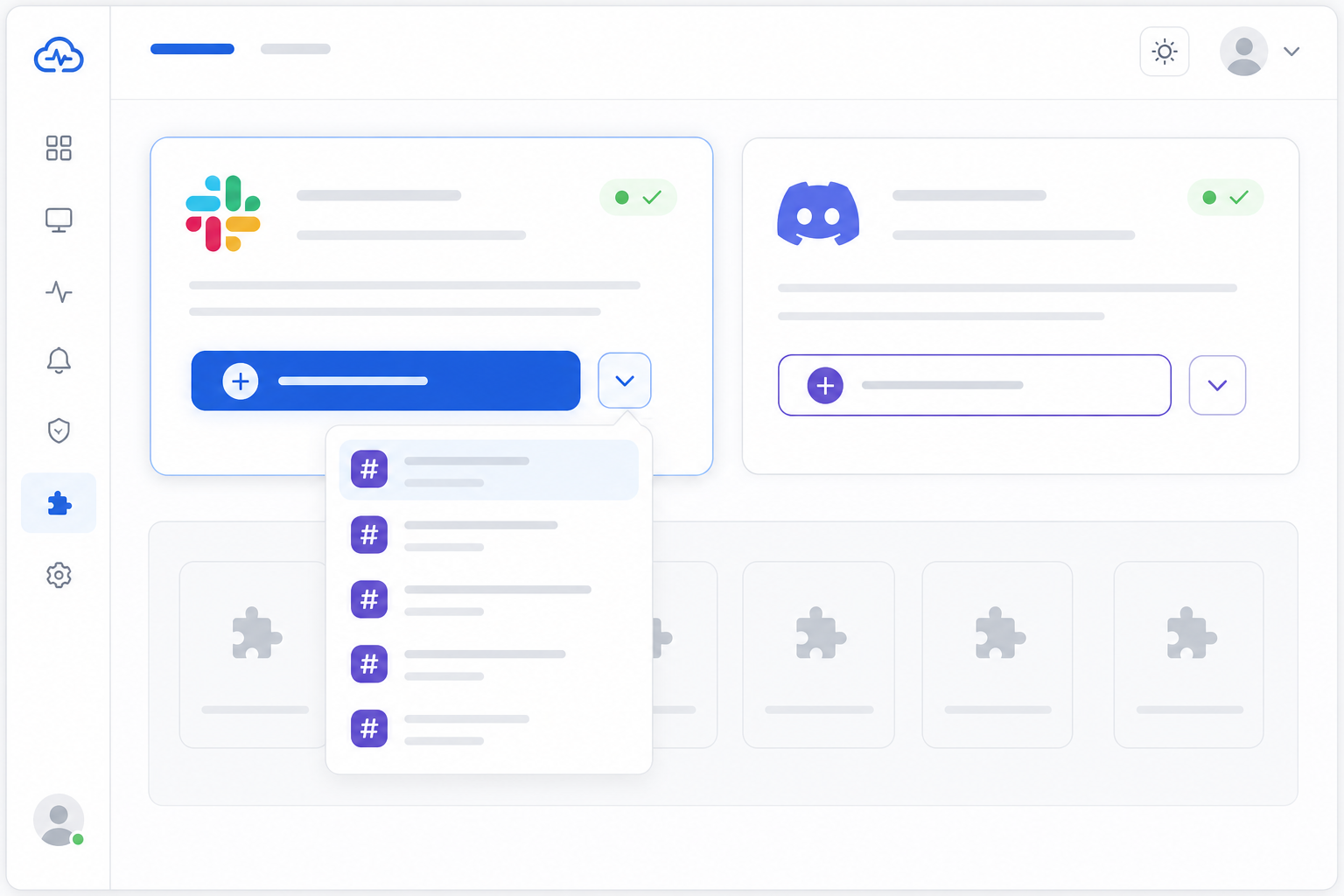
Once connected, Slack downtime alerts, recovery notifications, and SSL certificate expiry warnings can show up as formatted messages, typically including the status, timestamp, affected monitor, and a link back to your dashboard, though exact formatting varies by tool. It's a small setup step, but it tends to pay for itself the first time something breaks at an inconvenient hour.
How to set up Discord incident alerts with webhooks
Discord doesn't have quite the same app-store ecosystem as Slack, but it's still straightforward to wire up thanks to incoming webhooks. If your team runs on Discord, and plenty of developer teams and small businesses do, especially ones that started as gaming communities or indie projects, here's how to get Discord incident alerts flowing.
One thing worth understanding upfront: a Discord webhook is created for, and posts to, a single specific channel. It isn't something you can point at different channels on the fly. If you want alerts split across multiple channels, say, critical alerts in one place and SSL warnings in another, you'll need to create a separate webhook for each channel and configure each one individually in your monitoring tool.
- In Discord, go to Channel Settings > Integrations > Webhooks for the specific channel where you want this set of alerts to appear.
- Create a new webhook and copy the webhook URL. This URL acts as a private address that lets external tools post messages into that one channel. Treat it like a password: anyone with the URL can post to your channel, so don't paste it into public repositories, shared documents, or screenshots. If it ever leaks, regenerate it immediately from the same settings panel.
- Paste the webhook URL into your monitoring tool's Discord or webhook alert settings. In Moonitor, this lives alongside the other alert channels, no separate app needed. Repeat this step with a new webhook for each additional Discord channel you want to use.
- Name and customise the alert bot. Give it an avatar and a recognisable name such as "Moonitor Alerts" so it's easy to spot in a busy channel.
- Trigger a test incident to confirm formatting and delivery. Check that the message is readable, the timestamp makes sense, and it's landing in the channel you intended.
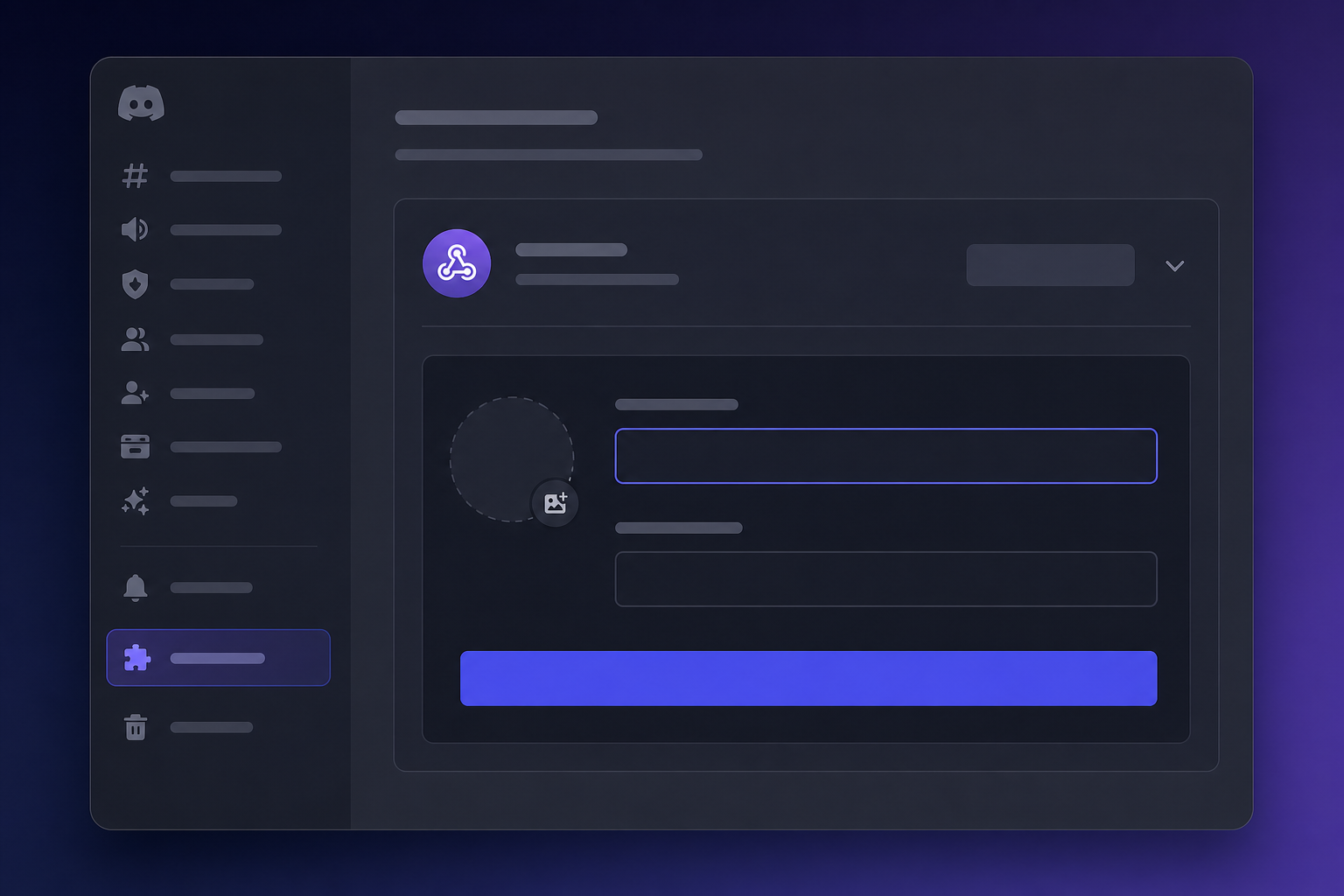
The webhook mechanism itself, a URL that receives a POST request when something happens, isn't unique to Discord. It's the same underlying idea that powers many custom webhook alerts, which we'll touch on later.
How to customise alert rules and reduce notification noise
Here's something I wish more guides talked about: setting up alerts is easy. Setting up good alerts, the kind that don't get quietly muted after week two, takes a bit more thought.
Start with confirmation thresholds. A single failed check might just be a momentary network hiccup, not a genuine outage, so requiring two or three consecutive failures before an alert fires cuts down on false alarms considerably. For a critical production API, something like "two failures across two regions" is a reasonable starting policy, though the right threshold really depends on your check interval and how critical the service is.
If your tool supports it, use multi-region verification too. If your server looks down from one monitoring location but fine from four others, that's more likely a regional network blip than your server actually being down. Verifying failures from multiple regions before alerting filters out a good chunk of that noise. Moonitor supports this, and it's worth checking whether your own tool does too.
Route different monitor types to different channels. API failures, server monitoring alerts, SSL certificate warnings, and cron job monitoring misses aren't equally urgent, and dumping them all into one firehose channel just trains people to tune it out. I'd split them: #critical-prod for API and server issues, #cert-watch for SSL and domain expiry, #cron-jobs for heartbeat failures.
Add escalation delays where you can. If a monitor's been down for five minutes and nobody's acknowledged it, escalate, ping the on-call engineer directly, or send a second alert to a different channel. Just confirm your specific tool actually supports multi-step escalation before you build a whole process around it.
And mute alerts during planned maintenance. Nothing erodes trust in an alerting system faster than a wall of false alarms because someone forgot to pause monitoring during a scheduled deploy.
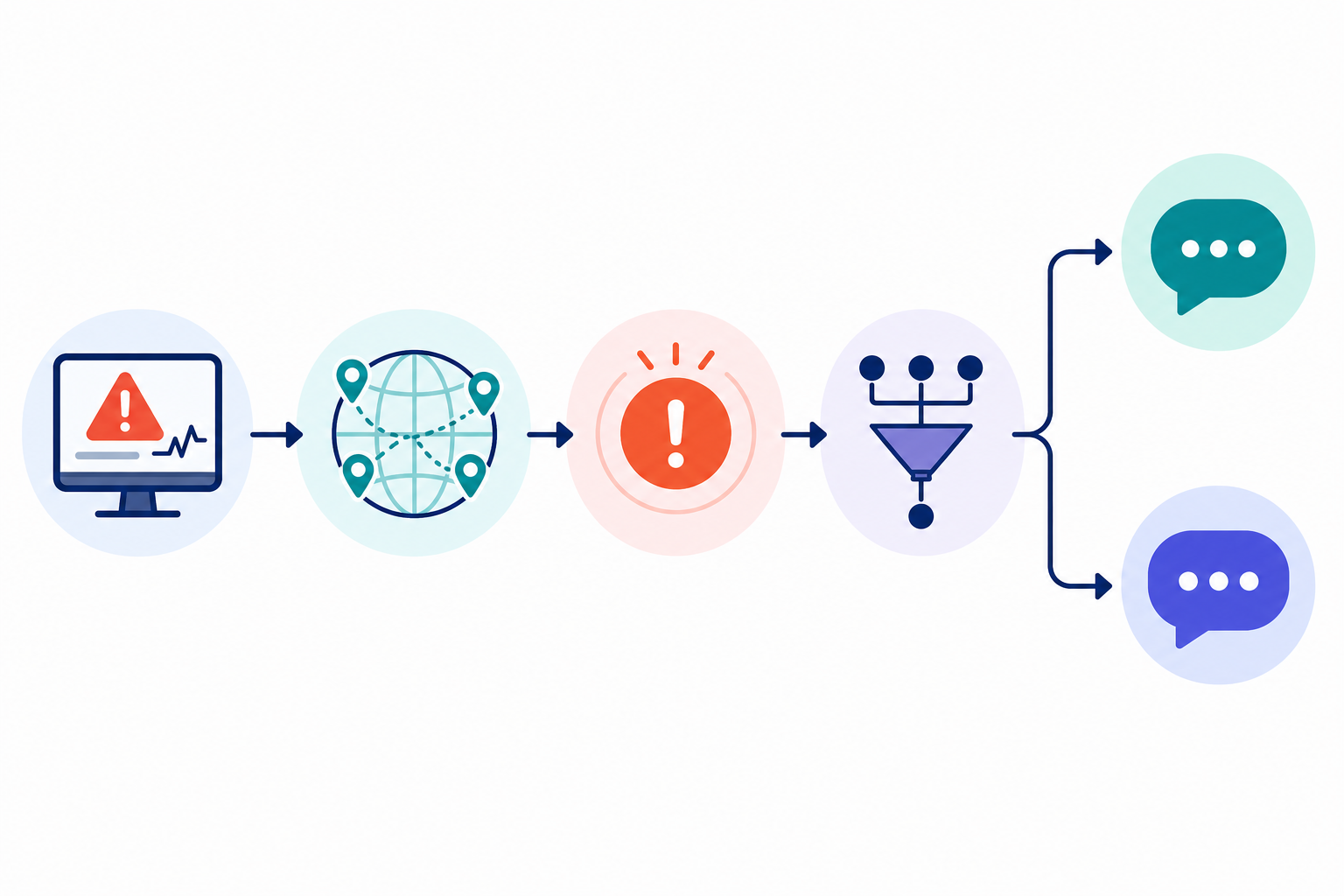
Think of alert tuning as ongoing maintenance rather than a one-time setup task. The goal is a system where every ping in Slack or Discord means "something needs your attention now," not "eh, probably nothing, check it later."
How to test your Slack and Discord alert pipeline
This is the step almost everyone skips, and it's the one that bites people hardest. You set everything up, it works on day one, and then six months later a webhook silently breaks because someone regenerated a token or archived a channel. Nobody notices until there's a real outage and... nothing. Silence. That's the worst possible moment to discover a broken alert pipeline.
Here's how to build a habit of testing it properly:
- Manually trigger a test incident from your monitoring dashboard. Most platforms, including Moonitor, let you simulate a failure or send a test notification without taking anything offline.
- Check that alerts land in the correct channel with the right formatting. Is the message readable at a glance? Does it include the monitor name, failure reason, and timestamp?
- Verify escalation paths end to end, if you've built one. A chain such as Slack → Discord → SMS is an example architecture, not something every monitoring platform supports natively. It often relies on connecting to a separate incident-management tool such as PagerDuty or Opsgenie via webhook. Confirm what your actual stack supports before assuming a multi-step escalation will fire correctly.
- Confirm that resolution alerts fire too. Knowing something's back up matters just as much as knowing when it went down. A pipeline that only alerts on failure leaves your team guessing about the current status.
- Set a recurring reminder to retest quarterly. Teams change tools, archive channels, and rotate tokens more often than you'd think. A quick quarterly check takes a few minutes and can save you from a nasty surprise later.
If a test fails, a few things are worth checking first: has the Slack app lost its authorisation? This can happen after a workspace admin completes a permissions review. Has the target channel been archived or renamed? For Discord, has the webhook URL been deleted or regenerated by someone else? And if alerts seem to be arriving late or not at all, check whether you're hitting a rate limit, both Slack and Discord will throttle a bot that posts too frequently.
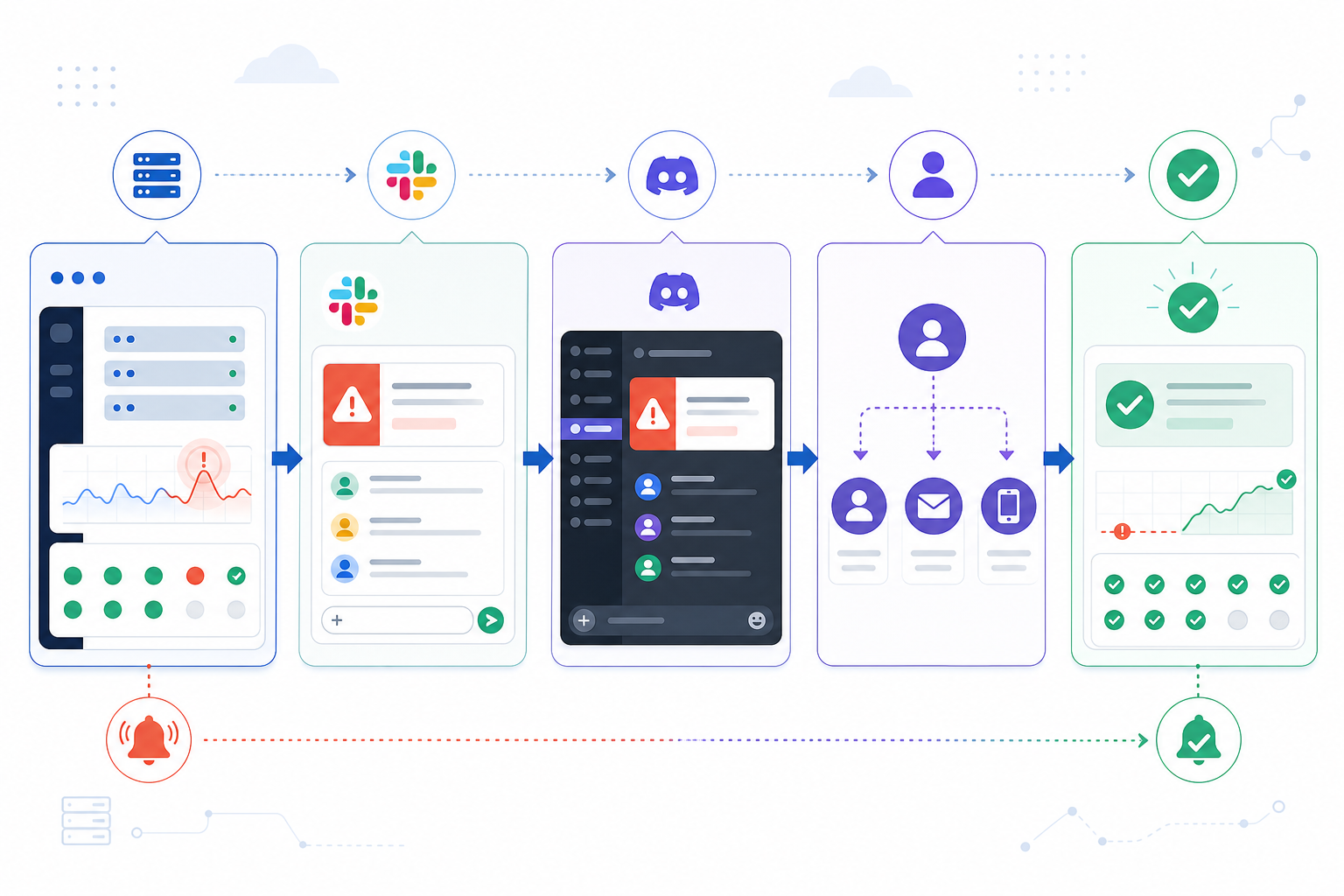
Think of this like a fire drill. Nobody wants to do it, and it feels a bit silly when nothing's actually wrong. But when the real thing happens, you'll be glad you knew exactly what to expect.
Beyond Slack and Discord: other incident notification channels
Slack and Discord cover most teams, but they're not the only options, and a resilient alerting setup generally shouldn't rely on just one channel.
Telegram alerts work for some teams too, especially ones spread across regions where Telegram is more common than Slack. Where it's supported, the setup tends to look about the same: connect once, route your monitors, and you're done.
If you're already using PagerDuty, Opsgenie, or an internal on-call scheduling tool, a generic webhook lets your monitoring platform plug straight into that system rather than routing everything through chat first.
Keep email around too, but as a fallback rather than your primary channel. It's a useful backup in case Slack or Discord has its own outage (which happens more often than you'd think), but I wouldn't lean on it as your first line of defence for anything time-sensitive.
And if your provider offers an API with data export, that gives you room to build custom alert logic, triggering an internal runbook, logging incidents into your own dashboard, whatever your workflow actually needs. Check your provider's documentation for what's genuinely available before you design a whole process around it.
The most resilient setups usually layer two or three of these together: chat alerts for immediate visibility, a webhook for automation, and email as a quiet safety net underneath.
Frequently asked questions about Slack and Discord alerts
How do I send downtime alerts to Slack?
Connect your monitoring tool to Slack using its native integration, usually a one-click OAuth connection from your dashboard's alert settings. Once authorised, pick a channel and assign the monitors you want to trigger alerts there. You'll need admin or integration permissions in your Slack workspace to complete the authorisation step.
Can I get incident alerts in Discord?
Yes. Discord doesn't have a native app-store integration for most monitoring tools, but it supports incoming webhooks. Create a webhook URL inside a specific Discord channel's settings, paste it into your monitoring tool, and incidents will post directly to that channel. Remember that each webhook is tied to one channel, so you'll need a separate webhook per channel if you want to split alerts by type.
What's the best way to route alerts to my team channel?
Set up separate channels for different severity levels or systems, for example, a #critical-alerts channel for production API and server downtime, and a #status-updates channel for SSL expiry warnings or DNS changes. This keeps urgent incident notifications from getting lost among lower-priority messages.
What if my Slack integration stops working?
The most common causes are a revoked app authorisation, a deleted or renamed channel, or a workspace-level permissions change. Check your Slack workspace's Apps settings to confirm the integration is still authorised, and rerun the connection from your monitoring dashboard if needed.
What if my Discord webhook stops delivering alerts?
Webhooks can be deleted or regenerated by anyone with channel management permissions, which silently breaks the connection. Check the Integrations tab in your Discord channel settings to confirm the webhook still exists, and update the URL in your monitoring tool if it has changed.
Will chat alerts replace email notifications entirely?
Most teams keep email as a backup channel in case Slack or Discord has an outage of its own, rather than dropping it completely. For day-to-day incident alerting, though, chat-based notifications tend to get noticed faster simply because they land in a channel people are already watching.
Final thoughts on real-time downtime alerts
Setting this up takes time. Plan for a proper session rather than a rushed five minutes, especially if you're configuring multiple channels and testing escalation paths. It's a small investment against the alternative: finding out about an outage from an angry customer instead of your own monitoring.
Once your Slack downtime alerts and Discord incident alerts are connected, tested, and tuned to avoid false alarms, you'll wonder how you ever managed incidents through email in the first place.