
Keyword Monitoring: Why a 200 Status Code Doesn't Mean Your Site Actually Works
Keyword monitoring catches broken pages hiding behind 200 status codes—spot database errors, blank pages and parked domains before customers do.
Keyword Monitoring: Why a 200 Status Code Can Still Hide a Broken Page
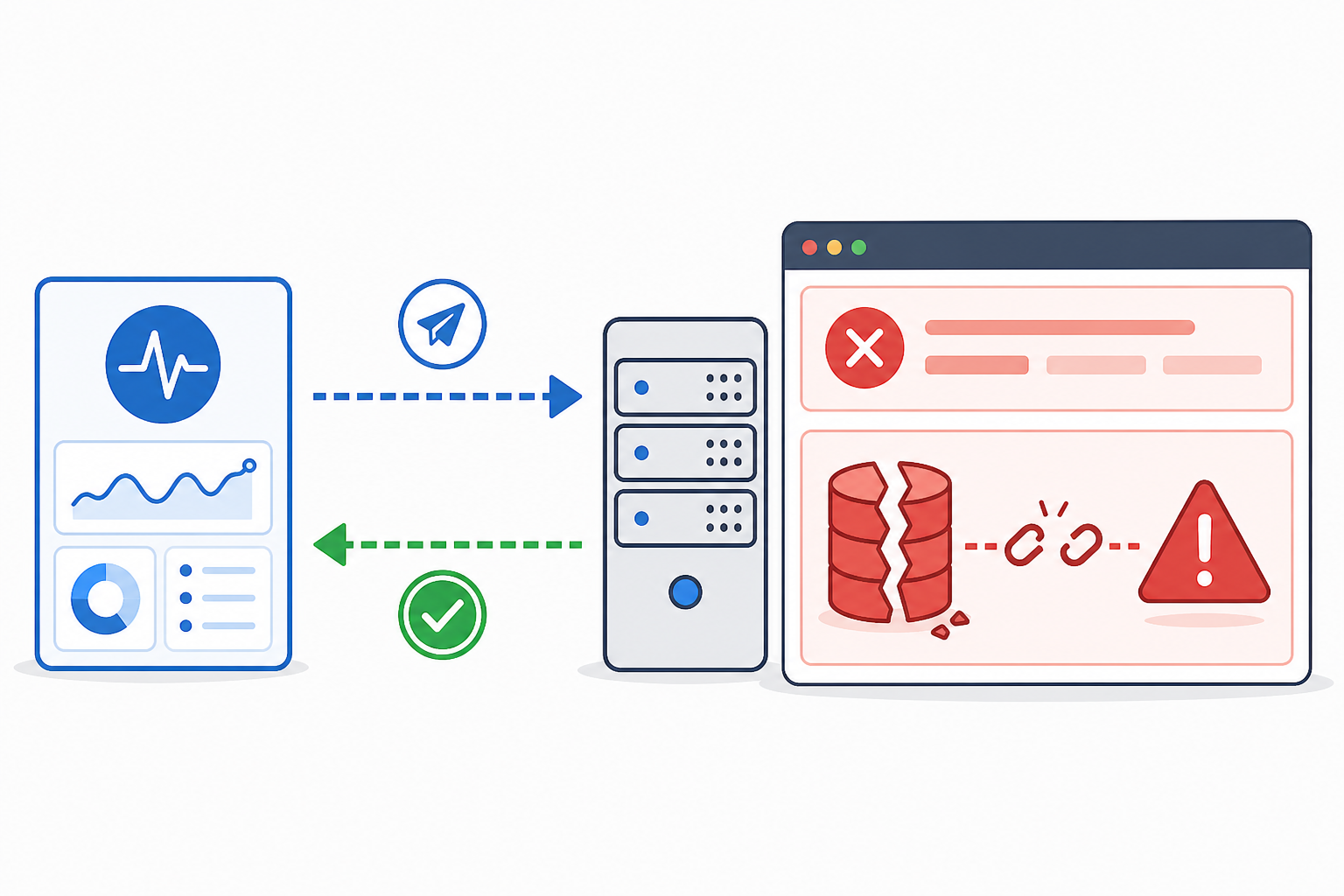
Your site can return a perfectly healthy 200 status code while showing a database error, a blank page, or someone else's parked domain. A status code only confirms that the server processed the request and sent back a response. It doesn't confirm that response contains what a customer actually needs to see.
Keyword monitoring closes that gap by checking the content of the page itself for expected or unexpected text. It catches failures that a status-code-only check simply isn't built to notice.
I've talked to a lot of developers who've had this exact experience: dashboard all green, monitors happy, and then a customer emails asking why the checkout page has been showing a fatal error for the last four hours. It's a horrible feeling, and it happens more than you'd think. Let's look at why it happens, what keyword monitoring can and can't do about it, and how to set it up properly.
Why a 200 Status Code Isn't Enough
Here's a scenario that tends to ring a bell for most teams. An e-commerce site's checkout page relies on a PHP script that talks to a payment gateway. A configuration change breaks the database connection. Depending on how the application is written, that error might get caught and rendered as a normal page. The web server has no reason to think anything went wrong here. It received a request, generated a response, and often returned a 200 status code, even though the page a customer sees is a wall of error text where the buy button should be.
A raw response can look something like this:
HTTP/1.1 200 OK
Content-Type: text/html

<html><body>Warning: mysqli_connect(): Connection refused</body></html>
That's the core issue with status code checks: they measure whether the HTTP request completed, not whether the application logic behind it actually worked. Whether a given failure returns a 200 or a 500 depends heavily on the framework, server configuration, and how errors are handled in the code. Not every broken page behaves the same way, so it's worth checking your own stack rather than assuming.
A 200 tells you the plumbing is connected. It doesn't tell you whether clean water is coming out the other end.
There are a few classic ways this can affect teams:
- Cached error pages. If your CDN or reverse proxy caches a response before an error occurs, or caches an error page itself, it can keep serving that page with a 200 status long after the underlying issue would otherwise be obvious. Your monitor pings the URL, gets a 200, and moves on none the wiser.
- Misconfigured servers. I've seen more than one fresh deployment quietly serve a default placeholder page instead of the actual application because the deployment script never quite finished. Totally 200. Totally not your site.
- Application-level database errors. Plenty of PHP applications, including WordPress, will render something like "Error establishing a database connection" as a normal page response rather than triggering a server-level error. Depending on the configuration, that often comes back as a 200 rather than a 500.
This gap between "the server responded" and "the page is actually correct" is exactly why teams relying purely on basic uptime checks get blindsided by outages their dashboard never flagged. The monitor did its job. It just wasn't checking the right thing.
What is keyword monitoring?
Keyword monitoring is refreshingly simple in concept: a monitor fetches your page and checks whether specific text is present or absent in the response body, meaning the raw HTML or JSON returned by the request. Instead of stopping at "did the server respond?", it goes one step further and asks, "does the response actually say what it should?"
It works in two directions, and both are genuinely useful:
- Alerting when expected text disappears. If your product page should always show "Add to Cart" and that text vanishes from the response, something's wrong, even if the page still loads with a 200.
- Alerting when unwanted text appears. If your page starts returning "Fatal error", "404", or "Service Unavailable" somewhere in the body, that's worth acting on immediately, regardless of the status code.
At Moonitor, keyword monitoring is one of several monitor types you can set up alongside HTTP/S checks, port and ping monitoring, SSL certificate monitoring, and DNS monitoring. You don't need to stitch together five separate tools to see the full picture of your infrastructure's health.
How response-body keyword monitoring works
One important clarification: keyword monitoring, at least the way most tools including Moonitor implement it, checks the response body returned by the initial request. It isn't a browser-based tool executing JavaScript and comparing what ends up rendered in the DOM, and it isn't a visual screenshot comparison either.
That distinction matters. If your login form, checkout button, or a third-party widget only appears after client-side JavaScript runs, a response-body keyword check won't see it, because that content never existed in the raw HTML fetched by the monitor. For those cases, you need browser-based or synthetic monitoring that actually renders the page, rather than a text-matching check on the initial response.
Common use cases for content checks
Once you start thinking in terms of "what text should always, or never, appear in this response?", keyword monitoring fits into more places than you might expect. Just keep the response-body limitation in mind as you read through these examples.
- E-commerce checkout pages. Confirm that "Add to Cart" or pricing information is still present in the response, rather than a blank cart or a payment gateway error message that a status code check would completely miss.
- SaaS login pages, with a caveat. If your login form is rendered server-side and present in the initial HTML, a keyword check can confirm it's there. If the form is injected by client-side JavaScript after the page loads, as is common with single-page applications, a response-body check won't catch a broken bundle. You'd need a browser-based check for that.
- API health endpoints. Rather than trusting a bare 200 from a load balancer health check, look for a specific JSON field or value, such as
"status":"ok", in the response body. This catches cases where the endpoint responds but a dependent service has quietly failed. - Marketing and landing pages. Catch it when a CMS deployment accidentally publishes a draft, a "coming soon" placeholder, or content that's gone missing after a failed update, assuming that content is present in the server-rendered response.
- Third-party dependency failures that appear server-side. If an embedded widget or payment processor returns a visible error string in the page's own HTML, a keyword check can catch it. If the failure only shows up after the browser loads a separate script and that script fails silently in the console, response-body monitoring won't see it.
- Domain and DNS issues. Spot when a domain has expired or been hijacked and now serves a parking page instead of your actual site. This pairs naturally with SSL certificate monitoring and DNS monitoring, since domain and certificate problems often show up together.
What keyword monitoring can't catch
Before getting into setup, it's worth being upfront about the boundaries here. A false sense of coverage can be worse than no monitoring at all.
Keyword monitoring reads the response body from a single request. It doesn't execute JavaScript, wait for a client-rendered app to finish loading, or see anything that happens after the browser starts making its own follow-up requests. Client-side rendering failures, broken JavaScript bundles on single-page applications, and third-party scripts that fail silently in a browser console are all largely invisible to it.
If a significant part of your user-facing experience is rendered client-side, response-body keyword checks are one useful layer, not the whole safety net. Pairing them with browser-based synthetic monitoring covers that gap.
How to set up keyword monitoring rules
Getting a keyword monitor running doesn't take long, but a little thought upfront saves you from noisy or missed alerts later. Here's how I'd approach it, with a few concrete examples along the way.
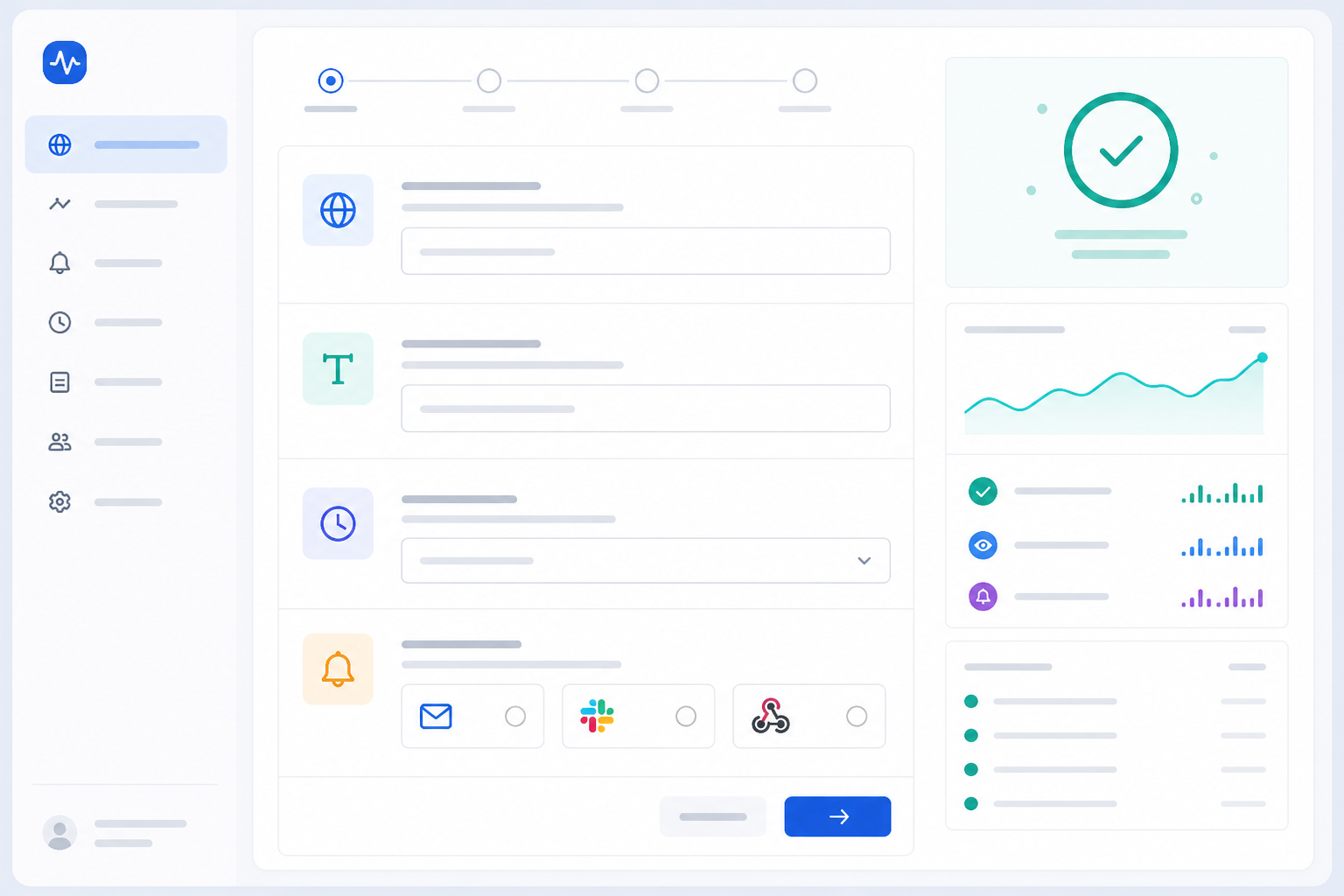
- Pick the page or endpoint. Choose somewhere with content that rarely changes unless something's actually wrong, such as a checkout confirmation step, login form, or health endpoint.
- Choose your check type. Decide between "must contain" for expected content and "must not contain" for known error strings. Examples include: must-contain "Order confirmed" on a checkout success page; must-not-contain "Error establishing a database connection" anywhere on your site; or a JSON assertion checking that a health endpoint's response includes
"status":"ok"rather than"status":"degraded". - Write specific, unique keywords. This is the step people rush, and it's the one that matters most. "Checkout" is risky if it also appears in your site's navigation menu on every page. Something more specific, such as "Order Confirmed" or a unique order reference pattern, gives you a cleaner signal.
- Check matching behaviour before relying on it. Confirm whether your tool's matching is case-sensitive, whether it follows redirects, and whether it can authenticate if the page sits behind a login. These details vary between tools, and assuming the wrong behaviour is a common source of missed alerts.
- Set your check frequency and consider multi-region checks. How often you check is a balance between responsiveness and noise. Verifying a failure from a second location before alerting can help rule out a single flaky network path rather than a genuine outage, though the exact process depends on your monitoring setup.
- Connect your alerting channel. Slack, Discord, Telegram, email, or a webhook, whatever gets the right person notified when the check fails is what matters. If your team works UK office hours, think through your on-call or out-of-hours coverage too. An alert that arrives at 3am GMT and sits unread until 9am isn't much better than no alert at all for anything genuinely urgent.
- Test it before you trust it. Manually break the condition on a staging page: remove the keyword, add an error string, or make another change that matches your rule. Then confirm the alert actually fires. This step feels tedious, but it's the difference between a monitor you trust and one that quietly fails you when it matters most.
How to avoid false positives in keyword monitoring
Keyword monitoring is useful, but it's not magic. A poorly chosen rule can generate just as much noise as no monitoring at all. A few things are worth watching for:
- Don't pick keywords that also appear on error pages. Checking for your brand name won't help much if your branded 404 page also contains it. Think about what text is genuinely unique to a healthy state.
- Account for A/B tests and personalisation. If your marketing team runs experiments that swap copy for different visitor segments, or your site serves personalised content based on location or login state, make sure your keyword check accounts for that variability. Otherwise, you'll get alerts for perfectly normal behaviour.
- Watch for case sensitivity and whitespace. Depending on how your tool matches text, "Add to Cart" might not match "add to cart", and minor formatting differences can trip up otherwise solid rules. Check your tool's documentation rather than assuming.
- Watch for dynamic content, such as timestamps and session data. Pages that embed a live timestamp, session ID, or localised pricing can make an otherwise stable keyword rule unreliable if you're not careful about what you're matching.
- Use multi-region verification where available. A temporary network blip in one location shouldn't be enough to trigger an alert on its own if a second region can confirm the page is actually fine.
- Re-check your rules after redesigns or migrations. Copy changes during a CMS migration or site redesign are common causes of stale keyword rules that either miss real failures or fire constantly when everything is working normally.
Combining keyword monitoring with status checks
The smartest approach isn't choosing one over the other. It's layering checks so each one covers the other's blind spots.
| Status Code Monitoring | Keyword Monitoring | Browser/Synthetic Monitoring | |
|---|---|---|---|
| What it catches | Server downtime, timeouts, and connection failures | Broken pages, silent errors, and content regressions in the response body | Client-side rendering failures, broken JavaScript bundles, and visual breakage |
| Speed | Very fast and lightweight | Slightly more overhead, but still fast | Slower and more resource-intensive |
| Setup effort | Minimal | Requires thoughtful keyword selection | Requires scripted user flows or visual baselines |
| Blind spots | Application-level and content-level failures | Anything rendered only client-side after the initial response | Overkill for simple server or content checks |
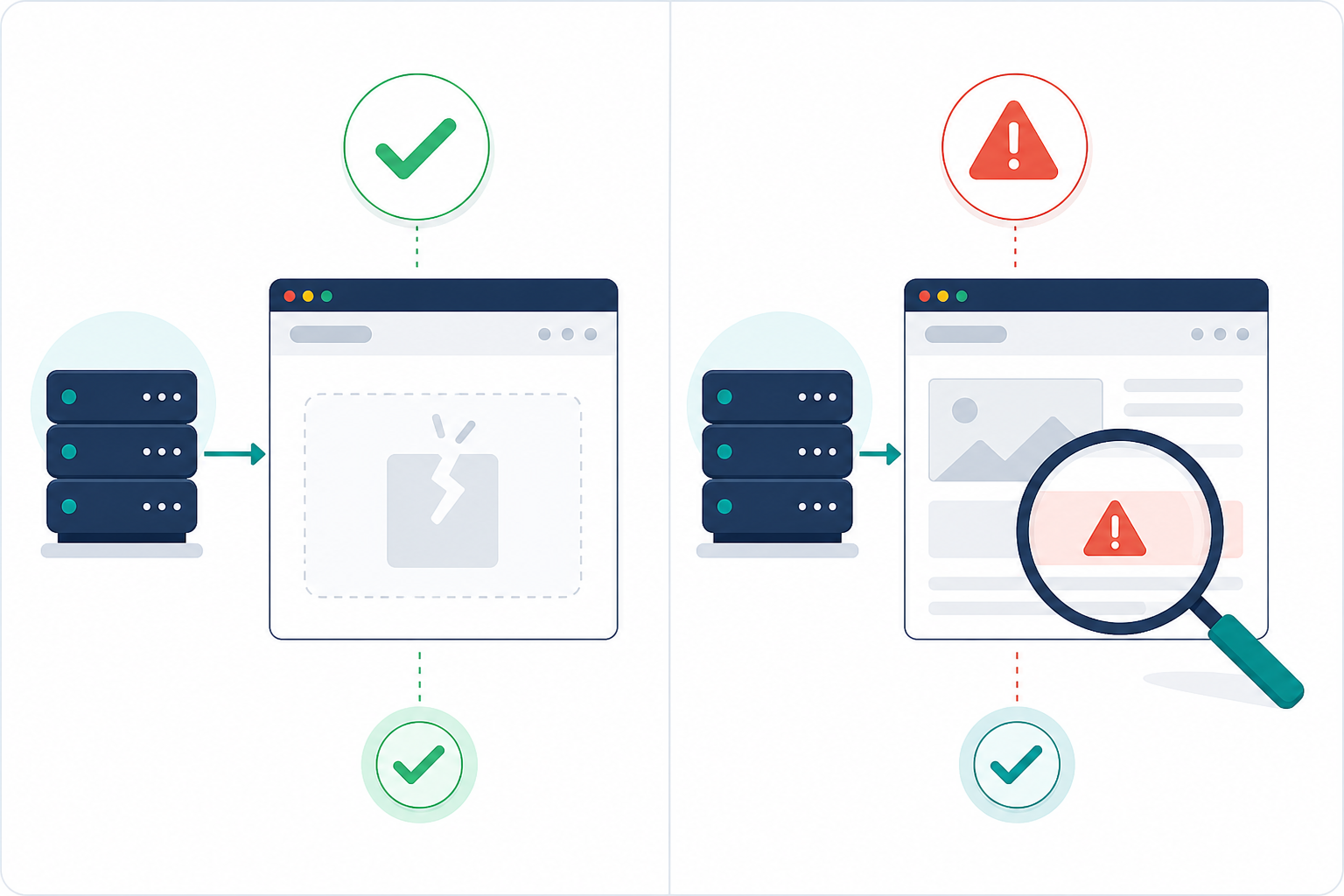
A sensible setup for a critical page such as checkout usually involves layering all three where warranted: a status check for the fast first signal that something is fundamentally wrong, a keyword check confirming that the response body contains what it should, and, if a meaningful part of the page is client-rendered, a browser-based check covering what the other two can't see.
No single check gives you the full picture on its own. Together, though, they cover a lot more ground, and teams that layer their checks this way tend to catch content-level failures well before a customer emails to point one out.
This kind of layered setup fits naturally alongside server monitoring, cron job monitoring, and solid incident alerting, so you're covered from the infrastructure layer through to the actual page a user sees.
Frequently asked questions about keyword monitoring
Can my site return a 200 status but still be broken?
Yes. A 200 status code confirms that the web server successfully processed the HTTP request, but it says nothing about whether the content is correct. That depends entirely on how the application handles errors.
Database connection errors rendered as normal pages, cached error pages, and expired domains showing parking pages can all return a 200 while the page itself is unusable. Whether a given failure returns a 200 or something else varies by framework and configuration, so check how your own stack behaves rather than assuming.
What is keyword monitoring used for, and where does it fall short?
Keyword monitoring is used to verify that a response body contains, or does not contain, specific text. It catches failures that a status code check misses, such as a checkout page missing pricing information or a health endpoint returning a degraded JSON status.
It falls short when content is rendered client-side after the initial response, including broken JavaScript bundles and third-party scripts that fail silently in a browser rather than in the server's response. For those cases, use browser-based synthetic monitoring alongside your keyword checks.
How do I set up content-based alerts, and does it work with JSON or authenticated pages?
Start with a page that has stable, predictable content. Then decide whether you need a "must contain" or "must not contain" rule, for example checking for "status":"ok" in a JSON health endpoint or ensuring "Error establishing a database connection" never appears anywhere on your site.
Whether your tool supports authenticated pages, follows redirects, or matches JSON fields specifically varies between tools. Confirm those details before building a rule you plan to rely on. Test it by deliberately breaking the condition on staging first, and only trust it in production once you've watched it fire correctly.