
Cron Job Failed Silently? How to Catch Missed Runs Fast
Cron job failed silently? Learn why jobs stop, why logs and email miss failures, and how heartbeat pings alert you when a run is late.

If your cron job failed silently, it's usually because cron only reports what a job prints. A job that never starts, hangs, or quietly does the wrong thing often produces nothing anyone is watching. System logs may show that cron launched a command, but they rarely prove it finished or produced the right result. The fix is to flip the logic: have each job send a heartbeat ping when it succeeds, and get alerted when that ping doesn't arrive on schedule. The basic setup is one curl command and a few minutes of work. Let me walk you through why cron jobs fail silently and how to build the safety net. ☕
The Moment You Realise a Cron Job Has Failed Silently 😬
Here's a scenario that plays out far more often than anyone admits. Someone needs to restore a file. They open the backup folder, scroll to the latest snapshot, and the date is nine days old. The nightly backup quietly stopped over a week ago. Nothing crashed, no alarm went off, and every dashboard was green.
That sinking feeling is the real cost of a silent failure, and the backup is just the dramatic example. The same thing happens with other jobs too:
- Stale reports that managers are still reading as if they're current
- Invoices that never went out, so cash flow quietly slips
- Certificates that expire because the renewal script stopped running
- Data drifting apart between systems that were supposed to sync every hour
- The awkward moment when a client or manager asks, "How long has this been broken?"
Scheduled jobs are risky because nobody visits them. A website that goes down gets noticed quickly: someone loads it, a customer complains, or an uptime check fails. A cron task has no audience. When it stops, there's no natural signal, only a growing gap where something used to happen.
In this guide we'll cover the usual causes, why logs and cron email fall short, and a simple safety net you can add today.
Why Did My Cron Job Not Run? Common Cron Job Failure Causes
Before the fix, it helps to know what you're up against. Most silent failures fall into a handful of buckets, and I've given each one a symptom and a fix.
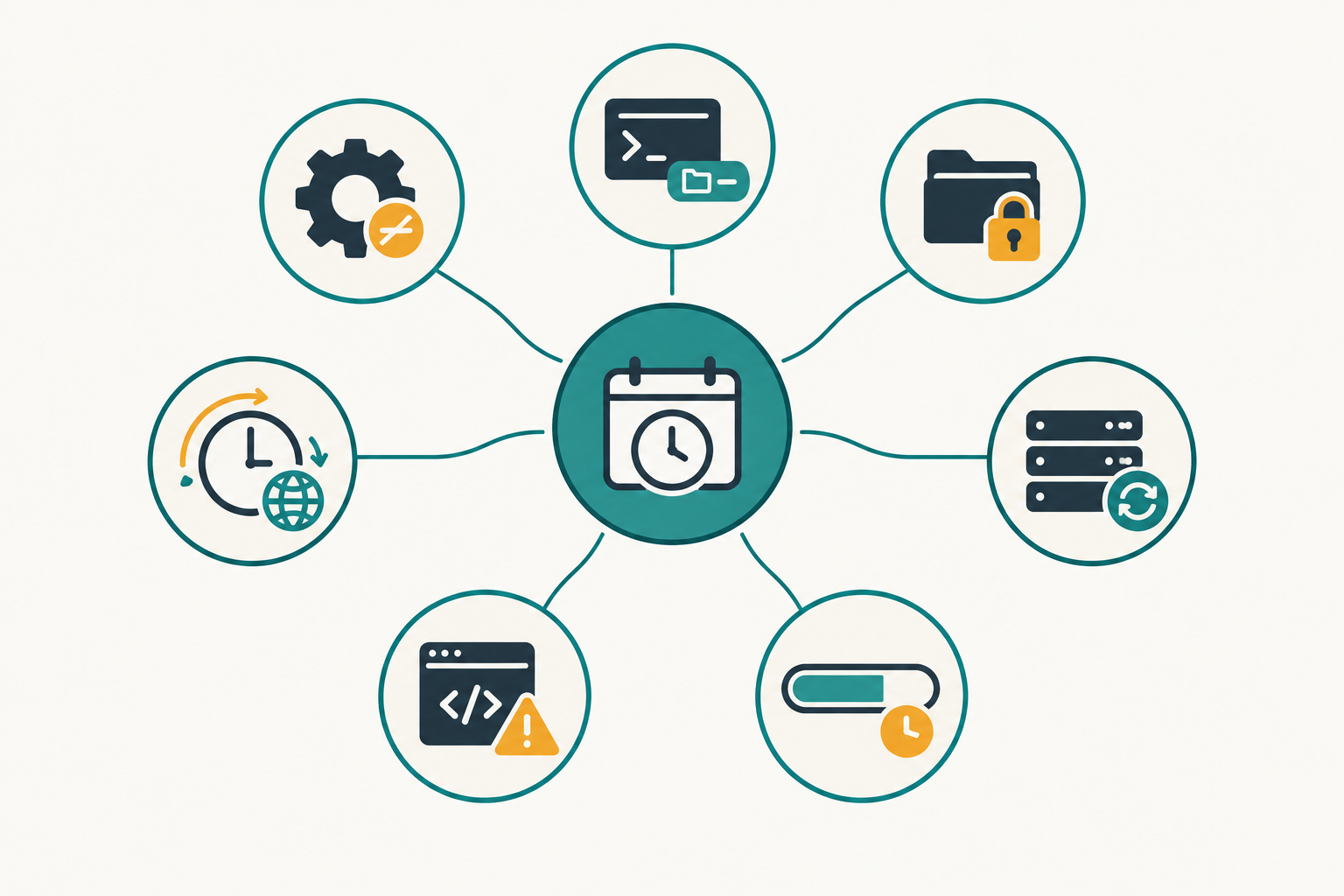
Environment differences
Symptom: the script works perfectly in your terminal and fails under cron.
Cron runs with a minimal environment: a limited set of variables, a short PATH, and none of your shell profile. A command that's found interactively may simply not exist as far as cron is concerned. The fix is to use absolute paths (/usr/bin/python3, not python3) and set any variables the script needs explicitly.
Permissions and ownership
Symptom: the job stopped after someone "tidied up" the server.
Check that you edited the right user's crontab, that the script still has its executable bit, and that the files it reads are still readable by the user running it. Run ls -l on the script and its inputs, then crontab -l -u <user> to confirm the entry lives where you think it does.
Schedule mistakes
Symptom: the job runs at odd times, twice, or not at all.
A few classics here. Cron implementations differ in the details, so check your own system's man page (man 5 crontab) rather than assuming.
- Timezones: your server may run in UTC while you think in UK local time. Twice a year, the BST clock change makes this matter.
- Daylight-saving edge cases: some cron implementations document that local times which don't exist during a clock change won't match, and repeated times can match twice. A job set for 01:30 on the night the clocks go forward can simply be skipped.
- Day-of-month and day-of-week together: in many implementations, if you restrict both fields (say, the 1st of the month and Mondays), the job runs when either matches, not only when both do. That surprises a lot of people.
- The unescaped
%: in a crontab, an unescaped%is treated as a newline, so everything after it is fed to the command as input. A command likedate +%Fbreaks unless you writedate +\%F.
The fix: know which timezone your cron daemon uses, avoid scheduling important jobs in the small hours of a clock-change night, and test any unusual schedule expression before relying on it.
Server-level changes
Symptom: everything stopped on the same day.
The cron daemon might have stopped, the server might have been rebooted or rebuilt, a container or VM might have been replaced, or a deploy might have wiped the crontab. Traditional cron also doesn't catch up on runs missed during downtime. Keep schedules in version control or configuration management, so a rebuild doesn't lose them.
Resource problems
Symptom: the job starts but dies part-way, or fails at the first step.
A full disk, an out-of-memory kill, an expired password or API token, or a database that was unreachable at run time can all do it. Check disk and memory first, then credentials and upstream dependencies.
Scripts that exit quietly
Symptom: cron shows nothing wrong, yet the work isn't done.
The cause might be an unhandled error, a non-zero exit code nobody checks, or a script that "succeeds" while doing nothing, like producing an empty report. Make scripts fail loudly and check that the output is actually useful. In bash, set -euo pipefail is a good start: it stops at the first failing command, treats unset variables as errors, and catches failures inside pipelines. It can be strict, though, so test it on existing scripts before rolling it out.
Overlapping or hung runs
Symptom: the job ran fine for weeks, then stopped completing.
If one run hangs while holding a lock, the next run skips or stacks up behind it. A job that takes longer than its interval can also overlap with the next invocation. Use a lock such as flock, log lock contention, and put a maximum runtime on the job.
If you're on Kubernetes, CronJobs are approximate too. Under some circumstances a job can be created twice or not at all, so design for idempotency and don't assume every schedule will fire.
Does Cron Email You When a Cron Job Fails? Why Logs Aren't Enough
This is the question I get asked most, and the honest answer is: not really.
Cron can email whatever a job prints to standard output or standard error, using the MAILTO setting. But it needs a working local mail system, and it sends output, not a verdict on success or failure. A script that exits with an error before printing anything gives cron nothing to mail. Set MAILTO="" and mail is switched off altogether.
In practice it breaks down even further:
- Modern servers and containers often have no mail transfer agent installed at all
- Messages land in a spam folder or an unread
rootmailbox - Noisy jobs train everyone to ignore the mail, so the one that matters gets skipped
Logs have a similar blind spot. System logs can show that cron launched a command, but a launch record isn't proof that the task completed or produced the right result. And if the whole machine, container or crontab has disappeared, there may be no log entries to read at all.
The deeper problem: nobody is watching for absence
Logs and emails mostly record things that happened. A job that never started, a crashed server, or a deleted crontab produces a gap, and a gap only matters if something is looking for it.
Picture a small team with a nightly data export. Their logs were lovely: tidy timestamps, row counts, every night for weeks. Then, on one particular Tuesday, the entries simply stopped. Nobody noticed, because there was no error to notice. When someone finally scrolled back, the logs showed perfect records for the days the job worked and a blank gap for the days it didn't. The blank was the problem, and nothing had been watching for it.
That's where the dead man's switch idea comes in. Instead of waiting for a job to tell you it failed, you expect it to check in, and treat the absence of that check-in as the alert.
How to Get Alerted If a Cron Job Doesn't Run: Heartbeat Monitoring
Heartbeat monitoring is pretty simple. Each job pings a unique URL when it finishes successfully. The monitor knows when to expect that ping. If it doesn't arrive within the window, the monitor opens an incident and sends an alert.
That one mechanism catches jobs that fail, jobs that hang, jobs that never start, and jobs running on a machine that has disappeared entirely.
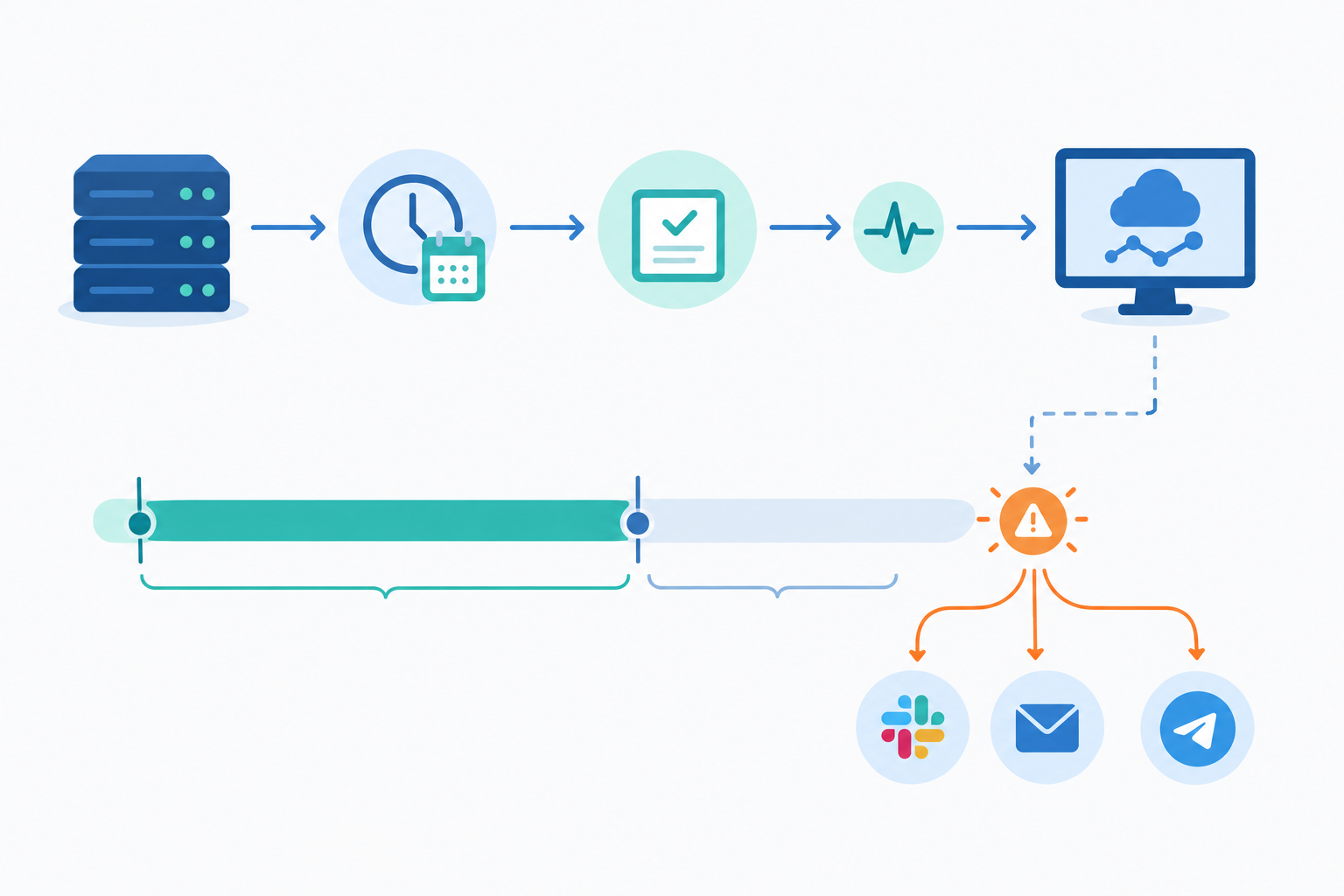
Be clear about what a heartbeat does and doesn't tell you. A missing ping means the job didn't check in. A present ping only means the job reached the line that sends it. If a script can exit cleanly while producing an empty file or a stale report, the heartbeat will happily report success. So for anything important, check the result (is the backup file there, and is it a sensible size?) before sending the ping.
It also helps to see how this differs from other checks. HTTP, keyword and ping checks probe from the outside. They work well for website monitoring, API monitoring and server monitoring, but they can't see what's happening inside a scheduled task. Your site can be perfectly up while the invoicing job behind it has been dead for a week. Heartbeats work from the inside out: the job vouches for itself, and the monitor notices when it doesn't.
The two approaches complement each other. Uptime monitoring tells you the front door is open; heartbeat monitoring tells you the back-office work is getting done. I'd want both, so the whole stack is covered and not just the bit customers see.
This is why Moonitor includes a cron/heartbeat monitor as one of its eight monitor types, alongside HTTP/S, keyword, port and ping, SSL and domain expiry, and DNS change detection. They all live in one dashboard, so your scheduled jobs sit next to everything else you're watching. The steps below use Moonitor, but the pattern works with any heartbeat-style tool.
How to Add a Heartbeat Ping to Any Cron Job
This is the bit that surprises people: the basic version really is a few minutes' work. Here's the process.
Step 1: Create a heartbeat monitor
In Moonitor, add a cron/heartbeat monitor and tell it the expected schedule, for example every hour, or daily at 02:00. Add a grace period too (more on that in a moment).
Step 2: Copy the unique ping URL
The monitor gives you a URL that's unique to this job. Treat it like a password, because anyone with it can send a "success" signal.
Step 3: Add the ping to the end of your command
Use && so the ping only fires if the job succeeded, and wrap the ping so that a problem with the ping itself can't turn a good run into a reported failure:
0 2 * * * /usr/local/bin/backup.sh && { curl -fsS -m 10 --retry 3 -o /dev/null https://YOUR-PING-URL || true; }
What those pieces do:
&&means the ping only runs ifbackup.shexits successfully-ffails on HTTP errors rather than pretending all is well-sSstays quiet but still shows errors-m 10gives up after 10 seconds per attempt, so a slow network can't hold things up indefinitely--retry 3tries again if there's a blip (retries can add to the total delay)|| truemakes the ping best-effort
Why the || true? Without it, a failed curl would make the whole cron command exit non-zero even though the backup worked, which could trigger confusing failure reports. With it, a successful job stays successful, and a failed job still exits with its own non-zero status. The trade-off is that if the ping fails, the monitor will eventually alert you that it never arrived. That's the behaviour you want.
Step 4 (optional): Validate the result and distinguish failed from missing
If you want to confirm the job did something useful, or tell "the job ran and failed" apart from "the job never ran", wrap the work in a small script. Where your monitor supports start, fail or exit-code reporting, it might look like this:
#!/bin/bash
set -uo pipefailPING_URL="https://YOUR-PING-URL"
FAIL_URL="https://YOUR-FAIL-URL"   # only if your monitor supports a fail endpoint
/usr/local/bin/backup.sh
status=$?
Optional: check the output is actually useful before reporting success
if [ "$status" -eq 0 ] && [ ! -s /backups/latest.tar.gz ]; then
  status=1
fi
if [ "$status" -eq 0 ]; then
  curl -fsS -m 10 --retry 3 -o /dev/null "$PING_URL" || true
else
  curl -fsS -m 10 --retry 3 -o /dev/null "$FAIL_URL" || true
fi
exit "$status"
The script preserves the job's own exit status whatever happens to the ping, and the file check stops an empty backup from counting as a success. Swap in whatever validation makes sense for your job: a row count, a file size, a timestamp.
Step 5: Run it once by hand
Run the job manually and watch the monitor. The first ping should arrive and the status should turn healthy. Then test the alert path too: temporarily skip the ping (or pause the job) and confirm the alert reaches the channel you expect. If anything's off, you've found a problem before it bit you, which is rather the point.
If you're not using curl
- wget:
wget -q -T 10 -t 3 -O /dev/null https://YOUR-PING-URL - Python:
requests.get(url, timeout=10)inside atry/exceptso a failed ping never raises - Node:
fetch(url, { signal: AbortSignal.timeout(10000) }), with a.catch()that swallows the error - Any script: put the ping in a tiny shell function and call it at the very end
Gotchas worth remembering
- Don't ping before the work is done. A ping at the top of the script just proves the script started.
- Don't let a failing ping break the job. Short timeouts and best-effort handling cover this.
- Keep the URL out of public repos. Use an environment variable or secrets store.
- Escape your percent signs if your crontab line contains any.
How to Alert on a Late Cron Job Run (Including Long-Running Jobs)
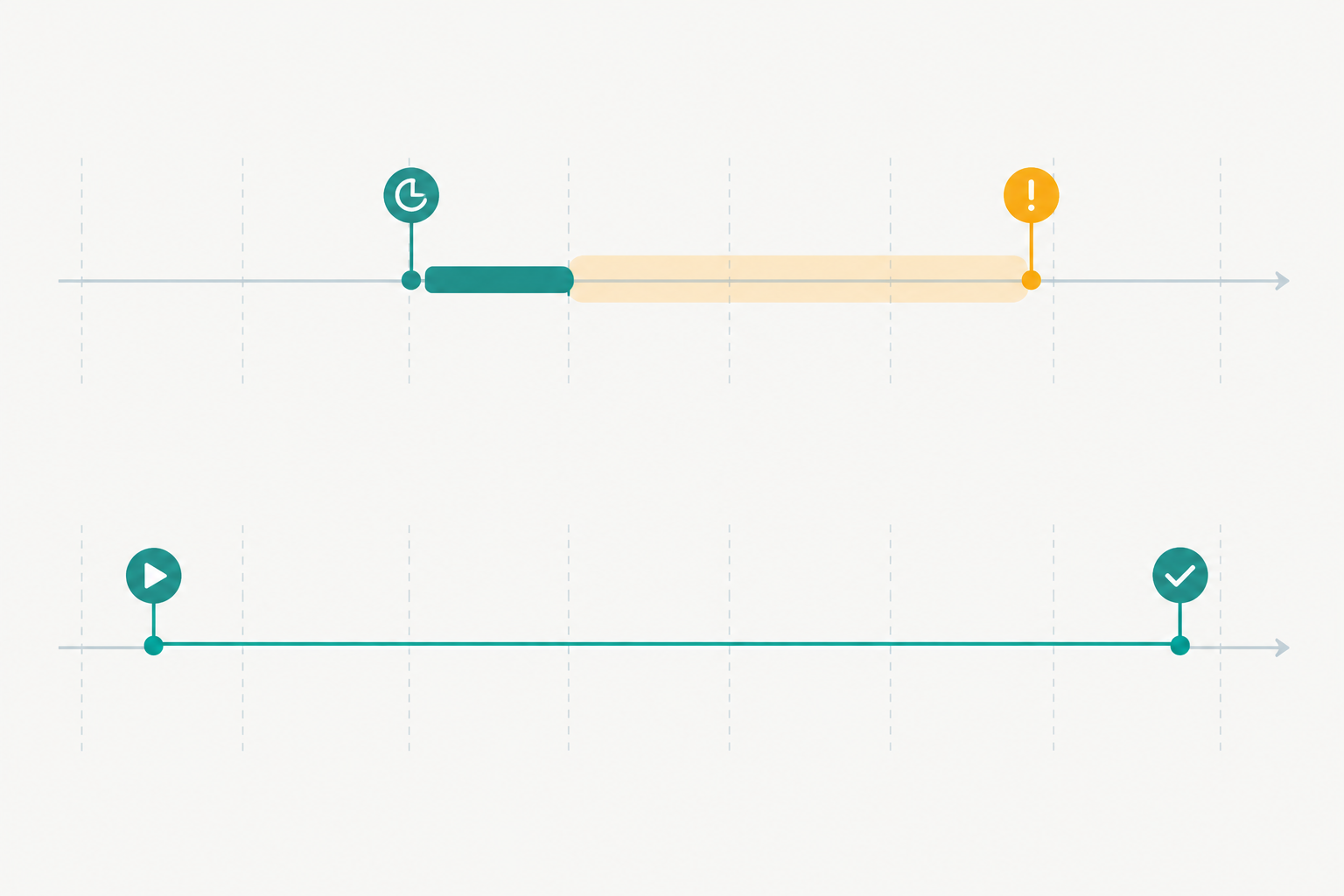
A heartbeat monitor works on two numbers: the schedule (when the ping should arrive) and the grace period (how much slack you allow before it raises the alarm).
Get the grace period wrong in either direction and it hurts. Too tight, and you'll be woken up because a job was two minutes slow. Too generous, and a real failure sits unnoticed for hours. A good rule of thumb is to base it on your slowest normal run, not the average, and then review the run-time history and adjust.
Here's a worked example. Say your backup is scheduled for 02:00 and normally takes about 12 minutes. On heavy nights, it has taken up to 35 minutes. You'd choose a grace period of around 45 minutes. If the ping hasn't arrived by about 02:45, the monitor raises an incident. A normal heavy night finishes at 02:35 and stays quiet, while a run that never started, or one that's hung, gets flagged before most people are up.
Jobs with variable duration
Some jobs, like data imports, take 10 minutes on a quiet night and 50 on a heavy one. For these:
- Set the grace period from the slowest normal run, with a little headroom
- Look at the history now and then, because data grows and runs get slower
- Use start and finish pings if your tool supports them. A start with no finish suggests a job that's still running or has stalled. No start at all points to a missed schedule, a dead scheduler, or a machine that's gone.
Jobs that hang
A hung job is sneaky because the process is technically still running, so process checks look fine. But it never sends its finish ping, so the monitor flags it anyway. If a previous run is also holding a lock, later runs may be skipped entirely, which is another reason an overdue alert is so useful. In Kubernetes, for example, a Forbid concurrency policy skips the scheduled occurrence rather than queueing it.
Choosing the right channel
Not every job deserves the same volume. Moonitor can alert by email, Slack, Discord, Telegram and webhooks, so you can match the channel to the stakes:
- Email for low-urgency housekeeping
- Slack, Discord or Telegram for the team's shared channel
- Webhooks to feed an existing incident alerting tool
To cut noise, send critical jobs (backups, billing) to the loudest channel and routine jobs (log rotation, cache warming) to a quieter one.
A note for UK teams on BST
Two separate things can have different timezones here: the cron daemon (which decides when your job runs) and the monitor (which decides when it expects a ping). If your server runs in UTC but you think of the schedule as UK time, then for half the year your "02:00" job actually runs at 03:00 local time, and the monitor's expectation needs to match whichever clock the daemon uses. On top of that, a job scheduled in local time during the clock change may be skipped or run twice, depending on your cron implementation. Check which timezone each side uses, keep them consistent, and consider moving important jobs away from the 01:00 to 02:00 window.
Debugging a Missed Cron Job: A Calm Checklist
The alert fires. Take a breath. Work through this in order, and most problems reveal themselves within minutes.

- Is the server or container up, and is the cron service running? Rebuilds and reboots are the most common culprits.
- Does the crontab still exist for the right user, with the schedule you expect? Deploys have a habit of overwriting it.
- Review the system logs (
syslog, orjournalctl -u cron) to see whether the job was triggered at all. That tells you whether you're hunting a scheduler problem or a script problem. Also glance at the monitor's incident history for patterns. Does it always fail after a deploy, at month end, or on Mondays? - Reproduce it manually as the same user, with a minimal environment, to expose
PATHand permission problems.env -i /bin/sh -c '/path/to/script'is a handy approximation. - Check disk space, memory, credentials and upstream dependencies. Expired tokens and unreachable databases are surprisingly frequent.
- Add logging, and note what you found. Capture output to a log file so the next failure leaves evidence, for example
/path/to/script >> /var/log/myjob.log 2>&1, and add a line to the runbook so whoever's on call next fixes it faster. That might be you at 3am.
Building a Wider Safety Net Around Your Scheduled Jobs
Once your jobs are sending heartbeats, it's natural to widen the net. A few pairings work well:
- SSL certificate monitoring and domain expiry checks. Renewal scripts are often cron jobs, so a quiet failure there shows up as an expired certificate a few weeks later. Watching both catches it twice.
- DNS monitoring and website monitoring. A broken deploy or an unexpected record change gets caught alongside missed runs, in the same place.
- A branded status page. When a scheduled process such as a data sync is delayed, a public status page keeps customers informed so you're not answering the same email twenty times.
If you'd like to try this with Moonitor, there's a 7-day free trial with no credit card needed. At the time of writing, plans start at $14/mo for 20 monitors on the Solo plan and go up to unlimited monitors on Max at $49/mo, but do check the pricing page for current details.
Here's where I'd start: this week, add heartbeats to your three most critical jobs. Probably the backup, the billing run and whatever syncs your data. Check the output before you ping, test the alert once, and you'll never again be the person discovering a nine-day gap by accident.
FAQ
Why did my cron job not run?
The usual suspects are a minimal cron environment (missing PATH or variables), permissions, a schedule or timezone mistake, a stopped cron service, or a rebuilt server that lost its crontab. Check the system logs to see whether cron launched the job, then run the command by hand as the same user.
Does cron email me on failure?
Not really. Cron can email a job's output if MAILTO and a local mail system are set up, but it doesn't judge success or failure, and a job that never starts has no output to send. Heartbeat checks alert on absence instead.
How can I be alerted if a cron job doesn't run?
Use heartbeat monitoring. Add a best-effort curl to a unique ping URL at the end of the job, set the expected schedule and a grace period, and choose an alert channel such as email, Slack, Discord, Telegram or a webhook. Then test it by deliberately skipping a ping once.
How do I handle jobs that run long?
Base the grace period on your slowest normal run rather than the average, and review run-time history as data grows. If your tool supports start and finish pings, use both to tell a slow job from one that never finished.
Will a heartbeat ping slow down or break my job?
Usually not. The request normally completes quickly, but it can wait up to your configured timeout, and retries can add to that. A short timeout and best-effort handling (|| true) mean a network blip on the ping won't change your job's own result. If the job's runtime is critical, consider sending the ping in the background.
What can a heartbeat not detect?
A heartbeat can't tell you the job's output is correct unless you check it first. A script that exits cleanly after producing an empty file will still send a success ping, so validate important results before pinging, and keep occasional spot checks, such as test restores, on your calendar.