
Monitoring Scheduled Backups Before They Silently Fail: A Cron Job Monitoring Guide
Backup jobs fail silently more often than you'd think. Learn how to set up heartbeat monitoring for scheduled backups so you find out in minutes, not
Cron Job Monitoring for Backups: How to Catch Silent Failures Before They Cost You
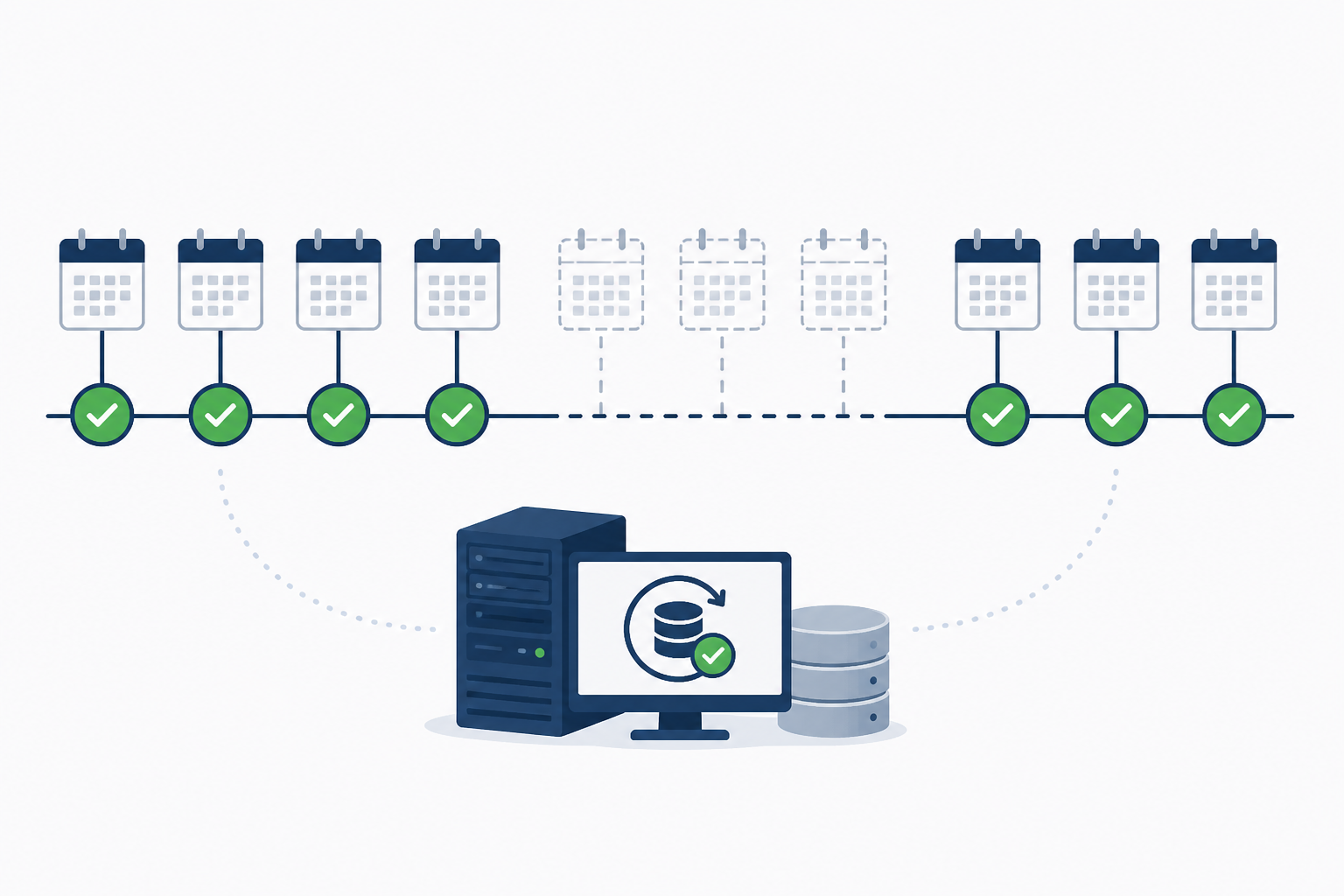
Here's the uncomfortable truth about backup jobs: they're one of the few pieces of infrastructure that can fail by doing absolutely nothing. A web server that crashes throws an error. An API that goes down returns a 500. But a cron job that quietly stops running? It just... doesn't run. That's the exact gap that cron job monitoring exists to close, and nowhere does it matter more than with backups.
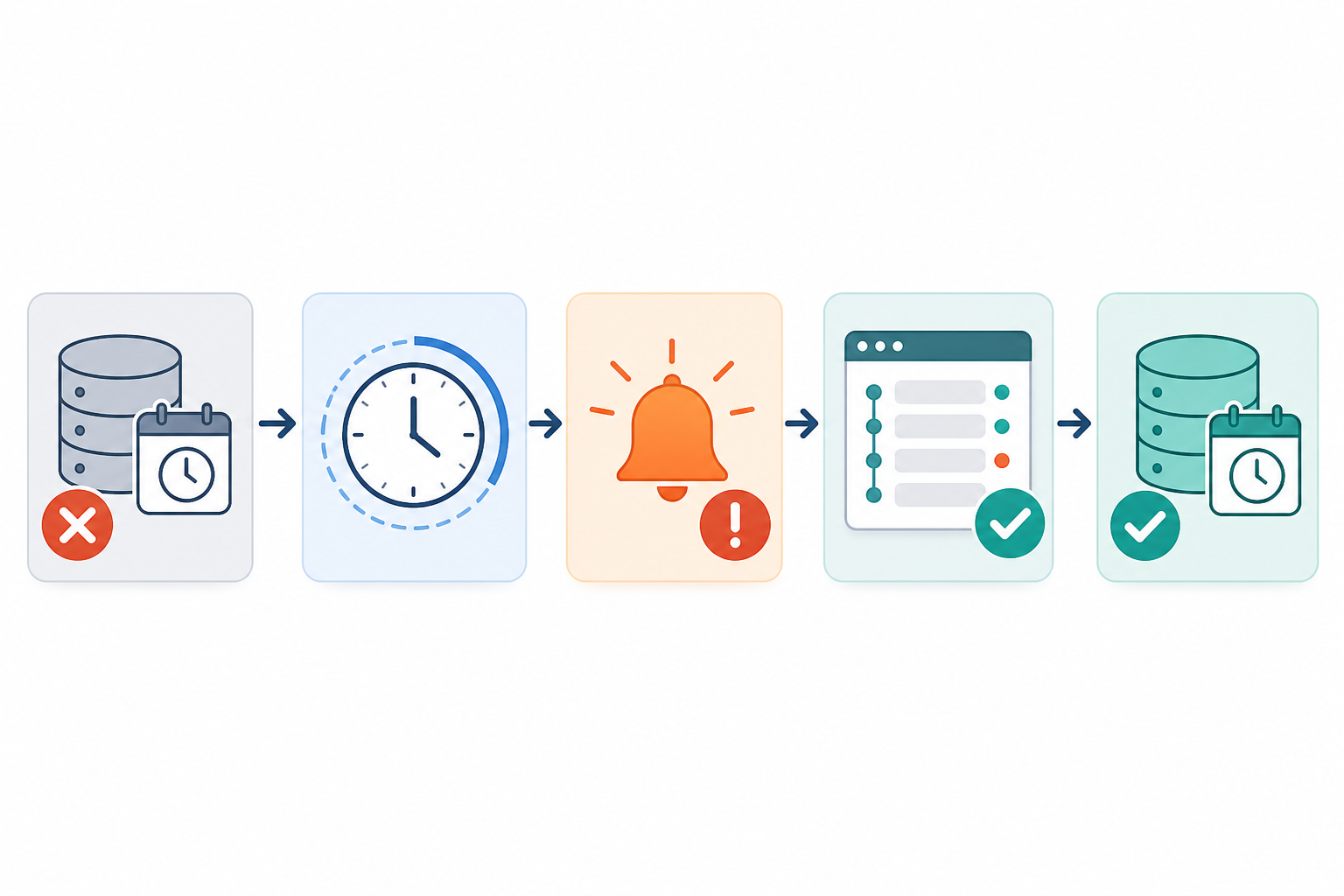
The fix, for backups specifically, is heartbeat monitoring: your backup script pings a monitoring URL every time it completes successfully, and if that ping doesn't arrive within an expected window, you get alerted immediately. Instead of finding out during a disaster recovery scramble at 2am, you find out during a normal Tuesday afternoon, when fixing it is a five-minute job instead of a five-alarm fire.
Let's talk about why this particular failure mode is so dangerous, how cron job monitoring works in practice, and exactly how to set it up so it catches problems before they cost you anything.
Why Backup Failures Are the Worst Kind of Silent Failure
I've noticed a pattern across every infrastructure team I've worked with: everyone monitors the things that are loud, and almost nobody monitors the things that are quiet. A failed HTTP request throws an error code that someone, somewhere, will eventually notice. A server that runs out of memory sends a kernel panic to the logs. These failures announce themselves.
Backup jobs don't always work that way. To be fair, a stopped cron job might leave some trace — a scheduler log entry, a mail notification nobody reads, an exit code sitting quietly in a system file. The evidence often exists; the problem is that nobody's actively watching for it. Unlike a live web server, there's no running process left to fire an alert once the backup job itself has gone quiet. It's a bit like a smoke detector with a dead battery: there's technically a status light somewhere on the unit, but if nobody checks it, it doesn't help you.
In practice, this shows up as one of a few distinct failure types, and it's worth telling them apart:
- Scheduler failure — the cron entry itself gets lost. A server migration happens, and the backup job's line gets left behind on the old box, or copied over incorrectly onto the new one.
- Script failure — the job runs, but doesn't do what it's supposed to. A dependency update changes how a script behaves, causing it to exit early instead of completing the full backup. Because it exits cleanly rather than throwing an error, nothing looks wrong from the outside.
- Storage failure — the destination can't accept the backup. A disk fills up just enough that the write silently fails, but the script never checks for that condition.
- Human error — someone reorganises crontab entries during a cleanup and accidentally deletes or comments out a line.
Each of these produces little to no visible signal at the moment it happens. The failure stays invisible until the exact moment you need the backup, and by then, it's too late to do anything except explain to someone why the data isn't recoverable.
How Teams Typically Find Out a Backup Failed — And Why It's Too Late
Once you see the usual ways teams discover a backup has been failing, the urgency of fixing it becomes pretty obvious.
- During an actual restore attempt. This is the classic nightmare scenario: data loss, a ransomware incident, or a bad deployment forces someone to reach for the backup, and it turns out the backup hasn't run in weeks.
- During a routine audit or compliance check. Someone's reviewing backup logs ahead of a certification renewal — an ISO 27001 audit or a Cyber Essentials review, for example — and notices the gap. Better than a disaster, but still weeks or months after the actual failure started.
- When storage patterns look off. Someone notices disk usage isn't growing the way it should, investigates, and traces it back to a backup job that quietly died a while ago.
- Almost never from the backup system itself. This is the part that trips people up. If the backup process isn't running, it has no mechanism to tell you it's not running. You can't rely on the failing system to report its own failure.
The common thread across every one of these discovery methods is timing: they all happen after the damage is done, not before. Every day between the actual failure and the discovery is a day you were operating without a safety net and didn't know it.
Setting Up Heartbeat Checks for Backup Jobs
The good news is that fixing this doesn't require a complex monitoring overhaul. Heartbeat monitoring — sometimes called dead man's switch monitoring — is a genuinely simple form of cron job monitoring: your job pings a URL when it succeeds, and if that ping doesn't arrive on schedule, you get alerted.
Before we get into the steps, it's worth being upfront about what a heartbeat actually proves. A successful ping tells you the script reached the ping command. It does not tell you the backup is complete, uncorrupted, or restorable — that's a separate problem, and I'll come back to it in the testing section below. Think of the heartbeat as confirming the job ran, not as confirming the backup is trustworthy.
Here's how to set up cron job monitoring for a backup:
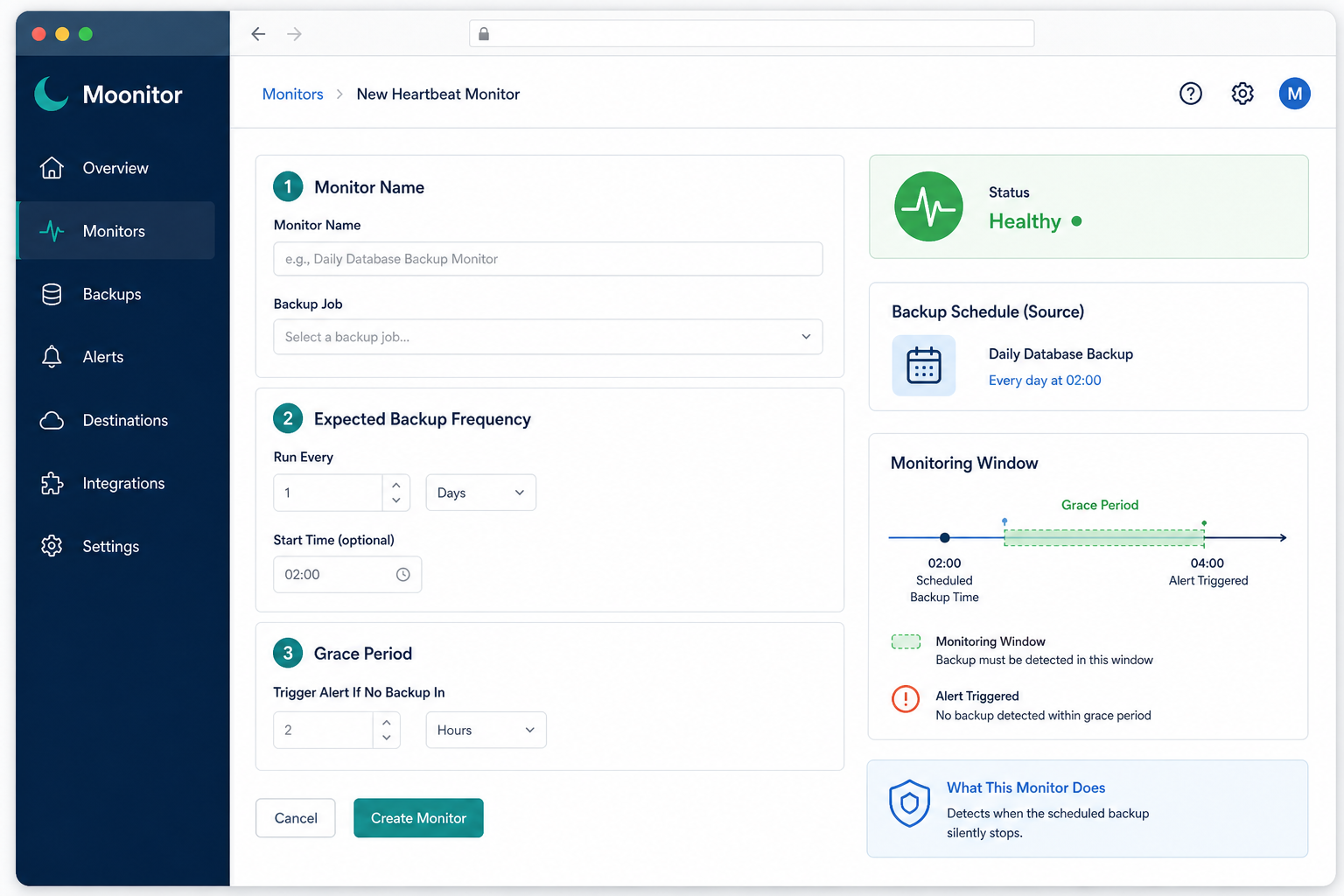
- Create a heartbeat monitor for your specific backup job. Give it a clear, descriptive name like "Nightly DB Backup — Production" rather than something generic, especially if you're running several backup jobs across different systems.
- Add validation before you ping. Don't just ping when the command exits — check that the backup actually produced something worth having. Here's a slightly more realistic example than a single curl call:
#!/usr/bin/env bash
set -Eeuo pipefail

BACKUP_FILE="/var/backups/db-$(date +%F).sql.gz"

# Run the actual backup
pg_dump production_db | gzip > "$BACKUP_FILE"

# Validate before declaring success
if [[ -s "$BACKUP_FILE" ]]; then
  curl -fsS https://moonitor.io/ping/your-unique-id
else
  echo "Backup file missing or empty — not pinging" >&2
  exit 1
fi
set -Eeuo pipefailmakes sure a failure anywhere in the pipeline — including insidepg_dump— stops the script instead of silently continuing. The[[ -s "$BACKUP_FILE" ]]check confirms the output file exists and isn't empty before the ping fires. This is still a minimal example; depending on your setup you might also check a minimum expected file size or a checksum before considering the run successful. - Make the ping strictly conditional on success. This is the step people skip, and it defeats the whole purpose if you get it wrong. If your script fails partway through, the ping should never fire — otherwise you're reporting a failed backup as healthy, which is worse than not monitoring at all.
- Set your expected frequency to match the job's actual schedule — nightly, hourly, weekly, whatever applies. If your servers run on UTC but your team works UK hours, keep the twice-yearly GMT/BST shift in mind — a job scheduled for 2am local time can effectively move by an hour around the clock changes, which is worth accounting for in your grace period.
- Confirm the first heartbeat arrives after the next scheduled run, then treat a missed ping going forward as your cue to investigate.
This is a small addition to an existing cron job monitoring setup, and it's the difference between finding out about a problem in five minutes versus five weeks. Just remember: it confirms the job ran and produced something. It doesn't yet confirm that something is restorable — we'll get to that.
Choosing the Right Grace Period for Backup Monitoring
Once your heartbeat monitor is running, the next decision is your grace period — the buffer between when a job is expected to check in and when it actually gets flagged as overdue. One thing worth clarifying upfront: this should be measured from when the job is expected to finish, not when it starts. If your backup typically takes 45 minutes to run, your grace period needs to account for that runtime plus a reasonable buffer, not just the moment the cron trigger fires.
Get the grace period wrong in either direction and you undermine the whole system. Too short, and normal variance sets off false alarms — maybe your backup runs slightly longer one night because there's more data than usual, or the server restarts a few minutes late after a routine patch. If your grace period doesn't account for that, you'll get paged for nothing, and the fastest way to make a team ignore alerts is to send them ones that don't mean anything.
Too long, and you defeat the entire purpose of fast detection. A six-hour grace period on a job that's supposed to run at 2am means you might not find out about a real failure until well into the next business day — barely better than not monitoring at all.
A sensible starting point for a nightly backup: a grace period of 30 to 60 minutes past the expected completion time. How much buffer you actually need depends on how variable the job's runtime is, how fast you need to know about a failure, and how expensive a false alarm is for your team at 3am versus a Tuesday afternoon.
For jobs with more variable runtimes — large database dumps, multi-terabyte syncs, anything dependent on network conditions — don't just guess. Look at your historical run times, find the worst-case duration you've actually seen, and add a reasonable buffer on top of that. This gives you a grace period grounded in real behaviour rather than a number that sounds about right.
Alerting the Right People Immediately
A monitor that fires correctly but alerts the wrong person is only marginally better than no monitor at all. Getting the alerting right matters just as much as the detection itself.
- Route the alert to whoever can actually act on it. That's usually the on-call engineer or the person who owns the backup infrastructure directly — not a shared inbox that gets checked once a day, if that.
- Use immediate, high-visibility channels. Slack or Discord work well for team-wide awareness, but given how high-stakes backup failures tend to be, pair that with something more urgent, like Telegram or a phone-based alert, so the notification doesn't just sit unread in a busy channel.
- Build in escalation with a clear policy. Name a primary owner, set an acknowledgement deadline (fifteen minutes is a reasonable default), and name a secondary contact who gets paged automatically if that deadline passes. This is what prevents a single missed notification from turning into a week-long gap in your backup coverage.
- Keep the noise low. Nobody responds well to alert fatigue, and backup alerts are exactly the kind of thing you don't want people tuning out. Many monitoring tools — Moonitor included — offer verification steps, such as checking from more than one region, before triggering an alert, which helps rule out transient blips. Worth checking whether your tool of choice does something similar before you rely on it heavily.
- Document ownership clearly. Whoever's responsible for backup monitoring should be written into your incident runbook, so there's zero ambiguity about who's expected to respond when an alert fires at an inconvenient hour.
Testing Your Backup Monitoring Setup
A monitoring setup you haven't tested is really just a monitoring setup you're hoping works. Here's how to actually verify it does what you think it does — and, just as importantly, how to verify the backups themselves are still worth having.
- Manually disable the cron job by commenting it out, then confirm you receive an overdue alert once your grace period has passed. If nothing arrives, something in your configuration needs attention before you trust it with real backups.
- Verify the alert reaches the right person through the right channel. Test Slack, email, and any webhook integrations individually — it's not enough for one channel to work if the others silently fail.
- Simulate a partial failure. Make the script error out before it reaches the validation and ping steps, and confirm this is correctly treated as a missed heartbeat rather than a false success. This is the scenario most likely to slip through if your conditional logic isn't set up correctly.
- Check your incident history in Moonitor afterward to confirm both the failure and the recovery are logged, giving you a clean record to reference later.
- Run an actual test restore, periodically. A heartbeat only proves the job ran and produced a non-empty file — it says nothing about whether that file will actually restore cleanly. Pick a recent backup, restore it to a scratch environment, and confirm the data comes back intact. Quarterly is a reasonable minimum for anything business-critical.
- Repeat all of this periodically, especially after changes to your backup scripts or server setup. A test you ran successfully six months ago doesn't guarantee anything today.
Frequently Asked Questions About Cron Job Monitoring for Backups
How would I know if a scheduled backup silently stopped running?
Without cron job monitoring in place, you typically wouldn't know until you needed the backup and it wasn't there. With a heartbeat monitor set up, your backup script pings a monitoring URL after every successful run — if that ping doesn't show up within your expected window, you get an alert straight away, instead of discovering the gap during a crisis.
What grace period should I set for a nightly backup job?
A good starting point is 30–60 minutes past the expected completion time — measured from when the job should finish, not when it starts — which is enough to absorb normal runtime variance without delaying detection of a real failure. If your job has highly variable runtime, base the grace period on your historical worst-case duration rather than the average.
Who should be alerted first if a backup fails?
Whoever can actually investigate and fix it — typically the on-call engineer or the person who owns the backup infrastructure. Route the alert through a channel they'll see quickly, like Slack or Telegram, and set up escalation to a secondary contact with a defined acknowledgement window if the first alert goes unanswered.
Does a successful heartbeat mean my backup is restorable?
No, and this is worth being clear about. A heartbeat confirms your script ran and reached the point where it pings the monitor — it doesn't confirm the backup file is complete, uncorrupted, or actually restorable. Pair heartbeat monitoring with basic validation (checking file size or checksums) and periodic test restores to close that gap.
Can I monitor multiple backup jobs with one heartbeat monitor?
It's better to create a separate heartbeat monitor for each distinct backup job. This way, if your database backup fails but your file storage backup succeeds, you know exactly which one needs attention instead of getting a vague "something failed" alert.
Does heartbeat monitoring work for backups that run on irregular schedules?
Generally yes, though this depends on the specific capabilities of your monitoring tool. You'll want to set the expected frequency and grace period to match the actual schedule, even if it's not a simple daily or hourly cadence — the key is that the monitor knows what "on time" looks like for that specific job.
Your Next Step: Add Cron Job Monitoring to a Critical Backup
Before you close this tab, here's a short checklist for getting cron job monitoring in place for your most important backup:
- Identify your single most business-critical backup job
- Add validation and a success-only ping to the end of the script
- Create a heartbeat monitor with a grace period based on real, historical runtime data
- Route the alert to whoever can actually act on it, with a defined escalation path
- Test it by disabling the cron job and confirming the alert actually arrives
- Schedule a quarterly test restore to confirm the backup itself is trustworthy, not just present
Backups are the safety net you hope you never need — which is exactly why they're so easy to neglect once they're set up and running. A little heartbeat monitoring, a sensible grace period, and clear alerting turn that safety net from something you assume is working into something you actually know is working. That's worth five minutes of setup time, every single time.