
How to Set Up Slack and Discord Alerts for Client Downtime (Without Driving Yourself Mad)
Set up Slack downtime alerts and Discord webhooks for fast incident alerting, with client-specific channels, smart filters and fewer missed outages.
How to Set Up Slack Downtime Alerts and Discord Webhooks for Client Websites
If you're running an agency and you're still finding out about client downtime because someone fired off an angry email at 9am, we need to talk. You can connect Slack and Discord to Moonitor fairly quickly using native integrations and webhooks, then route Slack downtime alerts and Discord notifications to client-specific channels so the right team sees the right incident fast.
That part's reasonably simple. The real work—the bit that separates calm agencies from frazzled ones—is configuring smart filters and escalation rules so you're not getting paged for a 10-second blip that resolved itself before you'd even opened your laptop. Done properly, this creates a reliable incident alerting process for agencies managing multiple client websites.
A quick note before we start: the exact setup time depends on a few things outside your control—whether you have admin rights on your Slack workspace, whether someone else owns the Discord server, and whether a client needs to approve you adding anything to their systems. If you've got the right permissions already, you're looking at ten to fifteen minutes per platform. If you're waiting on a workspace admin to approve an app install, budget for that delay separately.
Let's walk through connecting Slack and Discord, routing alerts by client, filtering false positives, and troubleshooting common setup problems.
Why Real-Time Alerts Matter for Agencies Managing Multiple Clients
Here's a scenario most agency folks have lived through at least once: a client's checkout page goes down for twenty minutes on a Tuesday afternoon, nobody on your team notices, and the first you hear of it is a terse email with "URGENT" in the subject line. By the time you've read it, triaged it, and fixed whatever broke, you've lost the client's confidence and a chunk of your afternoon doing damage control instead of actual work.
Agencies carry a different risk profile than someone running a single site. You've got more surface area—multiple domains, APIs, cron jobs, servers—more SLAs to honour, and more reputations riding on uptime than just your own. One client's outage reflects on you, even if the root cause was their hosting provider or a third-party API you don't control. For UK agencies specifically, this often means coordinating across time zones with clients or hosting providers abroad and being able to show clients exactly when an incident was detected and resolved for your own records and GDPR-related data handling conversations.
Email alerts are better than nothing, but they're too slow for this kind of pressure. People don't check email in real time the way they check Slack or Discord. Your team already lives in those tools all day, so that's where incident alerting needs to show up too. A practical model that works well is to route production incidents to a dedicated ops channel, staging and lower-priority warnings to a separate project channel, and client-facing communication entirely separately. We'll get into exactly how that routing works in a moment.
How to Connect Slack to Your Uptime Monitor
Before you start, check you have permission to add apps to the Slack workspace you're connecting. Some workspaces restrict app installs to admins only—if that's the case here, you'll need someone with admin rights to approve the Moonitor Slack app, or the install step will stall without an obvious error message.
- Go to Integrations in your Moonitor dashboard and select Slack from the list of available options.
- Authorise the Moonitor Slack app and choose which workspace to connect it to. If you manage separate workspaces for different clients, repeat this step once per workspace.
- Pick a default channel for alerts to land in. You can override this per client or per monitor later, which we'll cover in the routing section below.
- Send a test alert, and then trigger a test recovery notification too if your plan supports it. This matters because a working "down" alert doesn't guarantee a working "back up" alert—and finding that out mid-incident is the worst possible time.
- Check the message format. A useful Slack downtime alert should include the monitor name, the region that flagged the failure, the response time at the moment of failure, and a direct link to the incident details, so you're not hunting through the dashboard mid-crisis. If your version of the alert is missing any of this, check your notification template settings before going further.
If no test alert arrives after a minute or two, the most common causes are: the app wasn't actually authorised (check your Slack workspace's app directory), the wrong channel was selected during setup, or your Slack workspace has a message-posting restriction on the channel you picked. Try posting to a channel you own personally first to rule out permissions issues.
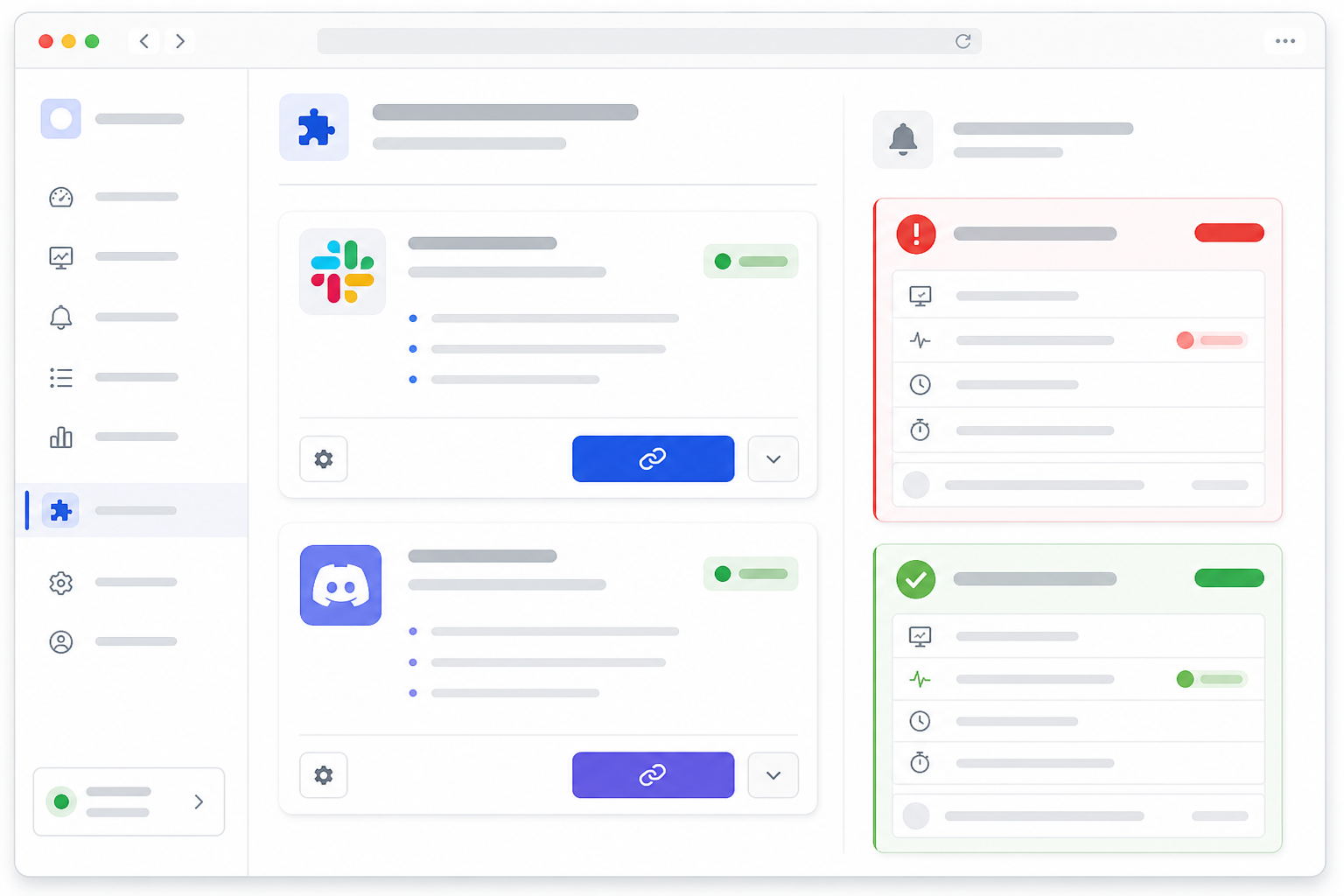
Once a clean test alert lands and a recovery notification fires correctly, you're done with the Slack side.
How to Set Up Discord Webhooks for Downtime Alerts
Discord works differently to Slack. Rather than installing an app with OAuth permissions, Discord uses webhooks: a unique URL that lets external services post messages into a specific channel. This works in your favour if you're managing several clients, since you can create a dedicated webhook per client without an app-install approval process slowing you down.
You'll need the Manage Webhooks permission on the Discord server to complete this. If you're not the server owner, ask whoever administers the client's Discord to either grant you that permission or create the webhook and hand you the URL directly.
- Create a webhook URL inside Discord. Go to the channel you want alerts posted in, open Channel Settings, find Integrations, and click "Create Webhook."
- Copy the webhook URL. Treat this like a password—anyone with the URL can post messages into that channel. Don't paste it into a public Slack message, a shared doc, or a GitHub repo. If a webhook URL does leak, delete it immediately from Discord's integration settings and create a fresh one; there's no way to "reset" a compromised webhook, only replace it.
- Paste the webhook into Moonitor's Discord integration panel, under Integrations in your dashboard, and save.
- Name your webhook clearly if you're managing more than one—something like "ClientName – Production Alerts" rather than the default "Webhook 1," which becomes meaningless fast once you've got five of them.
- Send a test alert, confirm it arrives, and then test a recovery notification the same way you did for Slack. While you're in there, set a distinct avatar or display name for the bot so a client's alerts are visually recognisable in a busy server.
If the test message never shows up, double-check you pasted the full webhook URL without trailing spaces, and confirm the channel the webhook points to still exists—Discord webhooks silently stop working if their target channel gets deleted or renamed in some setups.
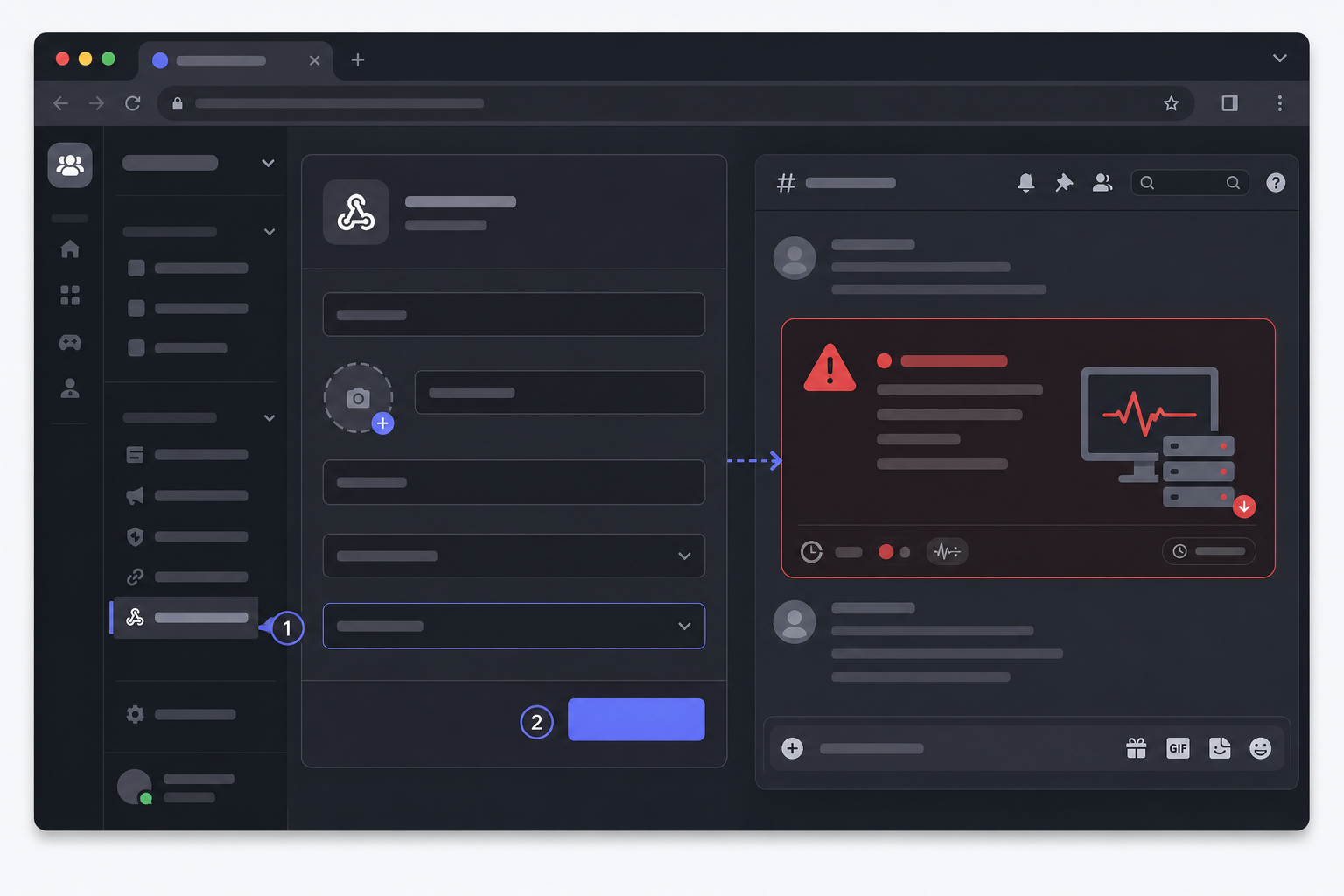
No app approvals, no waiting on workspace admins—just a URL, a permission check, and a save button.
How to Route Alerts by Client Channel
This is the part that actually changes how your team operates day to day, so it's worth doing properly rather than rushing it.
- Create a dedicated Slack channel or Discord server per client, or per client tier if you've got dozens of small accounts that don't each need their own space. This single habit prevents the "wait, which client was this again?" scramble during a real incident.
- Assign specific monitors to specific notification channels, if your Moonitor plan supports per-monitor routing. Check your plan's feature list before assuming this is available—some plans route all alerts to one default destination, with per-monitor overrides as a higher-tier feature.
- Use a consistent naming convention across monitors and channels. Something like
client–environment–service–severityworks well:acmecorp-production-checkout-criticaltells anyone covering on-call exactly what they're looking at, even if they don't normally work on that account. - Set up escalation paths for critical alerts, where your plan allows it. A failed health check on a staging API might only need to ping the project channel; a full outage on a client's production checkout flow should also land in a shared ops channel so it isn't missed if the primary developer is offline.
- Keep your client-facing status page separate from internal alert routing, and decide upfront who owns client communication. A branded status page is what clients see; Slack and Discord are where your team works through the incident. The usual split that works: the on-call engineer manages the technical response in your internal channels, while the account manager decides when and how to update the client—ideally via the status page first, with a direct message reserved for anything that breaches an SLA.
Here's a worked example of what a small routing matrix might look like:
| Client | Environment | Monitor type | Alert destination | Escalation |
|---|---|---|---|---|
| Acme Corp | Production | Checkout API | #acme-ops | Pages on-call after 2 failed checks |
| Acme Corp | Staging | Health check | #acme-dev | No escalation, logged only |
| Beta Ltd | Production | SSL certificate | #beta-alerts | Informational, no page |
| Beta Ltd | Production | Cron job | #beta-ops | Pages on-call after 1 failed check |
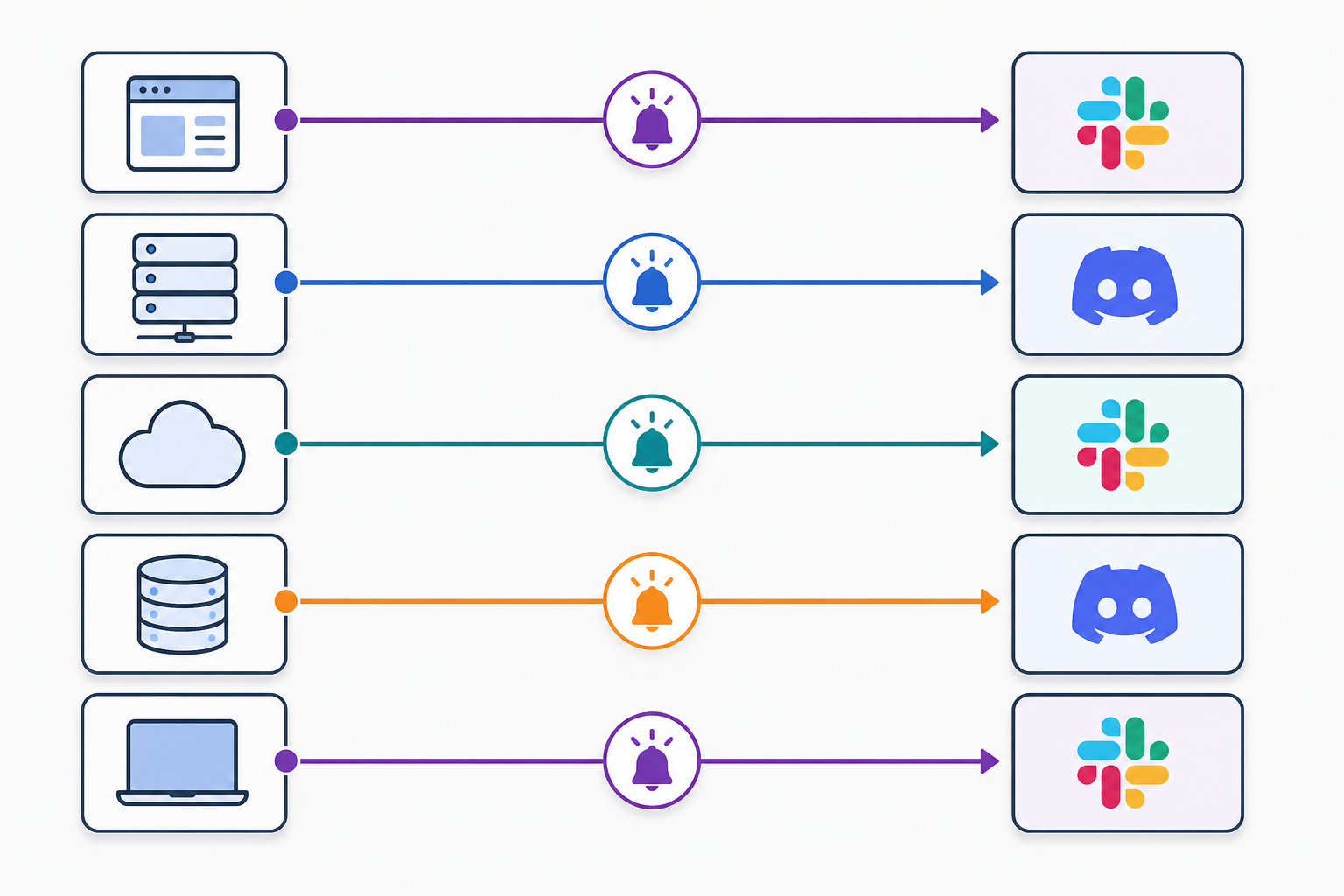
Once this is set up, an outage on Client A's server shows up in Client A's channel, tagged clearly, visible to the right people, without anyone needing to dig through a shared channel full of unrelated noise.
How to Avoid Alert Fatigue With Smart Filters
Here's the uncomfortable truth about incident alerting: if your alerts are noisy, your team will start ignoring them. Not consciously, not on purpose—but after the fifth "DOWN" notification that turns out to be a brief network hiccup, people's brains quietly reclassify your alert channel as background noise. That's exactly when a real incident slips through unnoticed.
The values below are starting points, not universal defaults—tune them against your own traffic and tolerance for false positives:
| Monitor type | Check interval | Retry/confirmation | Regions required | Escalation delay |
|---|---|---|---|---|
| Production payment API | 1 minute | Immediate retry | 2 regions must agree | Page immediately |
| General production site | 2–3 minutes | 1 retry before alert | 2 regions must agree | Page after 2 failed checks |
| Staging/internal tools | 5 minutes | 2 retries before alert | 1 region | Log only, no page |
| SSL certificate expiry | Daily check | N/A | N/A | Informational channel, 30/14/7-day warnings |
| Cron job monitoring | Matches job schedule | 1 missed run tolerance | N/A | Alert after 1 missed run |
A few supporting practices worth layering on top, where your monitoring plan supports them:
- Lean on multi-region failure verification where available. A single failed check from one location often just means that network path had a momentary issue, not that the site is actually down. Requiring agreement from a second region before firing an alert removes a large chunk of false positives.
- Separate informational events from true downtime incidents. An SSL certificate expiring in 30 days is useful to know about, but it isn't an emergency—it shouldn't trigger the same urgent ping as a server that's genuinely unreachable.
- Use maintenance windows for planned deploys, if your plan includes this feature. Getting paged every time someone pushes a routine update trains a team to ignore alerts faster than almost anything else. Scheduling a maintenance window suppresses alerts during known, planned downtime.
Get these roughly right and your Slack downtime alerts become something your team trusts: when something fires, it's real, and it gets actioned instead of glanced at and dismissed.
Choosing the Right Alert Channel for Incident Severity
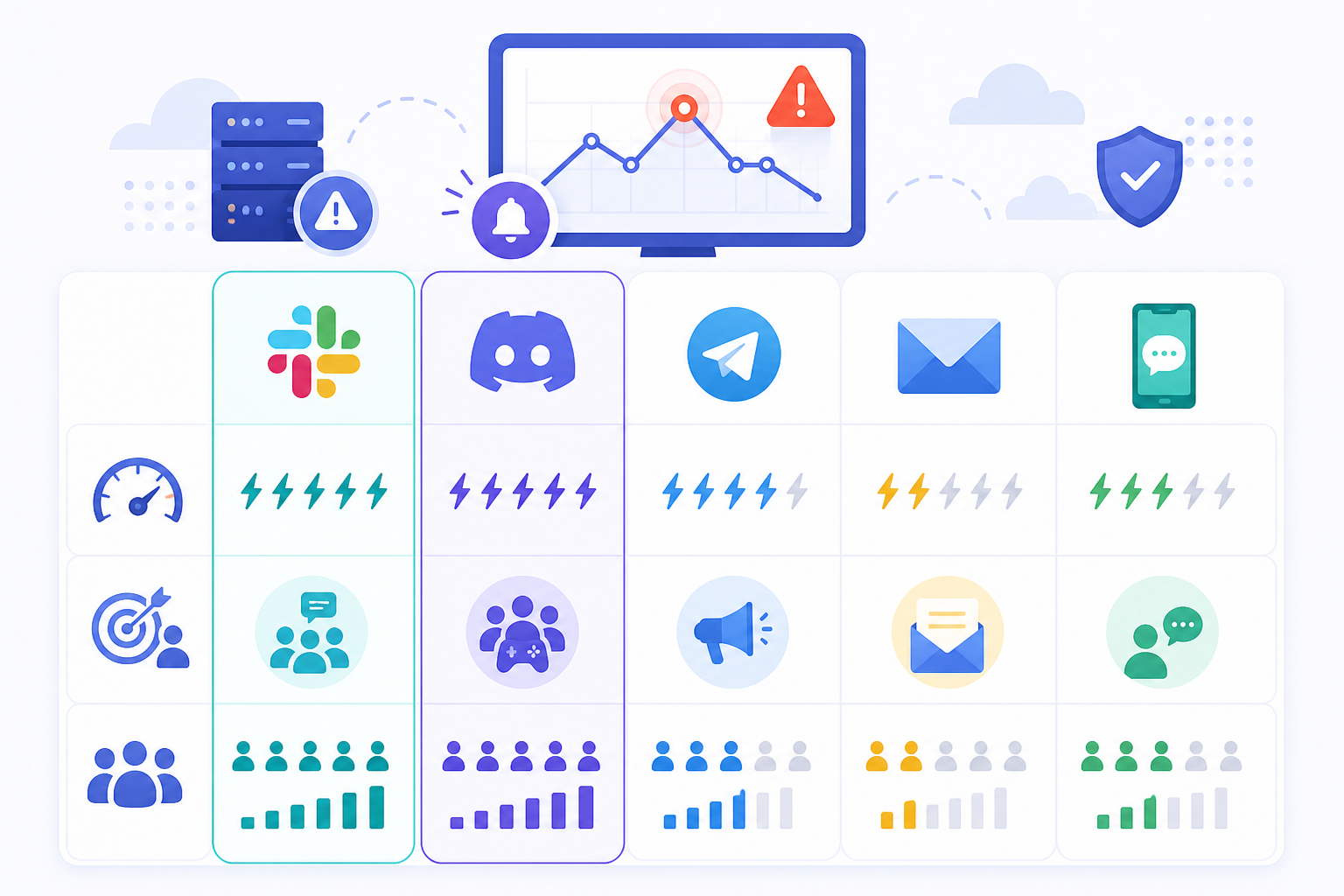
Not every incident deserves the same urgency, and not every channel behaves the same way under pressure. Worth being clear-eyed about what each one actually offers:
| Channel | Delivery | Acknowledgement | Best for | Limitation |
|---|---|---|---|---|
| Slack | Push notification, near-instant when online | None built-in unless you add a bot workflow | Team-wide visibility, threaded discussion | Useless if notifications are muted or the device is offline |
| Discord | Push notification via webhook | None built-in | Smaller teams, per-client servers | Same muting/offline limitation as Slack |
| Minutes, not seconds, in practice | None | Non-urgent summaries, audit trail | Too slow to be a primary alert path | |
| SMS/phone-style alerting | Near-instant, bypasses app notification settings | Depends on integration | Genuinely critical outages only | Only useful if Moonitor (or a third-party bridge like a webhook-to-SMS service) supports it on your plan—check before relying on it |
Neither Slack nor Discord guarantees someone sees an alert immediately—both depend on the recipient having notifications enabled and their device online. That's exactly why a secondary channel reserved for true critical outages matters: something that bypasses "do not disturb" settings for the handful of incidents where someone genuinely needs to know even if they've stepped away from their desk.
Troubleshooting Common Slack and Discord Alert Issues
A few things that trip people up during setup, and what to check:
- Test alert never arrives (Slack): Confirm the app was actually authorised in your workspace's app directory, not just initiated. Check the channel you selected still exists and that the bot has posting permission in it.
- Test alert never arrives (Discord): Re-check the webhook URL for missing characters, and confirm the target channel hasn't been deleted or renamed since the webhook was created.
- Alerts arrive but recovery notifications don't: Some notification templates only fire on failure, not resolution. Check your alert template settings specifically for a "recovery" or "resolved" message toggle.
- Alerts fire but go to the wrong client's channel: This is almost always a monitor-to-channel mapping error made during setup, not a Moonitor bug. Re-check your routing matrix against your actual channel list.
- Too many false positives after setup: Revisit your region-agreement settings and retry thresholds before assuming the monitor itself is broken.
Slack and Discord Downtime Alert Setup Checklist
Before you consider your monitoring setup finished, run through this:
- Confirm each client has monitors covering their actual critical paths: HTTP/S checks, API monitoring, SSL certificate monitoring, and cron job monitoring where relevant.
- Send both a failure test and a recovery test through each client's channel routing to confirm alerts land correctly in both directions.
- Confirm who owns client communication during an incident, and make sure that person knows where the branded status page lives and how to update it.
- Check that no webhook URLs have been shared anywhere insecure, and rotate any that have.
- Revisit your alert history after the first week and tighten retry thresholds or check intervals based on what real noise actually looked like.
That last step matters more than people expect. Your first configuration is always a guess—the real tuning happens once you've seen a week of live data.
Frequently Asked Questions About Slack Downtime Alerts
How do I connect Slack to my uptime monitor?
In Moonitor, go to Integrations, select Slack, and authorise the app for your workspace—you'll need admin rights on that workspace, or approval from someone who has them. You'll choose a default channel during setup, and from there you can assign specific monitors to specific channels if your plan supports per-monitor routing.
Can I send different alerts to different Discord channels?
Yes. Since Discord uses webhooks rather than a single app install, you can create a separate webhook URL for each channel or server and assign them to different monitors in Moonitor. This is how agencies keep Client A's alerts out of Client B's server without any extra app-install overhead.
How do I avoid spamming clients with alerts?
Route client-facing updates through a branded status page rather than their own Slack or Discord, and keep raw incident alerting internal to your team's channels. Pair that with multi-region failure verification and sensible retry thresholds, where your plan supports them, so you're only alerting on confirmed, meaningful downtime.
What's the fastest alert channel for critical incidents?
Slack and Discord are both push-based and generally fast when someone's actively online with notifications on—but neither is guaranteed to reach someone who's muted alerts or has their device offline. For genuinely critical incidents, many agencies layer in a secondary channel, like SMS or a phone-call webhook, so nothing gets missed. Check whether this is available on your Moonitor plan before building a process around it.
What do I do if a test alert never arrives?
First, confirm the basics: for Slack, check the app was actually authorised and that it has posting permission in the selected channel; for Discord, check the webhook URL was copied correctly and that the target channel still exists. If both check out and nothing arrives, try a different channel to rule out a channel-specific permissions issue before assuming the integration itself is broken.