
How to Set Up Slack and Discord Alerts for Downtime (Step-by-Step Guide)
Set up Slack downtime alerts in minutes with this practical guide to Slack and Discord integrations, custom messages, low-noise routing, testing, and
How to Set Up Slack Downtime Alerts and Discord Notifications (Step-by-Step Guide)
Meta description: Set up Slack downtime alerts in minutes with this practical guide to Slack and Discord integrations, custom messages, low-noise routing, testing, and troubleshooting.
To set up Slack downtime alerts, connect your monitoring tool to Slack using either a native integration or an incoming webhook URL, then map specific monitors to specific channels. In most modern monitoring tools, including Moonitor, this takes just a few minutes per channel: connect the workspace or paste the webhook, choose your monitors, customise the message if you want to, and send a test alert before you rely on it in production.
Usually you won't need to raise an IT ticket or wait weeks for approval. That said, if your organisation restricts Slack app installations (common in larger UK companies with stricter IT governance) you may need an administrator to approve the integration. I'll cover that below, along with Discord webhook setup.
Before you start, you'll need:
- Admin or owner access to your monitoring tool's alert settings
- Permission to install apps in your Slack workspace, or a colleague who can approve the installation
- The Discord channel where you want alerts sent, if you're using Discord instead of, or alongside, Slack
- At least one monitor already set up and running
Alerting tends to get treated as an afterthought, something to sort out once the "real" work is done. Then an outage actually hits, and it turns out the alerting was the real work all along. This guide is a practical, step-by-step walkthrough, detailed enough that you can follow along without guessing.
Why Slack downtime alerts matter, not just email
Here's a scenario that probably sounds familiar. Your API goes down at 2pm on a Tuesday. An alert email lands in someone's inbox, buried under a newsletter and a calendar invite. Nobody sees it for forty minutes. Meanwhile, a customer notices first and posts about it on social media. That's not a monitoring failure — you did catch the outage — it's a notification failure. The information existed. It just didn't reach anyone in time to matter.
Email isn't useless, to be fair. It's fine for weekly summaries, low-priority warnings, or anything that doesn't need eyes on it within minutes. But developers live in Slack and Discord all day, and inboxes get checked in batches, if at all. When downtime alerts show up in a shared channel instead, everyone sees them at once. Nobody has to forward a screenshot asking, "Is this us?"
I think of it as the difference between a five-minute API outage caught in Slack — someone glances at #incidents, confirms it, fixes it, posts the all-clear — versus the same outage discovered an hour later through a customer complaint. Same root cause, wildly different outcome. The only thing that changed was where the alert landed.
One caveat worth flagging: Slack and Discord notifications can still be missed, especially outside working hours. If someone's asleep, their phone is on silent, or the channel is muted, a Slack ping alone isn't waking anyone up. For genuinely critical services, the kind where an outage costs real money or damages customer trust, Slack should be your fast, visible first line, not your only line. Pair it with a dedicated paging tool like PagerDuty or Opsgenie for anything that needs a human out of bed at 3am, especially if your team spans time zones and someone's on call through the GMT/BST handover.
Chat alerts only work if people trust them, and that's where verification before alerting earns its keep. You want alerts that show up fast, but you don't want every network blip in one data centre pinging the whole engineering team. Moonitor, for example, checks from multiple regions before flagging something as "down" — worth confirming this against your own tool's docs, since not every platform verifies incidents the same way. Whatever tool you use, the principle holds: alerts that reach your channel should be worth reacting to. Speed matters, but so does signal quality.
How to connect Slack to your monitoring tool
Setting up Slack downtime alerts is simpler than most people expect, though the exact screens vary a bit by monitoring tool. The steps below reflect how most platforms, including Moonitor, structure their Slack integrations.
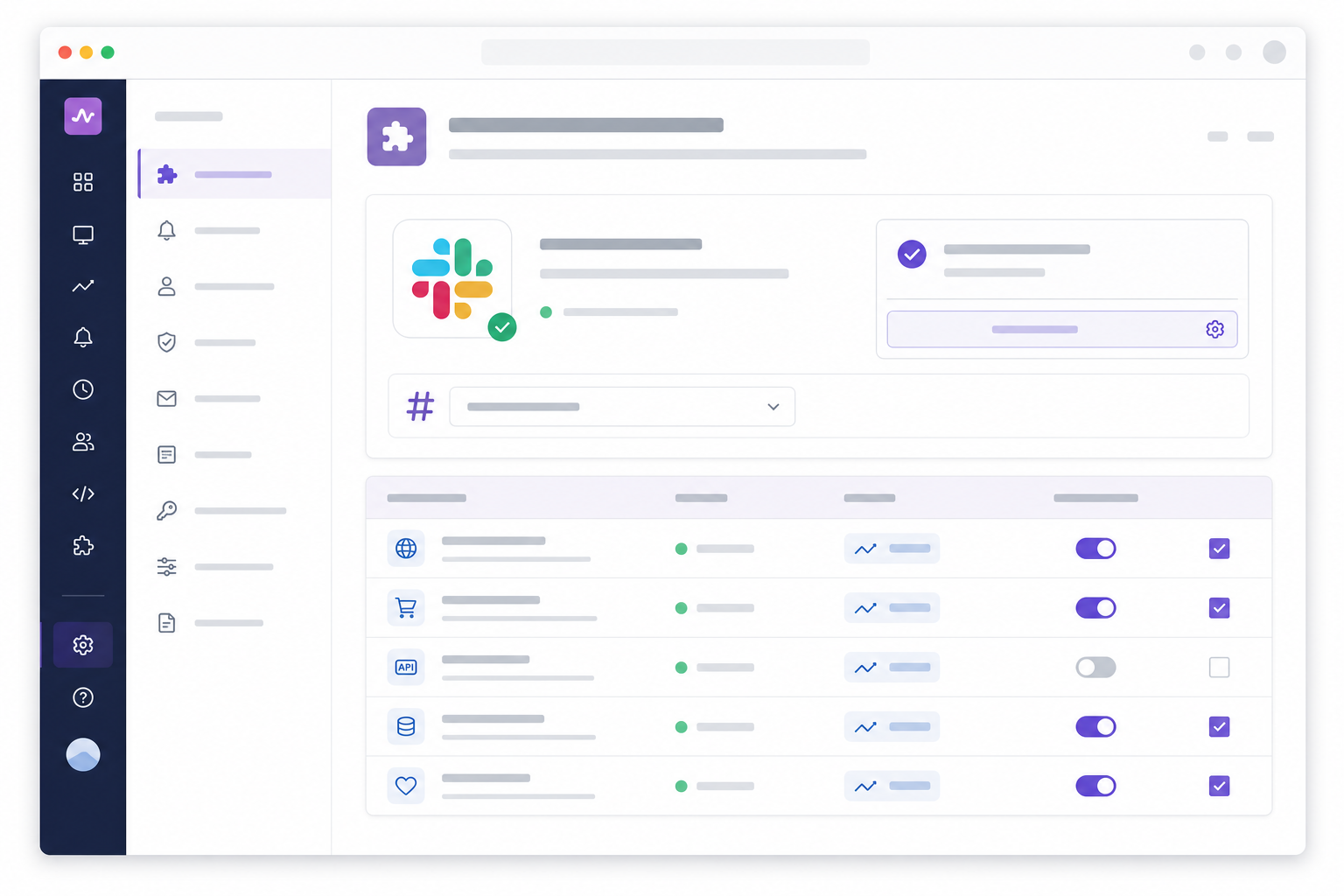
- Find the Slack integration in your alert or integration settings. This usually lives under something called "Alert Integrations," "Notifications," or "Channels" — a click or two from your monitor list.
- Authorise the Slack workspace via OAuth, or paste an incoming webhook URL if your workspace restricts app installations. With OAuth, Slack shows you a permissions screen listing what the integration can do, usually just posting messages to channels you choose. If app approval is locked down, ask an administrator to approve it, or use Slack's Incoming Webhooks app to generate a URL manually.
- Choose the destination channel. A dedicated channel like #incidents or #alerts beats #general every time. Downtime notifications shouldn't have to compete with everyday chatter.
- Assign the integration to specific monitors — your production API, main website, critical cron jobs — rather than every monitor by default. Not every check needs a Slack notification.
- Save the configuration, then confirm the integration shows as "Active" or "Connected" in your dashboard.
- Send a test alert if your tool offers this, and confirm the message actually lands in the channel you picked.
That second-to-last step matters more than it sounds. It's entirely possible to configure the integration correctly and then forget to save the monitor assignment, leaving it connected but not actually routing anything. Always check the active status before trusting Slack notifications in production.
What if Slack OAuth isn't available?
Some organisations restrict which apps can be installed workspace-wide. This is common in regulated UK sectors like finance and healthcare. If that's you, incoming webhooks are the workaround: generate a URL using Slack's Incoming Webhooks app and paste it into your monitoring tool instead of going through native OAuth.
Your Slack administrator may still need to approve the app or webhook depending on workspace policy. Follow your organisation's security requirements, and don't share webhook URLs anywhere public or unsecured.
How to connect Discord webhooks for downtime alerts
If your team uses Discord instead, the process is a bit more manual than Slack's OAuth flow, but it's straightforward once you know where to look.
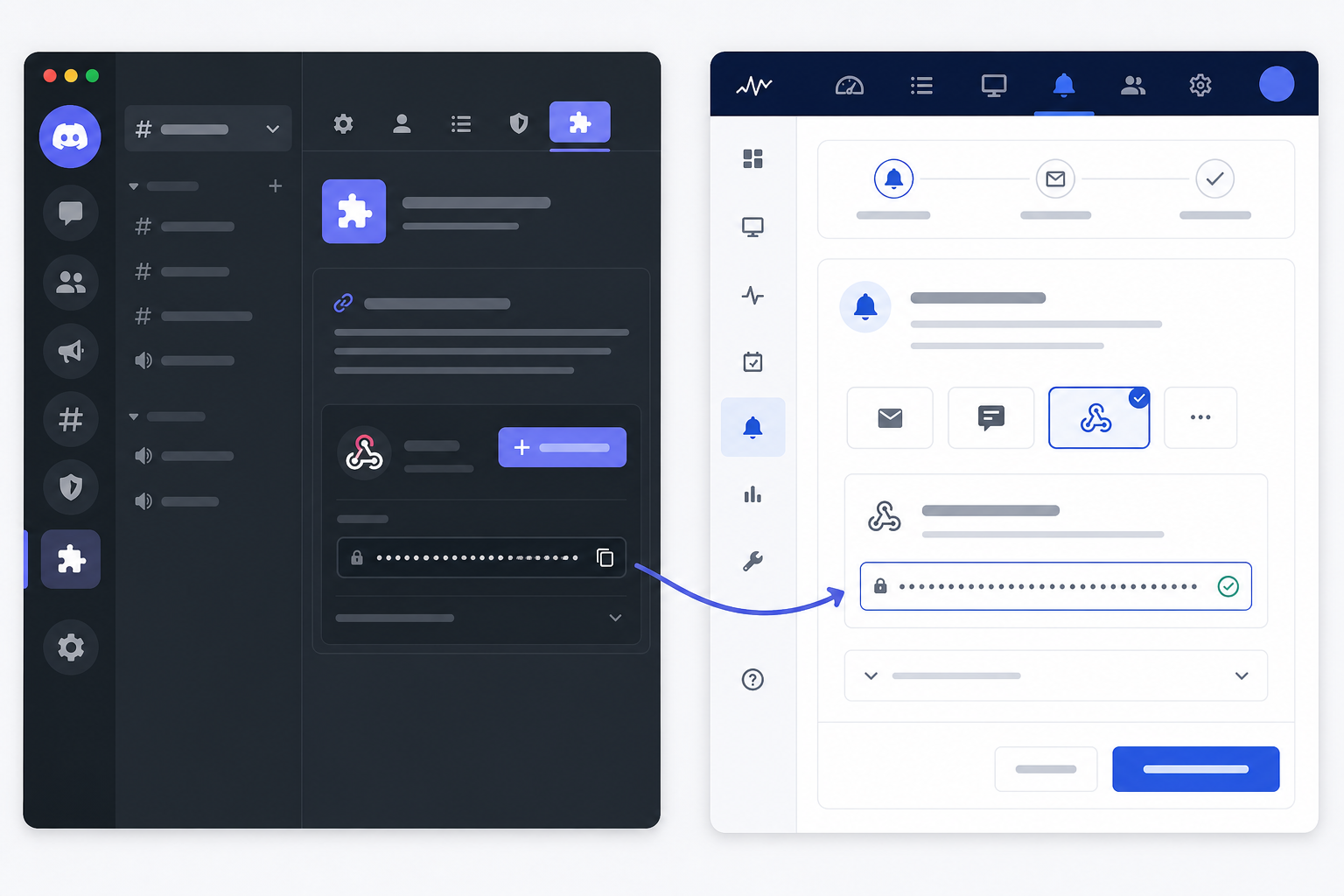
- In your Discord server, go to Channel Settings > Integrations > Webhooks and create a new webhook for the channel where you want alerts to appear.
- Copy the webhook URL. Treat it like a password — anyone with it can post to that channel until you delete or regenerate the webhook. Don't paste it into a public repository, an unsecured shared doc, or a Slack message someone might forward.
- Paste the webhook URL into your monitoring tool's Discord alert integration screen. No extra login or permissions flow needed, usually.
- Name the webhook clearly — something like "Moonitor Alerts" — so your team knows where the message came from.
- Link the webhook to the relevant monitors and save.
Discord webhooks are per-channel, which limits the damage if one leaks. But a leaked webhook can still be misused, so if you suspect a URL has been exposed, go back to Channel Settings > Integrations, delete or regenerate it right away, and update your monitoring tool with the new one.
How to customise Slack downtime alert messages
A bare "Monitor is down" message is technically an alert, but it's not much use to anyone. When something breaks, whoever's on call shouldn't have to open a dashboard just to figure out what happened. A good alert message gives them enough to act on immediately.
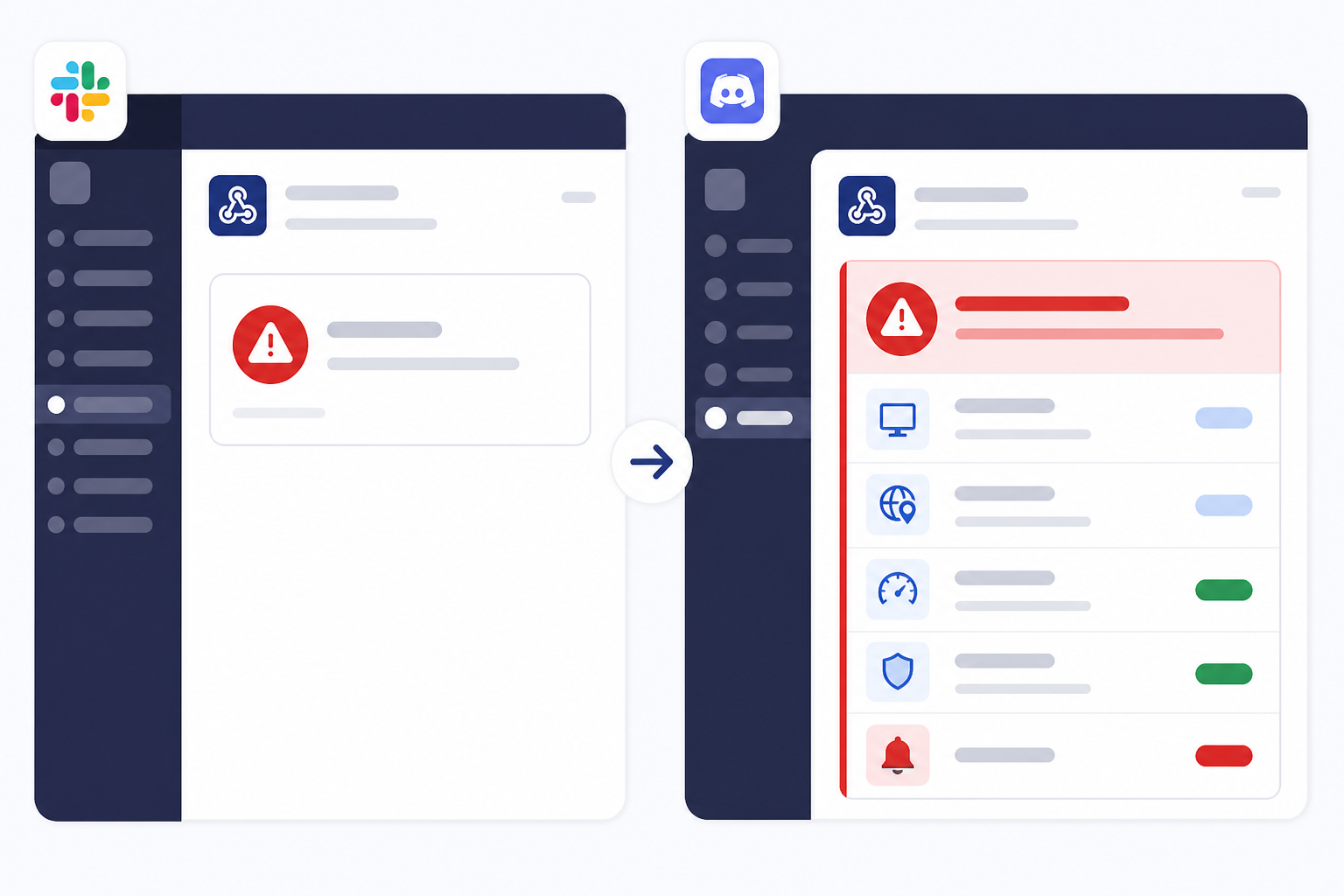
Here's an example of a well-structured DOWN alert in Slack:
🔴 DOWN — Production API Status: Unreachable (HTTP timeout) Region: London (LHR) Response time: N/A First detected: 14:03 GMT [View incident history →]
And the corresponding RECOVERED message, styled deliberately so it reads differently at a glance:
🟢 RECOVERED — Production API Downtime duration: 6 minutes Region: London (LHR) Response time: 214ms Resolved: 14:09 GMT
A few things worth including in your alert messages:
- Monitor name, status, timestamp, and response time. The basics that tell you what broke and when, without needing another tab open.
- Affected region, if you run multi-region checks. This tells you quickly whether you're looking at one data centre hiccup or something bigger.
- Separate templates for "down" and "recovered" alerts. The all-clear should look visually different, so someone scanning Slack at midnight can tell at a glance whether they still need to act. If your tool doesn't support separate templates, a consistent emoji convention like 🔴 and 🟢 does the job.
- Specific detail for SSL or DNS alerts. "Issue detected" tells you nothing useful. "SSL certificate expires in 4 days" or "DNS A record changed from X to Y" gives you an actual next step.
- A direct link to incident history or your status page, so people can dig in without waiting for the one engineer who remembers the backstory.
How to avoid Slack alert spam and notification overload
This is the part teams usually learn the hard way. You set up Slack downtime alerts, everything works, and within a month someone's muted the channel because a monitor has fired forty times without a single real outage behind it. Once that happens, trust in the whole system takes a hit.
A few things that help:
- Route alerts by severity into separate channels. Critical production stuff goes to #incidents. Lower-priority noise — a flaky staging server, a non-critical endpoint running slow — can go to #monitoring-noise.
- Use confirmation delays and multi-region verification where your tool supports it. One failed check from one region shouldn't wake up the whole team. Requiring two consecutive failures, a minute or two apart, before firing is a reasonable starting point, though exact settings depend on your platform.
- Set escalation rules. Alert Slack first, then escalate to a phone call or paging tool if nobody's acknowledged the incident within 10–15 minutes. Slack is your first line for critical services, not your only one.
- Mute alerts during planned maintenance windows, not the whole channel. That way an unrelated outage during a deployment doesn't slip through unnoticed.
- Review alert history monthly. If a monitor keeps firing without a real incident behind it, fix the threshold or check interval. Don't just train people to ignore it.
How to test your Slack and Discord alert setup
Don't wait for a real outage to discover your integration is broken. Test it first:
- Use your monitoring tool's built-in test alert function, if it has one. This confirms the connection works and the message actually lands, without touching a live monitor.
- Run a controlled test on a disposable, non-critical monitor to trigger a real down-and-recovered cycle. Don't test this on your production API.
- Check how it looks on mobile. A message that's clean on desktop Slack can end up awkwardly truncated on a phone, which matters when someone's responding at 2am.
- Confirm the right people actually have channel notifications turned on. A perfectly configured integration is useless if everyone's muted the channel.
- Write down the setup somewhere, even briefly, in your team wiki: where alerts go, which monitors are covered, what each channel means.
A few minutes of testing now saves you from discovering a broken integration in the middle of an actual incident.
Troubleshooting common Slack and Discord alert problems
Even a simple setup can go sideways. Here's what to check first:
- The test alert never shows up. Check that the integration status reads "Active," not just "Saved." Then double-check the webhook URL for stray spaces or missing characters.
- The alert lands in the wrong channel. Webhooks and OAuth connections are often channel-specific. If you moved or renamed the channel, recreate the Discord webhook or reselect the channel in your Slack integration settings.
- The integration shows as inactive. The monitor assignment might not have saved, or Slack may have revoked access because the app was uninstalled or its permissions changed. Reauthorise and reassign the monitors.
- Slack blocks the app install. Your workspace may limit app installs to admins only. Ask an admin to approve it, or fall back to an incoming webhook if your org allows it.
- Discord throws an "invalid webhook" error. The webhook was probably deleted or regenerated after you copied the URL. Grab the current one from Channel Settings > Integrations and update your monitoring tool.
- Alerts are suppressed during maintenance. Check whether maintenance mode is scoped to one monitor or your whole account. It's easy to accidentally silence more than you meant to.
FAQ: Slack downtime alerts and Discord webhooks
How do I send downtime alerts to my team's Slack channel?
Connect your monitoring tool to Slack using OAuth or an incoming webhook. Pick a dedicated channel like #incidents, assign it to the monitors you want covered, and send a test alert. Most tools, including Moonitor, let you do all of this from one settings page in a few minutes.
Can I customise what information appears in a Slack alert?
Yes, and honestly you should. Useful alerts include the monitor name, status, timestamp, response time, and region if you're running multi-region checks. Many tools support separate templates for "down" and "recovered" events. If yours doesn't, consistent colours or emojis do a decent job of making the difference obvious.
How do I avoid alert spam in busy Slack channels?
Route by severity, use confirmation delays or multi-region verification to filter out false positives, and set escalation rules so a brief blip doesn't page the whole team. Checking alert history now and then also helps you catch noisy monitors before people start tuning the channel out entirely.
Should critical alerts go to Slack or a dedicated paging tool?
Both, ideally. Slack is fast and visible during working hours, but easy to miss overnight if the channel's muted or someone's phone is on silent. For critical services, use Slack as your first line and pair it with a paging tool like PagerDuty or Opsgenie that can escalate to an actual phone call if nobody responds.
How do I keep a Discord webhook secure?
Treat it like a password. Don't commit it to a public repo or drop it in an unsecured shared doc. If you think it's leaked, delete or regenerate it immediately from Channel Settings > Integrations in Discord, then update the new URL in your monitoring tool.
Why did my test alert not arrive?
Start by checking that the integration status shows "Active," the webhook URL was copied correctly, and you're actually looking at the right channel. If all three check out, try regenerating the webhook and reconnecting — tokens can get revoked when permissions or channel settings change, sometimes without much warning.