
Keyword Monitoring: Catch Content Errors That Status Codes Miss
Keyword monitoring catches broken pages that still return 200 OK. Choose reliable signals for login, checkout and APIs, and alert on errors or defacement.
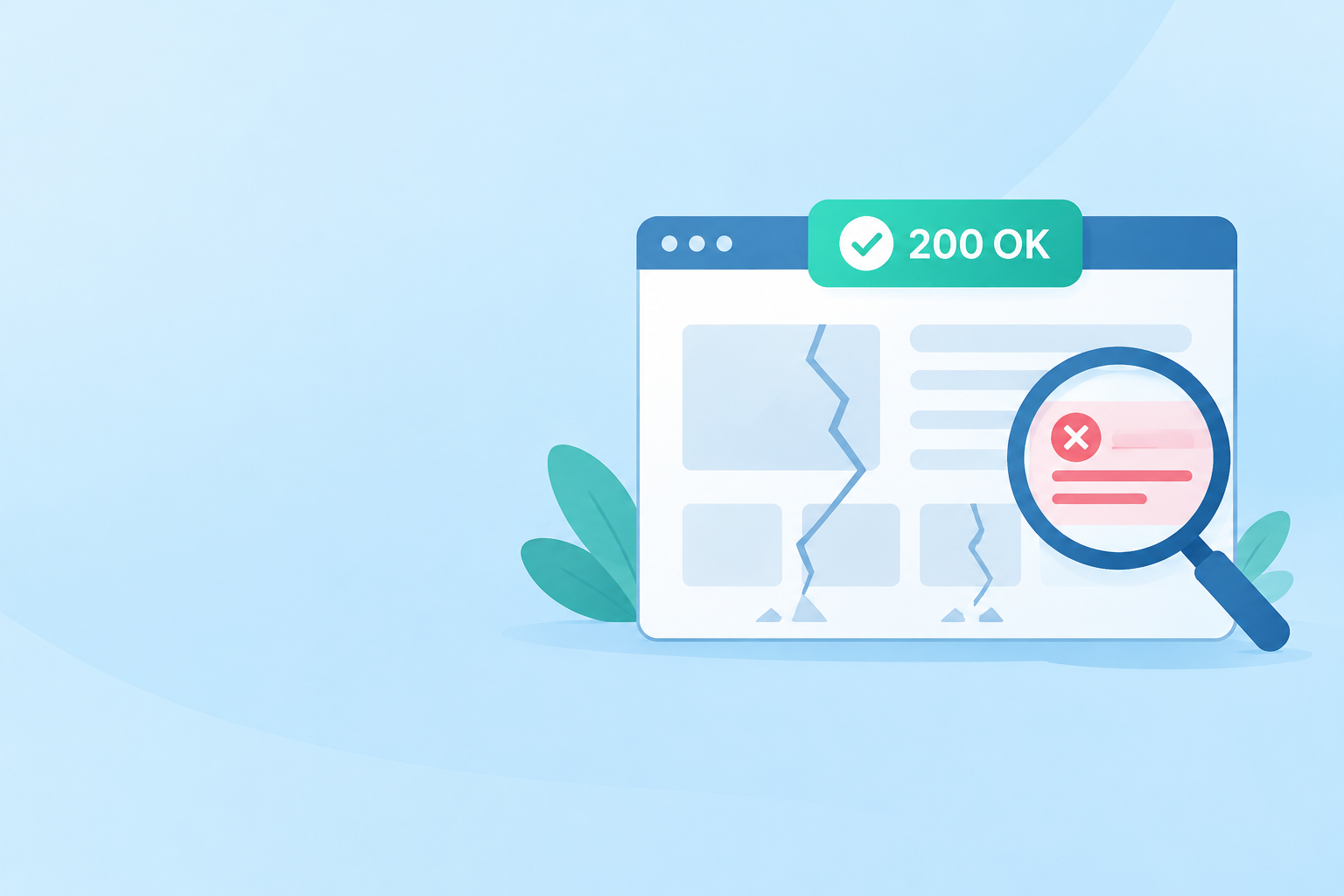
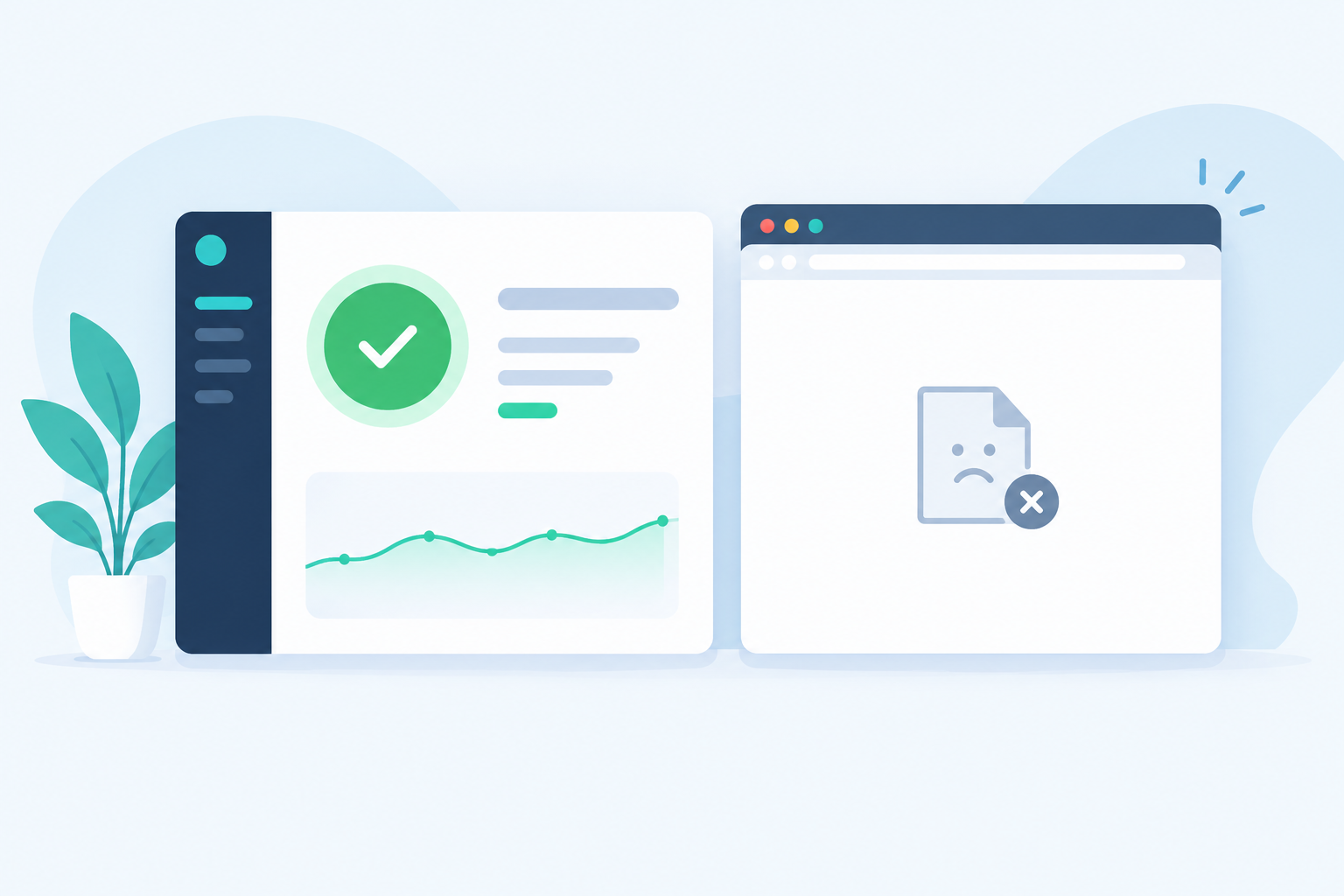
A 200 status code only tells you the server reported success. It says nothing about whether your page actually rendered properly. Keyword monitoring closes that gap by checking the response body for text that should be there, or text that shouldn't be. That way you catch blank pages, error messages, broken templates and defaced content that a plain status check waves through. Pick stable strings that only appear when the page genuinely works, and consider multi-region verification to filter out one-off network blips (with a few caveats we'll cover).
Let's walk through how to do that well. ☕
When 200 OK still means your website is broken
Picture this. It's 2am, your phone buzzes, and it's a customer email: 'I can't log in.' You open your monitoring dashboard and everything is green. Every check passing, every status code a lovely 200. Yet your support inbox is filling up.
It's a horrible feeling, and it happens more often than you'd think. The monitor isn't lying, exactly. It's just answering a much narrower question than the one you care about.
HTTP status codes are the server's way of reporting the outcome of a request. A 200 means the server says it succeeded. It doesn't verify that the content it returned is correct, or that anything a visitor can do on that page actually works. A page full of stack traces and a perfectly healthy page can both come back as 200.
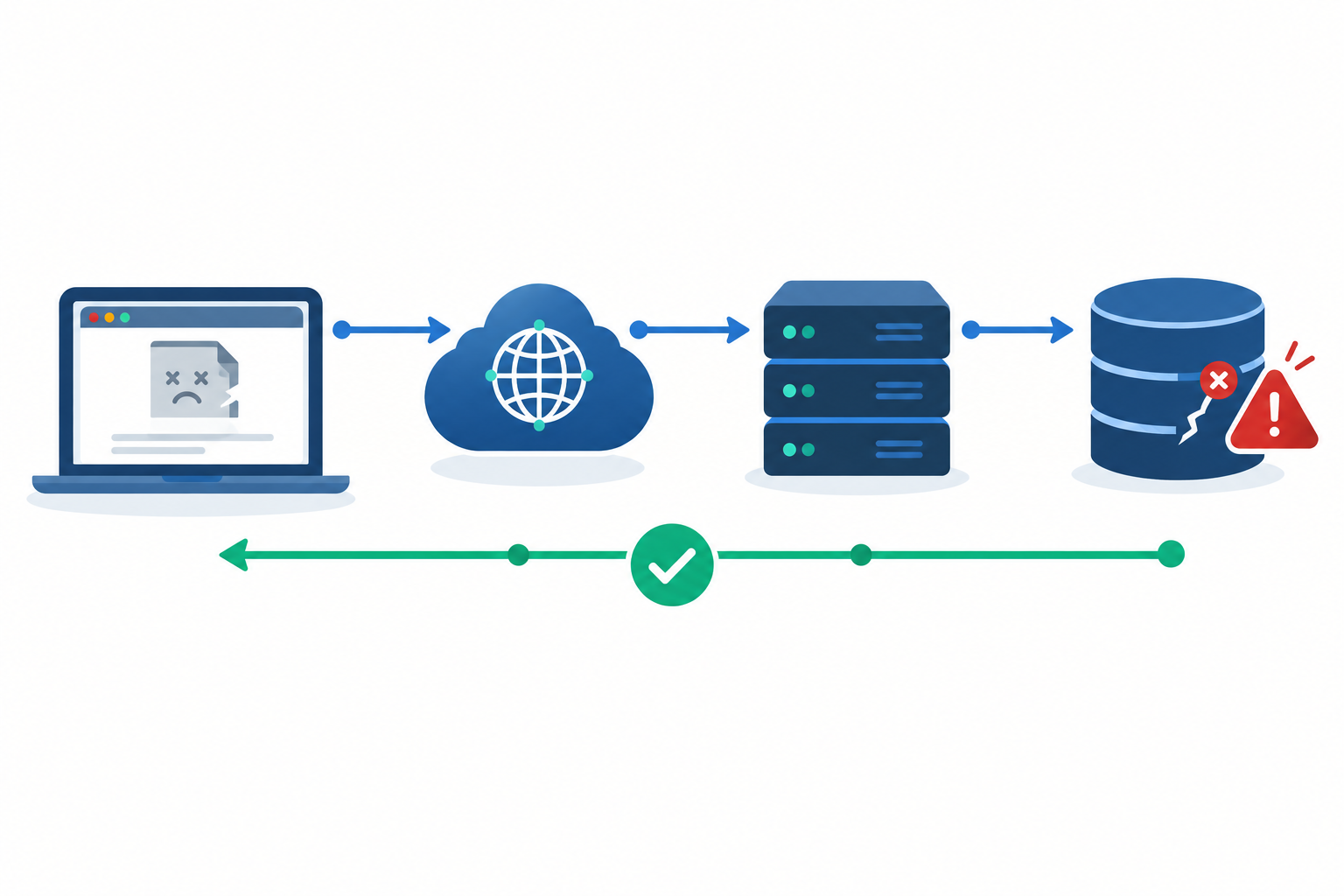
Common website failures a 200 status code can hide
Here are the usual suspects:
- A CDN or proxy serving a cached error page. The origin fell over, but the edge cheerfully served a stored error page with a success code.
- A friendly framework error screen. Many frameworks catch exceptions and render a polite 'Something went wrong' page, sometimes still with a 200.
- An empty JSON array. Your database connection drops, your API catches the error and returns
[]. Valid JSON, correct status, zero useful data. - A maintenance page left on after a deploy. Someone forgot to flip the switch back, and the holding page is now your homepage.
- Soft 404s and single-page apps. Plenty of SPAs return 200 for every route, including ones that don't exist. The 'not found' message is rendered inside the page.
- Third-party dependency failures. Your payment widget or auth provider is down. The page loads and the layout looks fine, but nobody can pay or sign in.
Where basic HTTP monitoring ends
Standard HTTP/S monitoring is still the foundation of any decent uptime setup. It tells you quickly when a server is unreachable, timing out, or throwing 5xx errors. Keep it.
But it stops at 'did something answer?' Keyword monitoring picks up from there with 'did the right thing answer?' That's the difference between knowing your server is alive and knowing your website is returning what it should.
How keyword monitoring checks for text that's present or absent
The idea is simple. The monitor fetches your page or endpoint, reads the response body, and scans it for a string you've specified. Whether that counts as a pass or a fail depends on which of the two modes you choose.
| Mode | Pass when | Fail (and alert) when |
|---|---|---|
| Required keyword | The phrase is found | The phrase is missing |
| Unwanted keyword | The phrase is not found | The phrase is found |
That's the whole model. In both modes, a failure is what triggers the alert. The only thing that changes is whether finding the text is good news or bad news.
Required keyword: text that should be on the page
This confirms the page rendered the content you care about. If you're watching a login page, you might look for the label on the email field. If the string vanishes, something has gone wrong, whether that's a blank page, an error screen, or a half-loaded template.
Think of it as a positive signal: 'this text suggests the page is alive.'
Unwanted keyword: text that should never appear
This is the tripwire for error phrases. You tell the monitor that finding a particular string counts as a failure, such as a database error message or a 'Bad Gateway' notice. It works very well for failures that print their own symptoms into the page.
Keyword matching details to check
Before you set anything up, keep these in mind:
- Case sensitivity. Check whether your monitor treats 'Login' and 'login' differently, and match the exact casing your page outputs.
- Exact matching. Strings are matched as written, so stray punctuation, HTML entities or odd whitespace can cause misses.
- Raw response only. The check reads what the server returns, which matters for JavaScript-heavy pages (more on that shortly).
Which keyword check suits each scenario?
| Scenario | Check type | Example keyword | What it can catch |
|---|---|---|---|
| Login page | Required | A form label such as Email address |
Blank page, broken template, auth form failing to load |
| Checkout | Required | A payment form heading or order summary label | Broken basket, empty checkout, template errors |
| API endpoint | Required | A field that only appears in a successful response, or "status":"ok" from a dedicated health response |
Error payloads or missing fields, where your response contract makes that meaningful. Dependency failures only show up if the endpoint reports them distinctly or you use a structured assertion |
| Error detection | Unwanted | Fatal error or your stack's own error text |
Leaked exceptions, database errors, proxy failures |
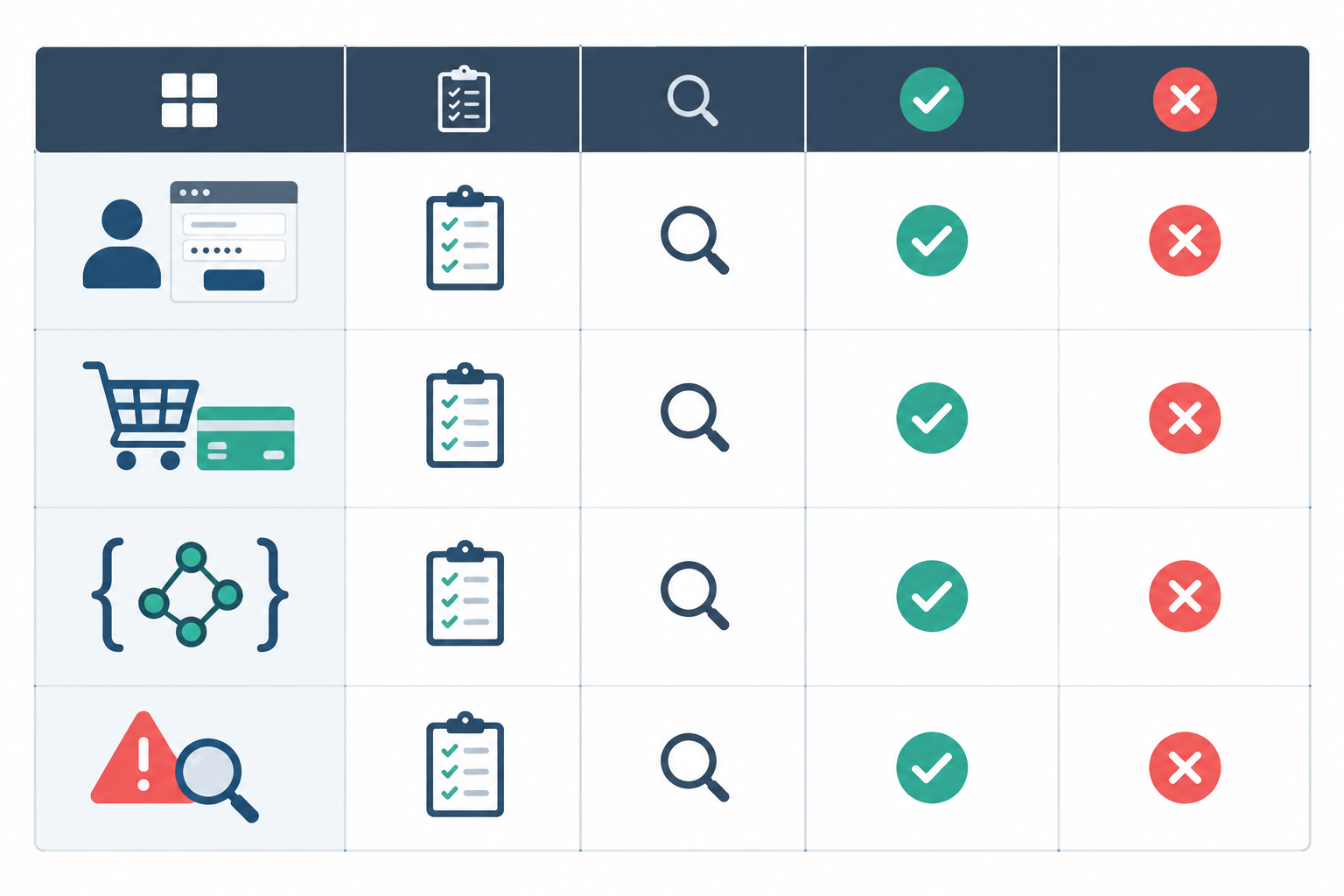
One thing to keep straight: keyword checks sit alongside your HTTP/S monitoring, not instead of it. The status check tells you the server is responding. The keyword check tells you the response has the content you expect. Together they're far more trustworthy than either alone.
What keywords should you monitor on login, checkout and API pages?
The quality of your keyword decides the quality of your monitor. Choose badly and you'll get either false alarms or, worse, silence when something's actually broken.
My rule of thumb is to choose text that appears only when the page is genuinely rendering as intended.
One honest caveat first. A keyword check confirms response content. Finding a login form label doesn't prove authentication works, and finding a payment heading doesn't prove a card can be charged. If you need that assurance, add a synthetic transaction or an application-level check that actually walks through the journey. Keyword monitoring is the quick, cheap first line, not the whole answer.
Choosing keywords for login pages
Look for a form label or button text that only renders when the authentication form loads, such as 'Forgot your password?' or the label on the email field. Avoid your brand name. It probably appears in the header, the title and the error page too, so it'll pass even when the form is missing.
Choosing keywords for checkout pages
Use something tied to the checkout template itself, like:
- A payment form element label
- An order summary heading
- A string injected by the payment provider's script, if it appears in the initial response
These are far better signals than a generic 'Checkout' title, which an error page might also carry. Payment widgets are often loaded by JavaScript from a third party, so a label in your HTML won't tell you whether that widget loaded.
Choosing keywords for API endpoints
For JSON responses, it helps to be clear about what each kind of match actually proves:
- A key, such as
"items", only confirms the field exists in the response. It's stable, but an API that catches a database error and returns{"items": []}will still pass. A key match only means something if your response contract says the field is absent on failure. - A key-value pair, such as
"status":"ok", confirms a specific value. That's fine when the value is a deliberate, fixed signal, but fragile if the value can legitimately change. - A schema or structured assertion, where your monitoring supports it, validates the shape and values of the whole payload. That's stronger than any single substring.
So can a keyword catch a failing dependency behind an API? Only if the endpoint tells you about it, either through a distinct failure payload or a purpose-built health response. For anything critical, that health response is the better route.
Using a health check endpoint
If you control the application, give yourself a dedicated signal. Have it return a machine-friendly string like all-systems-healthy only after it has tested the database, cache and queue, then monitor for that string. It never competes with marketing copy. It's also only as trustworthy as the checks behind it, so make those checks real.
Choosing keywords for homepages and landing pages
Homepages are tricky because content rotates. Look for text that sits outside the marketing churn: footer text, a legal line, or a core product heading that rarely changes. Skip the hero banner and anything promotional.
Detecting error messages and defacement with keyword monitoring
So far we've mostly talked about confirming the good stuff is present. The other half of the story is spotting bad stuff turning up, which is where unwanted-keyword checks come in. Remember the logic: the monitor fails, and alerts, when it finds the phrase.
They work well for strings like 'database error', 'Service Unavailable', 'Fatal error' or 'Bad Gateway'. The part people skip is using the specific wording your own stack produces rather than generic guesses. Break something in staging, see exactly what your framework, web server or proxy prints, and monitor for that. A PHP site, a Node app behind nginx and a Rails app all fail in different voices.
Be careful with very short, common words. 'Exception' might legitimately appear in a blog post about exception handling, and then you've built yourself a noisy alert.
Using keyword checks to detect defacement and injected content
Keyword checks can also give you early warning of tampering. You can watch for unexpected strings, such as known spam terms that often show up in compromised sites, and you can verify your expected content is still present. Defaced pages often replace your content entirely, so a missing required keyword is a loud signal.
For critical pages, I like double coverage: one required-keyword check and one unwanted-keyword check. If the page loses its expected content or gains an error phrase, you hear about it.
What keyword monitoring can't detect
Keyword monitoring is a tripwire, not a security scanner. It won't find vulnerabilities, malware hiding in unseen parts of your site, or subtle injected scripts. It tells you when something visible has changed in a way you predicted.
For wider coverage, combine it with other signals. DNS monitoring can alert you when records change unexpectedly, which is often the first sign of a hijack. SSL certificate monitoring warns you about expiry and unexpected certificate changes. Each one covers a small piece of the picture.
How to avoid brittle keyword checks and false alarms
A keyword monitor that fires every time marketing tweaks a headline will be muted within a week, and a muted monitor is worse than none. These seven steps help keep yours dependable.
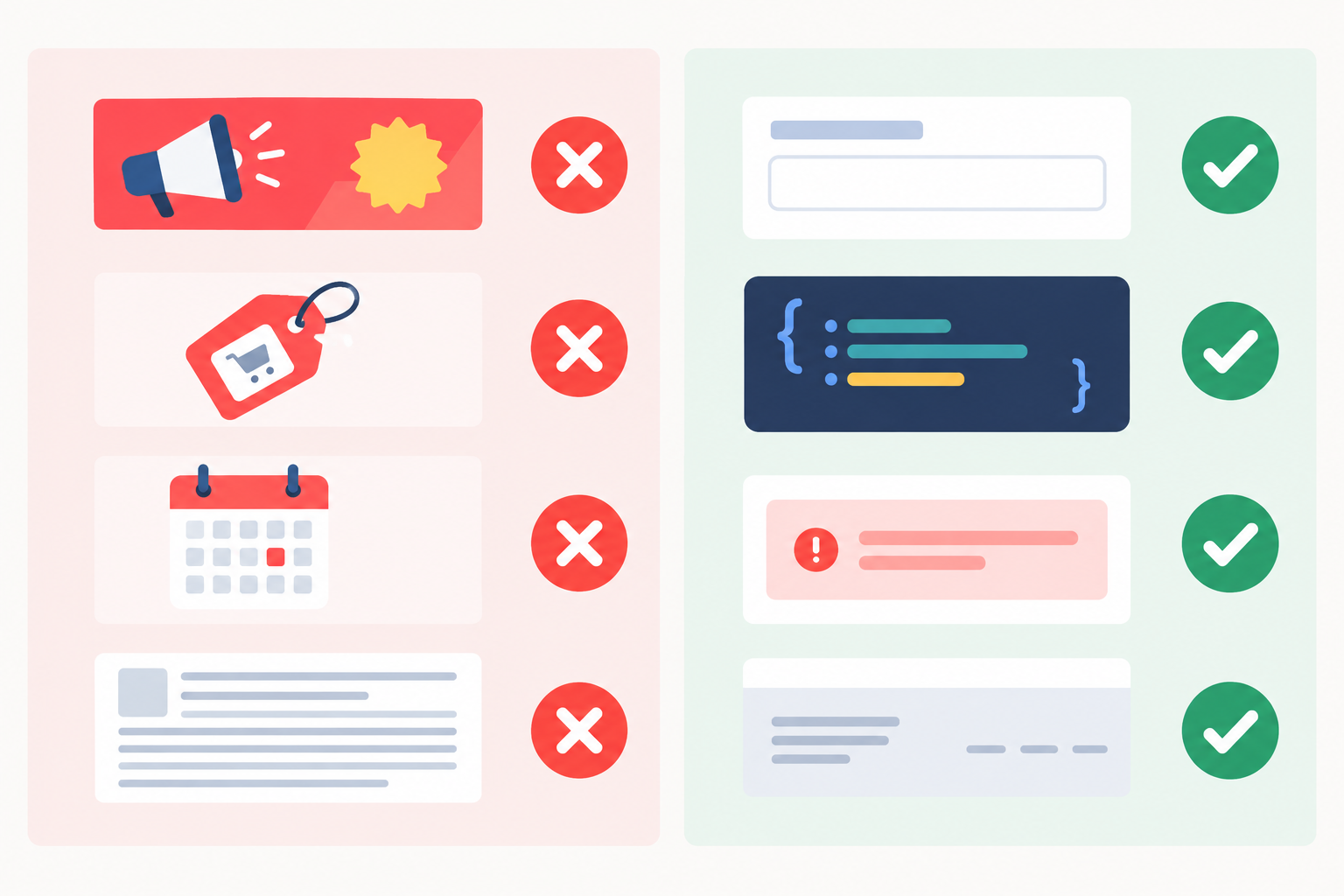
- Avoid marketing copy, promotions, dates and prices. Anything an editor might change is a future false alarm. Seasonal banners and 'Sale ends Sunday' text are the classic culprits.
- Prefer short, distinctive strings over long sentences. Longer text is more exposed to whitespace changes, punctuation tweaks and line breaks, and a few distinctive words are enough.
- Watch out for client-side rendering. The check reads the raw response body, so text injected later by JavaScript won't be there. Choose a string present in the initial HTML, or monitor the API endpoint feeding the page.
- Check for localisation and A/B variations. Wording can change by region, language or test variant. Pick a string that stays the same for every visitor, such as a form field name.
- Test your keyword by breaking things in staging. Temporarily remove the element or trigger an error, and confirm the monitor fails when it should. A check you've never seen fail is a check you can't fully trust.
- Document keywords in your deploy checklist. When a designer renames a button, someone should know a monitor depends on it.
- Consider multi-region failure verification. A single flaky response from one network path shouldn't wake anyone, and having several locations confirm a failure before alerting filters that out. There's a trade-off, though. Depending on how many locations must agree, confirmation can delay an alert, and an incident affecting only one region might not trigger one at all. If your customers are concentrated in the UK, make sure UK-based checks carry weight in your rule.
Setting up keyword monitoring in Moonitor
Here's how it looks in practice. Moonitor offers a 7-day trial with no credit card required, and a basic keyword check takes under a minute to set up, so you can try this on a real page without any commitment. Plan details can change, so confirm current terms on the pricing page.
- Create a keyword monitor. Enter the URL, add the string you want to look for, and choose the failure condition: alert when the keyword is missing (required), or alert when it appears (unwanted).
- Set frequency and verification. Pick how often to check. If multi-region verification is available on your plan, choose how many locations must confirm a failure, bearing in mind the trade-off above.
- Route your alerts. Send them to the channels your team already watches: email, Slack, Discord, Telegram or webhooks.
- Build the wider picture. Alongside keyword checks, consider API monitoring for your endpoints, heartbeat monitoring for cron jobs and scheduled tasks, SSL certificate monitoring, and DNS record change detection.
- Share status openly. Put results on a status page, then use incident history and response-time data to spot patterns over time.
Example: two keyword checks for one login page
Here's a concrete setup you can copy:
- URL: your login page
- Check 1 (required):
Email address, the label on the email field. If the form fails to render, the keyword goes missing and you're alerted. - Check 2 (unwanted):
Fatal erroror whatever your stack prints on a crash. If the page ever contains it, you're alerted.
To test it, temporarily remove the label in staging, or force an error, and confirm you receive the alert. Then restore the page and confirm the monitor recovers.
A practical keyword monitoring starter checklist
Here's a short sequence you can finish before lunch. The detail behind each step is in the sections above.
- Start with your three most business-critical pages. Usually that's login, checkout and your main API endpoint.
- Add one required keyword per page, plus one unwanted-keyword check for each stack or framework you run.
- Break each check in staging and confirm the alert arrives where you expect.
- Add a line to your release checklist so keywords get reviewed after redesigns.
- Plan a deeper check for your most important journey. A synthetic login or checkout test covers what a keyword can't.
UK-specific keyword monitoring considerations
If your audience is in the UK, a few local quirks can quietly change what your monitor sees. How much they matter depends on how your own site is built, so test rather than assume.
- Cookie consent banners. Under UK GDPR and PECR, many sites ask for consent before setting non-essential cookies or loading some scripts. Some sites hold back content or third-party widgets until a visitor accepts, while others render everything regardless. A monitor typically arrives with no consent given, so check the raw response a first-time visitor would get, and don't pick a string from inside the banner itself.
- Pricing and currency. Pages may show GBP prices, VAT-inclusive amounts, or different pricing by region. Avoid price strings entirely.
- Geo-based content. If your site serves different wording or redirects visitors by country, a check from a non-UK location might see a different page than your customers do. Choose a string that appears everywhere, or confirm which locations your monitor checks from.
Start small, then expand once you trust the signals. Three well-chosen checks beat thirty noisy ones.
Keyword monitoring FAQ
Why is my site down if it returns 200?
A 200 means the server reported success for the request, not that the content is right. Your application might still be serving an error page, an empty response, or a cached maintenance screen with a success code. A keyword check on the response body shows you what a status code can't.
What keyword should I check for?
Choose a short, stable string that only appears when the page renders properly, such as a login field label, a payment form heading, or a field name from your API's success response. Avoid promotional copy, prices and dates.
Can I alert when an error phrase appears?
Yes. Use an unwanted-keyword check, which fails (and alerts) when the phrase is found in the response. Use the exact wording your own application or framework prints on failure.
Will content changes break my monitor?
They can if you choose text that editors or designers update regularly. Pick keywords from functional elements rather than marketing copy, and add a keyword review to your release checklist.
Does keyword monitoring work on JavaScript-rendered pages?
Only partly. The check reads the response body returned by the server, so text injected later by client-side JavaScript may not be visible. Check a string present in the initial HTML, or monitor the API endpoint that supplies the data.
Wrapping up: use keyword monitoring alongside status checks
A green dashboard is only reassuring if it's measuring the right thing. Status codes tell you the server answered, and keyword monitoring tells you the response contains what you expect. Start with one check on your login page, break it on purpose, and see what your alert looks like. Your future 2am self will be grateful. 🌙