
Why Your Monitor Says 'Up' When Your Site Is Actually Broken: A Guide to Keyword Monitoring
Status codes lie more often than you'd think. Learn how keyword monitoring catches broken pages, error states, and defacement that HTTP checks miss en
Keyword Monitoring: Why Your Monitor Says “Up” When Your Site Is Broken
Meta description: A 200 OK response only confirms your server replied—not that your site actually works. Learn how keyword monitoring catches broken pages, soft errors and defacement that status-code checks miss.
A 200 OK status code confirms your server successfully handled a request and sent something back. It doesn't confirm that “something” was correct. Keyword monitoring checks the actual page content for specific text, so you can catch error pages, blank screens, database failures and site defacement that still return a perfectly healthy status code. It's the difference between knowing your server responded and knowing your site actually works.
I've had this conversation with enough developers that it's become a running joke on our team: “But my monitor said everything was fine!” And technically, it was right. The server answered the request. It just didn't say anything useful about what it sent.
If you've ever watched a green dashboard while your actual site was showing customers a fatal error, this one's for you. Let's look at why status codes alone can't tell the whole story, what keyword monitoring can—and can't—do about it, and how to set it up properly.
Why HTTP Status Codes Aren't Enough
It helps to think about this in three separate layers, because they get conflated constantly and that's where the confusion starts.
Layer one is the HTTP response itself. A 200 means the server processed the request and returned a representation of the resource. That's a real, meaningful confirmation—it's just a narrow one. It says nothing about whether the representation is correct.
Layer two is the content of that response. This is the HTML, JSON or other payload the server actually sent. A server can return 200 while that payload contains “Error establishing a database connection” because, from the web server's point of view, it successfully delivered a page. Nothing failed at the transport level. The failure is sitting inside the content, and a status-code check simply isn't looking there.
Layer three is what the browser does with that content. A page can arrive with perfectly correct HTML and still fail for the user if a JavaScript error prevents it from rendering, a checkout button never becomes clickable, or a client-side script silently throws before loading critical data. This layer is where keyword monitoring also has limits, which I'll come back to shortly.
CDNs and caching layers complicate layer two further. I've seen a CDN keep serving a cached error page or a stale snapshot from before a deploy, returning a cheerful 200 to every monitoring tool that asks. Load balancers can do something similar, quietly routing traffic to a backend serving a maintenance page while the response code looks entirely normal. In each case, the transport succeeded. The content didn't.
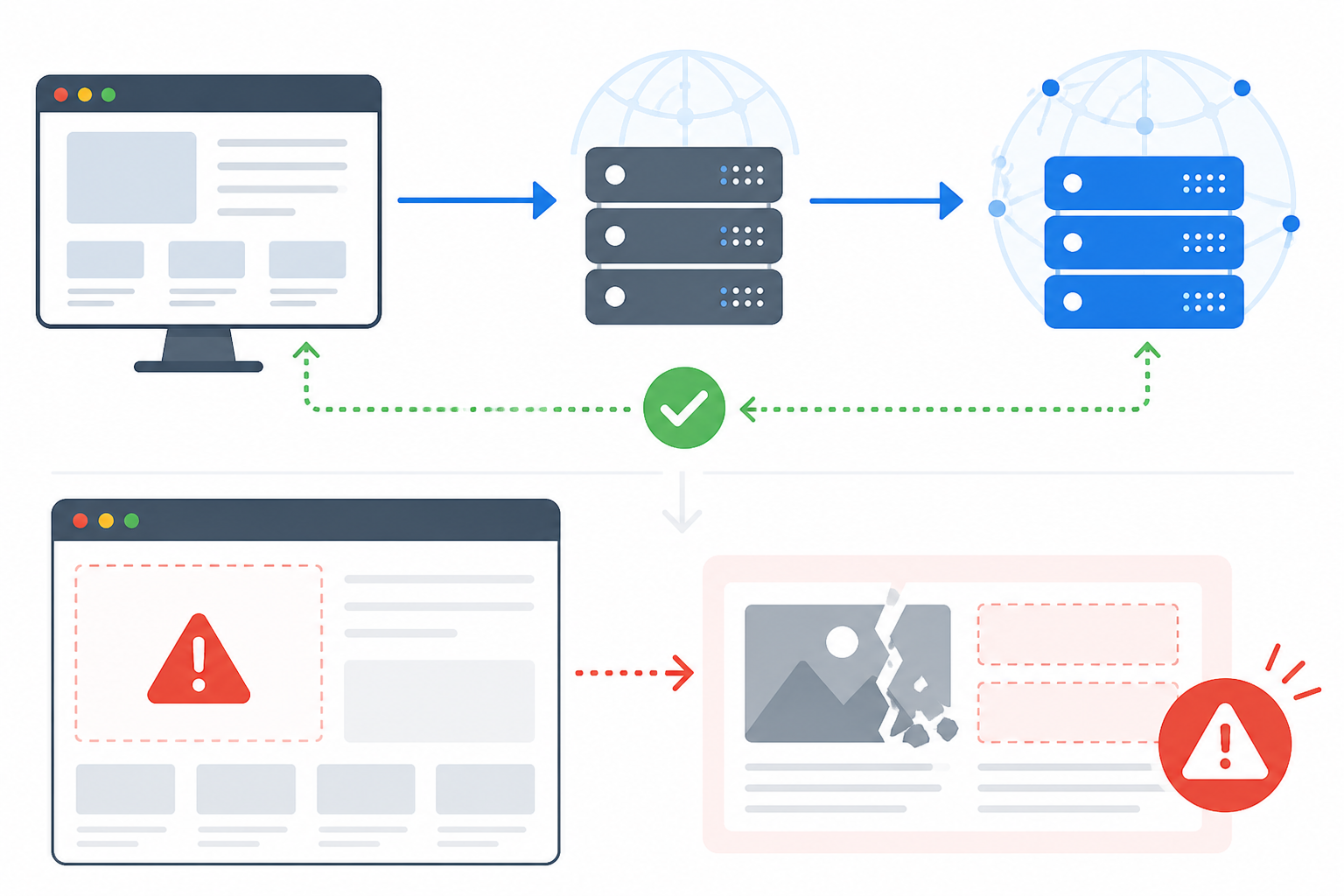
Here's a scenario worth sitting with: an e-commerce checkout page breaks—maybe a JavaScript error, maybe a payment gateway integration silently fails—but the page itself still loads and returns 200. Nobody's uptime monitor blinks. Customers hit the broken checkout, shrug and leave. This can go on for days before someone in finance asks why conversions cratered last week. It's not a hypothetical; it happens more often than most teams admit, and it's exactly the kind of silent failure that standard website monitoring alone won't catch.
How Keyword Monitoring Works
The mechanism itself is refreshingly simple. You define a word or phrase that should—or shouldn't—appear somewhere in a page's response body. The monitor fetches that content at your chosen interval and scans it for the text, functionally similar to running Ctrl+F against the raw HTML or API response.
If an expected keyword is missing, or an unwanted one suddenly appears, the alert fires. No complex scripting or browser automation is required on your end—just a plain-text check against what the server actually returned.
Keyword monitoring isn't meant to replace your HTTP/S checks; it works alongside them. Your status-code monitor confirms the server is reachable and responding promptly. Your keyword check confirms the response body contains—or doesn't contain—specific text. Together, that's genuinely useful coverage, but it's still coverage of the response body, not of what happens after a browser renders and executes that response.
That distinction matters more than it sounds. A basic keyword check reads the raw HTML or JSON the server sends back. It has no concept of JavaScript execution, so it can't tell you whether a React app rendered correctly, whether a button is actually clickable, or whether a page is genuinely blank to a human visitor despite containing the right text somewhere in its source. For those failure modes, you need browser-based synthetic monitoring that actually executes the page, not just reads its source. Keyword checks and synthetic browser tests solve different problems and work best together.
A few other practical caveats are worth knowing before you rely on this:
- Authenticated and personalised pages can return different content to the monitor than to a logged-in user, so a keyword check against a public URL may not reflect what real visitors actually see.
- Localised sites might show different text depending on region or language, which can trigger false positives if your keyword only exists in one locale.
- HTML versus visible text isn't the same thing—a keyword buried in a hidden
<div>, a comment or an unused script tag will still match, even if no human would ever see it. - Case sensitivity and matching rules vary by monitoring tool, so test your exact match pattern before trusting it in production.
None of this makes keyword monitoring less useful—it just means you should know what it's actually checking.
One more thing worth flagging: a single failed keyword check from one location isn't always trustworthy on its own. A CDN edge node in one region might be serving stale cached content while everywhere else is fine. Moonitor addresses this by running multi-region verification on keyword mismatches, confirming the failure from several locations before sending an alert, so you're not paged over a blip that resolves itself in ten seconds. Low-noise alerting matters just as much for content checks as it does for standard uptime monitoring.
Detecting Error Pages That Return a 200 Status
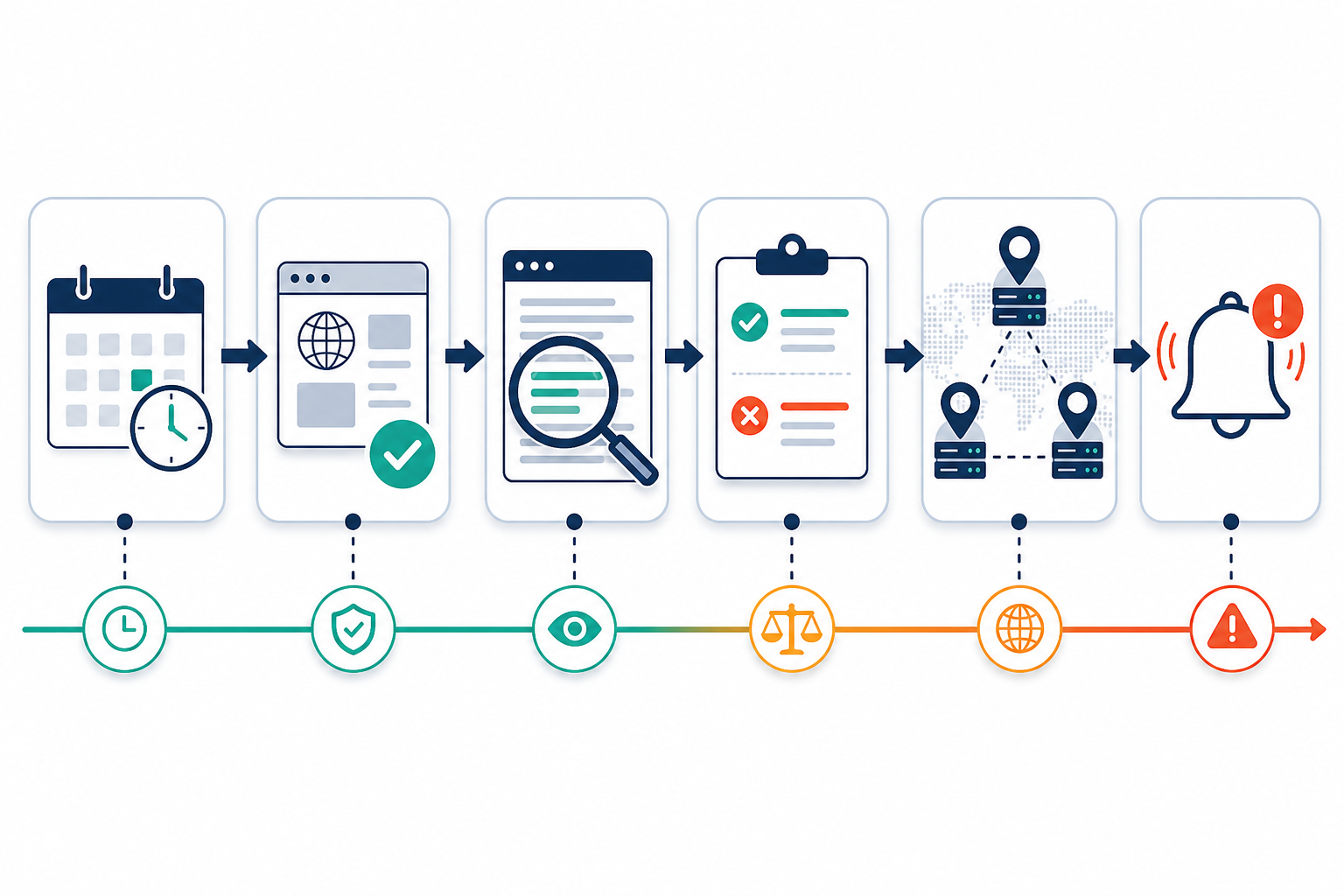
This is probably the most common reason teams use keyword monitoring, and once you start looking, the pattern shows up everywhere. A few real-world examples include:
- WordPress database failures – “Error establishing a database connection” shows up on screen, but Apache or Nginx still returns 200 because, from the web server's perspective, it successfully delivered a page.
- Broken API responses – An endpoint that's supposed to return clean JSON instead sends
{"error": "internal_server_error"}, wrapped in a 200 status because the API framework handled the error “gracefully” at the transport level. A keyword check can catch known error strings like this, but it's not a substitute for proper schema validation or field-level assertions if you're monitoring an API seriously. Those checks catch malformed or incomplete responses that don't happen to contain an obvious error string. - Soft 404s – A misconfigured custom error page returns 200 instead of the correct 404 or 500. This is a classic trap for anyone relying purely on status codes—and a headache for SEO too.
The fix for all of these is usually a combination of two approaches:
- Positive keyword checks – Set a check for something that should always appear on a healthy page: your footer copyright text, a product name or the words “Add to Basket”. If it's missing, something's wrong.
- Negative keyword checks – Set a check for phrases that should never appear: “Fatal error”, “Exception” or “Database Error”. If any of these show up, you want to know immediately.
Running both types gives you a safety net from two directions—catching the disappearance of good content and the appearance of bad content.
Can Keyword Monitoring Catch Site Defacement?
Here's one use case that doesn't get discussed enough: hacked websites almost always keep returning 200 OK. Attackers aren't typically trying to break your server—they want to replace your content, and a functioning server is exactly what lets them do that. Your uptime monitor sees a healthy response and moves on, unaware that your homepage now says something entirely different than it did an hour ago.
Common defacement signatures include unexpected text in a foreign language, political messaging unrelated to your business, or the classic “Hacked by [someone]” banner attackers like to leave as a calling card. A negative keyword check looking for known phrases like these can flag the change quickly—often faster than a person would notice while browsing the site. A positive check confirming your normal content is still present can catch the flip side: content being removed or replaced entirely.
But neither check is a guarantee. A negative check only catches phrases you've anticipated; a sufficiently different defacement using language you haven't thought to watch for will slip through. And a positive check can stay green even if most of the rest of the page has been altered, as long as your one tracked phrase is still technically present somewhere in the markup. I think of keyword monitoring here as a lightweight tripwire—genuinely useful as an early-warning layer, but not a replacement for proper security tooling or content-integrity checks.
It pairs naturally with SSL certificate monitoring and DNS monitoring, since together they cover three common ways a site's integrity can quietly erode: expired certificates, hijacked DNS records and tampered content. A defaced page sitting live for even a few hours can damage customer trust, and search engines don't reward sites that suddenly start serving spam content either. Pairing keyword monitoring with instant alerts via Slack, Discord or Telegram means your team finds out within minutes of a mismatch, not when a customer emails asking why your site looks odd.
How to Set Up Effective Keyword Checks
Getting keyword monitoring right isn't complicated, but a little thought upfront saves you from false alarms later.
- Pick stable, visible keywords. Avoid anything tied to dates, prices or copy that changes with routine updates. Favour text a real visitor would actually see—your footer copyright line, a fixed brand phrase or a checkout button label are more reliable than a headline marketing edits monthly. Steer clear of text that only exists in hidden elements, comments or scripts, since a match there tells you nothing about what users actually experience.
- Decide on positive versus negative matching. Ask what you're protecting against—missing content calls for a positive check, while unwanted content calls for a negative one. Many critical pages benefit from both. For example, on a checkout page, use a positive check for “Pay now” and a negative check for “Payment failed”.
- Test the failure state first. Before trusting an alert, deliberately simulate the broken condition on staging. If your negative check is meant to catch “Fatal error”, confirm it actually fires when that text appears, with the exact case and formatting your tool uses.
- Layer it with other monitor types. Keyword checks work best alongside HTTP/S, port, heartbeat and—where client-side behaviour matters—browser-based synthetic monitoring.
- Match check intervals to importance. Your checkout or login page deserves a tighter interval than a static “About Us” page that rarely changes and matters less if it briefly misbehaves.
- Revisit your keywords periodically. Redesigns and copy changes happen. A keyword check that was solid six months ago might now be chasing text that no longer exists, quietly generating noise or false confidence.
Keyword Monitoring as Part of a Wider Monitoring Strategy
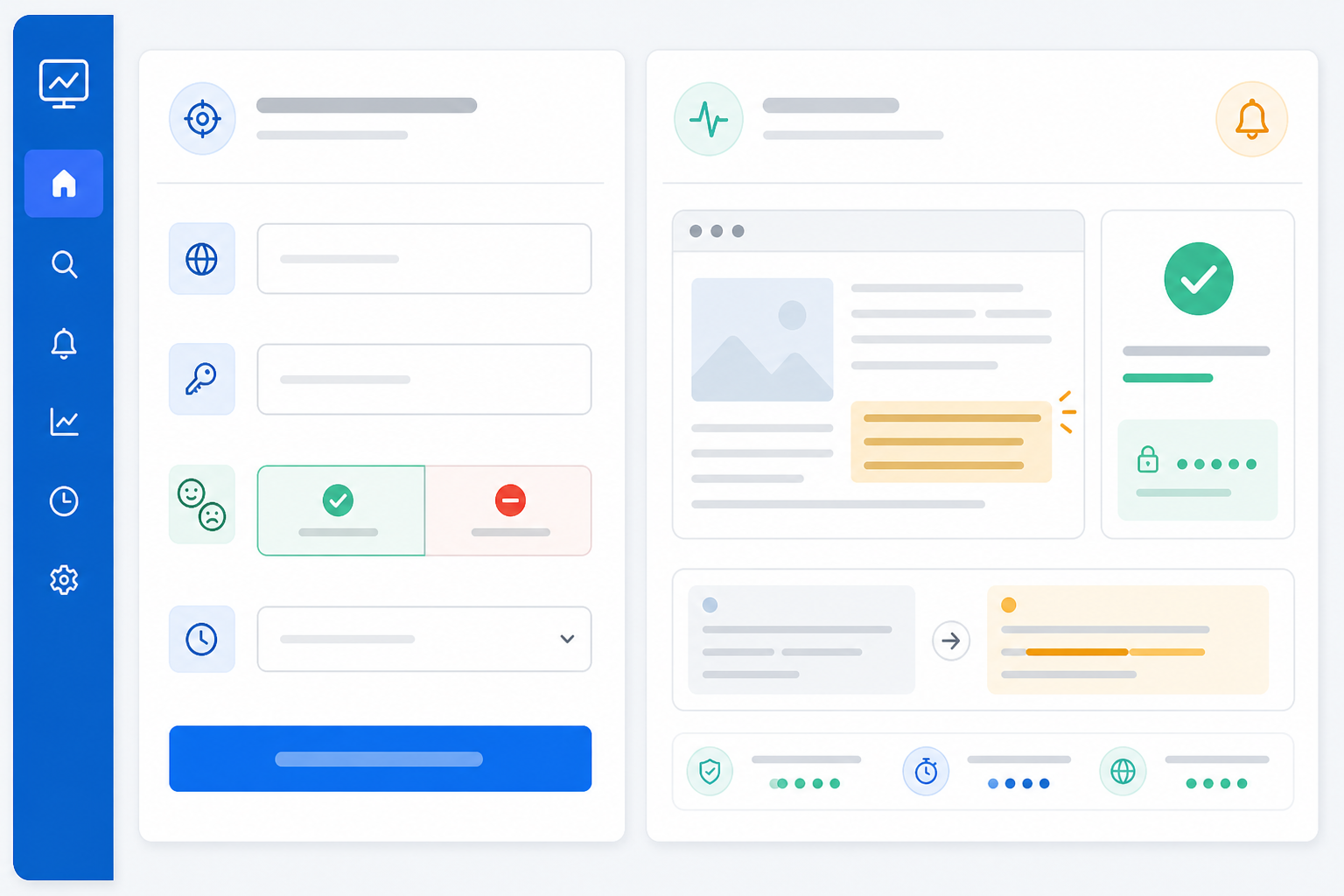
Keyword monitoring works best as one piece of a layered strategy rather than a standalone tool you set up and forget. Pairing it with SSL certificate monitoring, cron job monitoring and DNS monitoring gives you coverage across certificates, scheduled tasks, record changes and content integrity—each catching a failure mode the others can't see.
This is the thinking behind Moonitor's approach: multiple monitor types, including keyword checks, living in a single dashboard rather than forcing you to stitch together separate tools. If you're evaluating a monitoring platform, check directly how it handles multi-region verification, alert integrations and status-page functionality. These details vary between providers and matter for UK teams running infrastructure across EU or UK data centres.
Keyword Monitoring FAQ
Why does my monitor say my site is up when it's actually broken?
Most uptime monitors only check the HTTP status code, and a broken site can still return a healthy 200 OK while displaying a database error, blank section or crashed feature. The server technically responded, which is all a status-code check verifies. Keyword monitoring closes part of this gap by reading the response body's actual content—though it still won't catch failures that only show up after JavaScript executes in the browser, which is where synthetic browser testing comes in.
What is keyword monitoring used for?
Keyword monitoring verifies that specific text appears—or doesn't appear—in a webpage's response body or an API response. It's commonly used to catch soft errors that return 200 status codes, confirm critical page elements such as checkout buttons are present in the markup, and flag unauthorised content changes such as defacement. It checks delivered content, not the fully rendered, interactive page a user experiences.
Can keyword checks detect hacked pages?
Often, yes. Since most defacement replaces page content while the server keeps responding normally, a negative keyword check looking for known unwanted phrases, or a positive check confirming your normal content is still present, can flag many changes quickly. But neither is exhaustive—an attacker using language you haven't anticipated, or a partial content change that leaves your tracked phrase intact, can slip past a keyword check alone. Pairing it with visual or file-integrity monitoring closes more of that gap.
How specific should my keyword match be?
Specific enough to be reliable, but not so specific that it breaks with every minor content update. Favour stable, visible elements such as footer copyright text, a product name or a fixed phrase in your checkout flow—things unlikely to change unless something's genuinely wrong, and things a real visitor would actually see rather than text buried in hidden markup.