
Setting Up Website Monitoring in Under 5 Minutes: A Founder's Guide
Set up website monitoring in under five minutes with uptime checks, alerts, and a status page—no technical skills or credit card required.
Website Monitoring Setup in Under Five Minutes: A Beginner's Guide for Founders
You can set up reliable uptime monitoring for your website in under five minutes. No developer, no credit card, no complicated configuration. Sign up for a free trial, add your website URL as a monitor, choose a check type, connect an alert channel like email or Slack, and you're covered. This guide walks you through each step so you're never the last to know when your site goes down.
Grab a coffee, because by the time it's ready, you could genuinely have this done. Let's get into it.
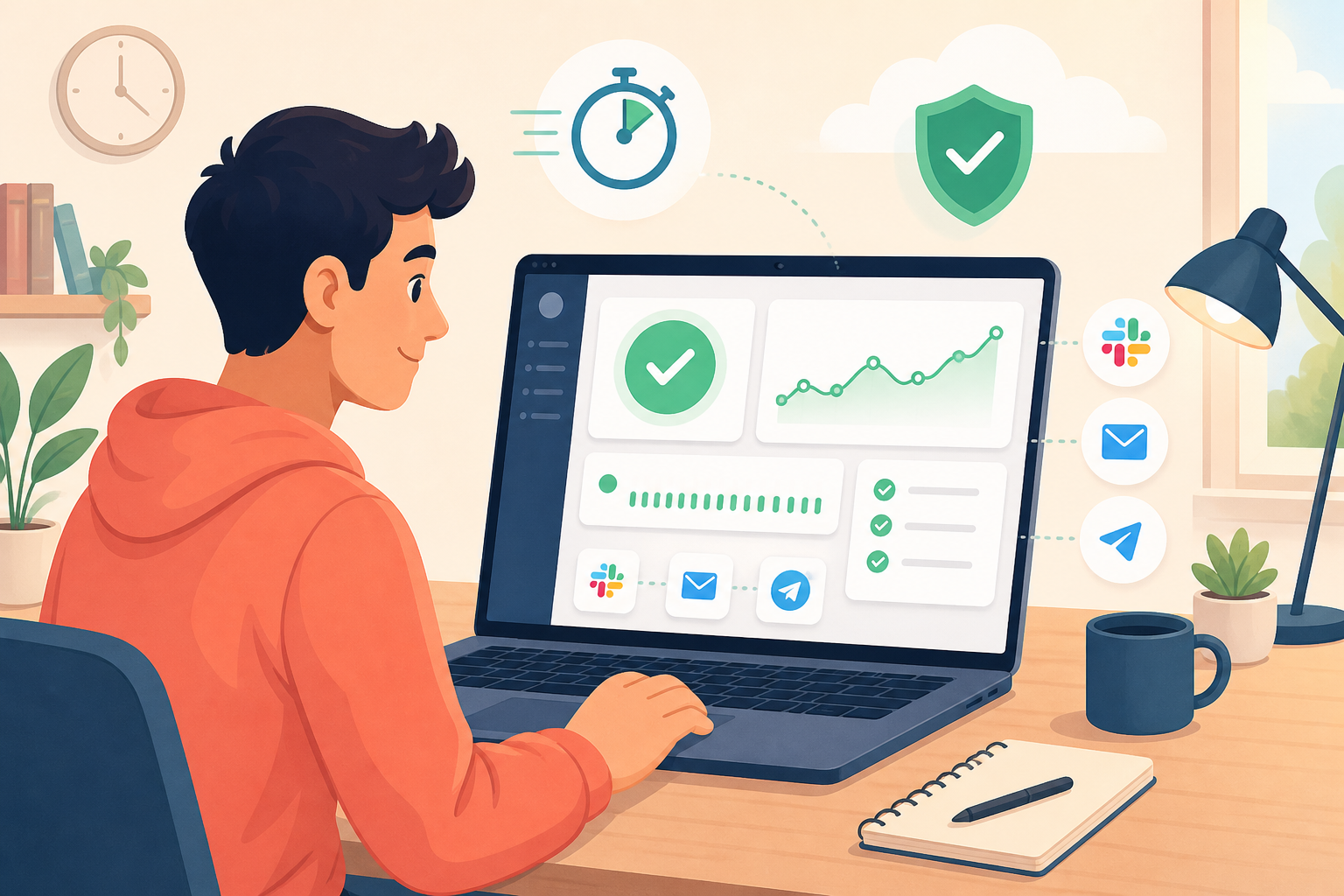
Why founders shouldn't skip website monitoring
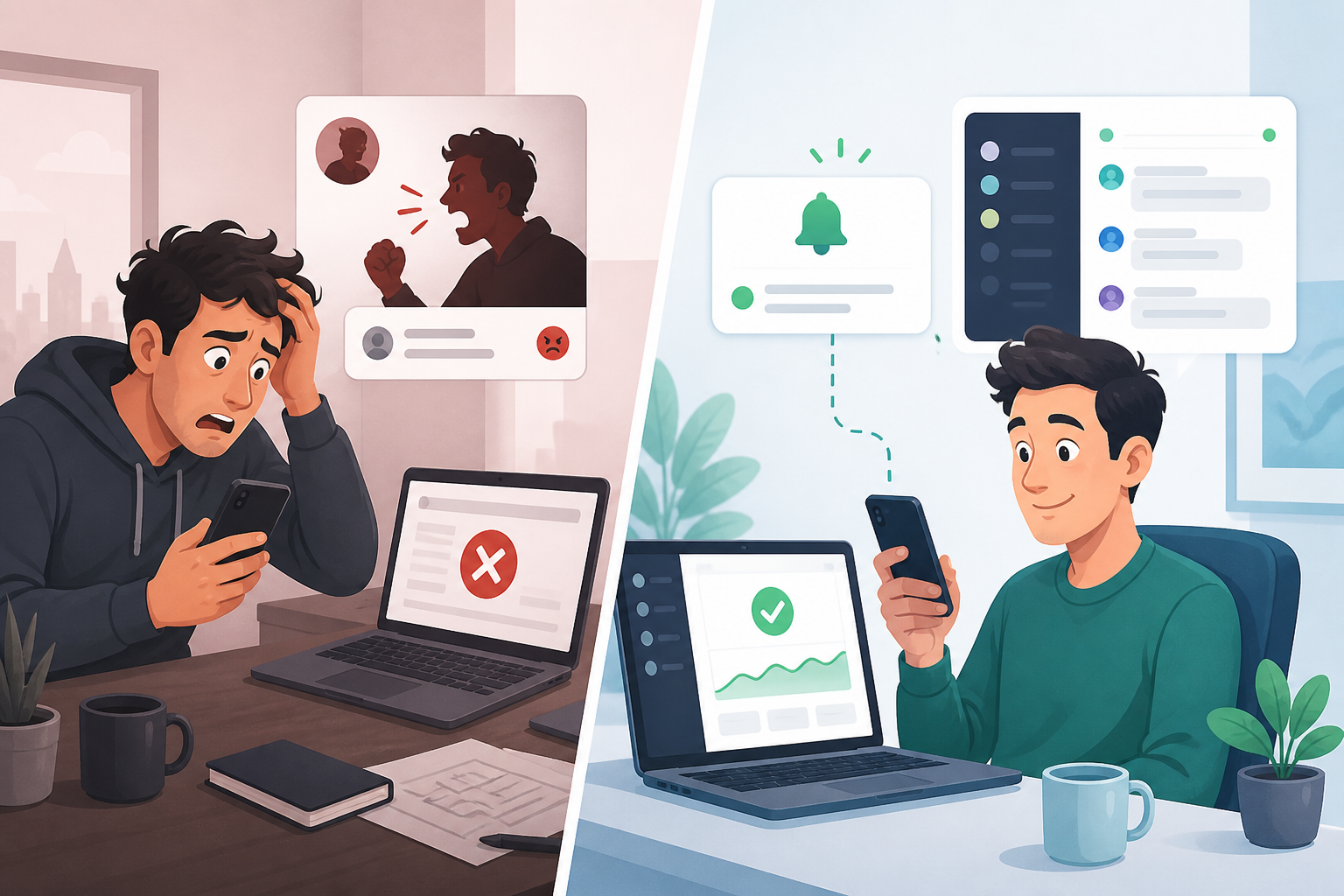
Here's a scenario I've heard more times than I'd like: a founder is on a call, grabbing lunch, or (worst of all) sound asleep, and their site goes down. Nobody notices for hours. The first sign of trouble isn't a helpful alert. It's a customer email with a subject line like "is your site broken??" or, if you're really unlucky, a public tweet tagging your brand.
That delay costs more than most people realize. Every minute your site is down is a minute of lost sales, abandoned checkouts, and ad spend flowing to a page that isn't converting because it isn't even loading. There's a quieter cost too: trust. Customers who hit a broken page once might not bother checking twice.
Here's the thing I want to gently push back on, though: monitoring isn't some enterprise tool reserved for teams with a dedicated DevOps person. It's one of the most practical things you can add to your stack, and it usually costs less than your coffee budget for the month. The first time it catches a problem before a customer does, it's paid for itself many times over. Think of uptime checks less as "technical infrastructure" and more as cheap insurance, the kind you barely notice until the one day you really need it.
Step 1: Start your website monitoring setup
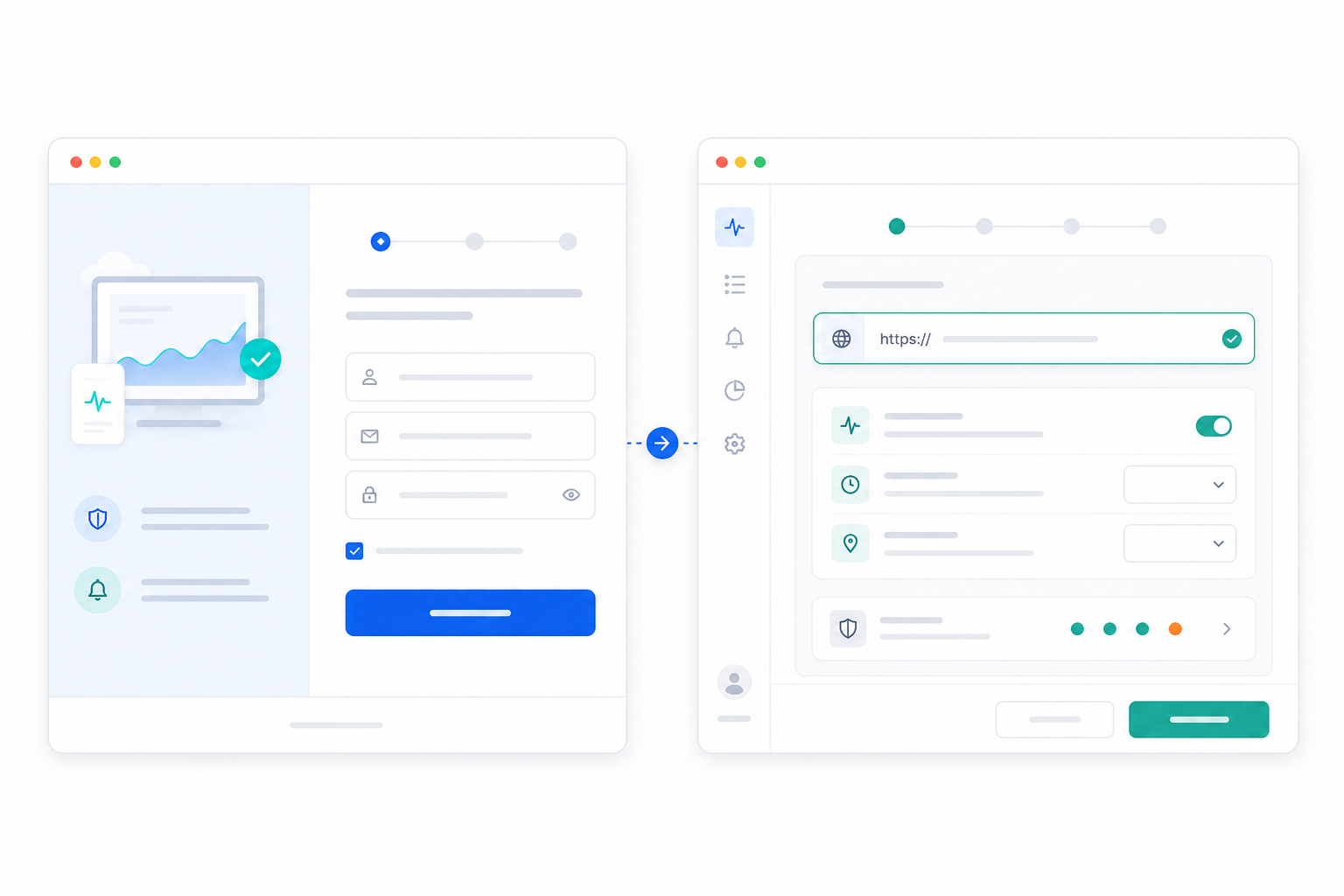
This is the part most founders assume will be complicated. It isn't. Here's exactly what quick monitoring setup looks like with Moonitor:
- Start your free trial. Moonitor offers a 7-day, no credit card trial, so you can test everything on your actual live site before committing to anything. No awkward "please enter payment details" screen standing between you and peace of mind.
- Create your account. A minute later, you'll land on a clean dashboard. No onboarding maze, no forced product tour you have to click through five times.
- Click "Add Monitor" and paste in your website URL. That's genuinely the core step. You don't need to touch your server, install anything, or ask a developer for access to anything.
- Set your check interval. This decides how often Moonitor checks that your site is alive: every minute, every five minutes, or whatever fits how critical the site is to your business.
And that's it. Your first monitor is live. This whole process, from start to finish, takes under a minute once your account exists, which is honestly the part that surprises most founders the first time they try it.
Step 2: Choose the right uptime check type
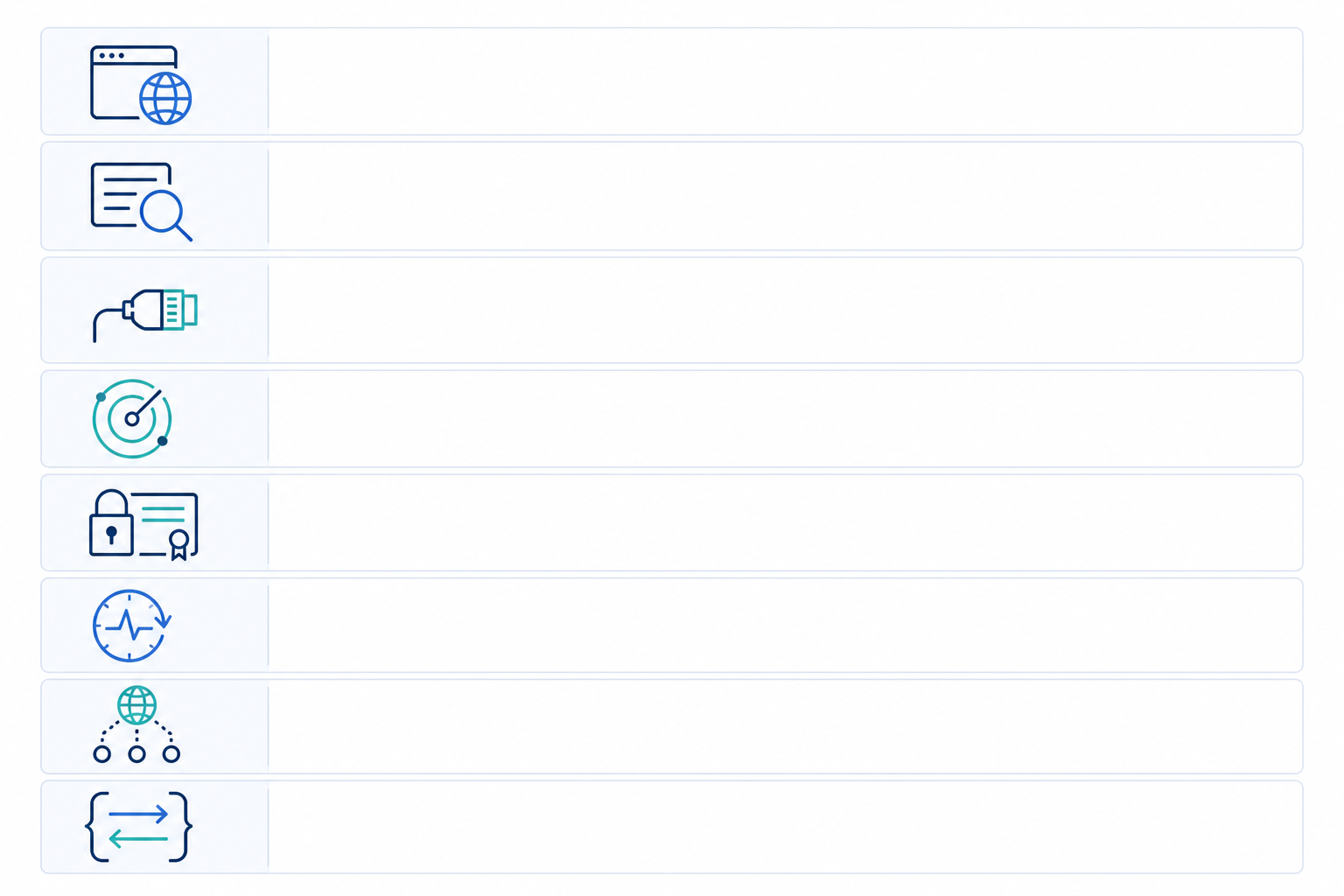
Once your first monitor is running, it's worth knowing what else is available, because "is the site up" is only the beginning. Moonitor supports eight monitor types. You won't need all of them on day one, but it helps to know what's there for when you do.
- HTTP/S monitoring checks whether your site responds and returns a healthy status code. This is the foundation of basic website monitoring and where you should start.
- Keyword monitoring catches the sneaky failures where your page loads fine (a 200 status, technically "up") but shows an error message, an empty cart, or a broken checkout form instead of what it should.
- Port and ping monitoring comes in handy once you're running your own servers or self-hosted apps and need to confirm specific services are reachable.
- SSL certificate and domain expiration monitoring flags an expiring certificate or domain weeks in advance, so you never get blindsided by a browser suddenly warning visitors your site "isn't secure."
- Cron/heartbeat monitoring keeps tabs on background jobs and scheduled tasks, so you know if that nightly backup or billing script silently failed to run.
- DNS monitoring alerts you to unexpected record changes, which can catch anything from a misconfiguration to something more concerning.
If you're just starting out, don't overthink it. Set up HTTP/S monitoring first, then add SSL certificate monitoring shortly after. Those two alone cover the most common (and most embarrassing) ways a small business site fails publicly.
Step 3: Connect website monitoring alerts
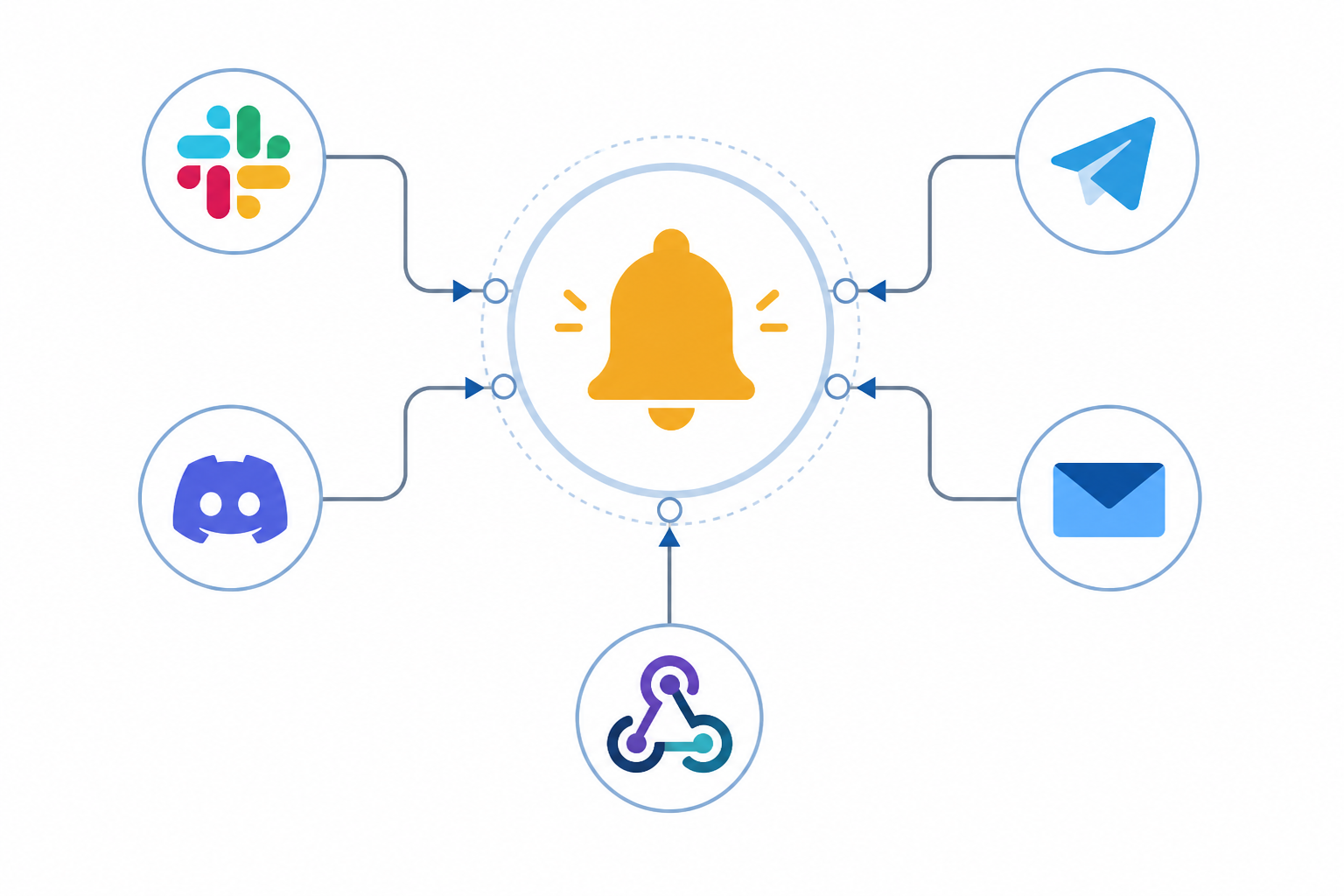
A monitor without an alert is basically a dashboard you have to remember to check, and let's be honest, you won't remember. The whole point of incident alerting is that it comes to you, wherever you already are, the moment something breaks.
Moonitor gives you a handful of options here:
- Email, the simplest, no-setup option
- Slack, great if your team already lives there
- Discord, popular with smaller and community-driven teams
- Telegram, quick and mobile-friendly
- Custom webhooks, for routing alerts into your own tools or workflows
My honest recommendation for most founders: start with Slack or email, since that's probably where you're already spending your day. You can always add more channels later as your team grows.
One more thing worth knowing: Moonitor uses multi-region failure verification before it fires off an alert. That means if a check fails from one location, it gets confirmed from other regions before you get pinged. This matters more than it sounds. Without it, a single flaky network blip can trigger a false alarm, and false alarms train you to start ignoring alerts altogether, which defeats the whole point.
Step 4: Create a simple branded status page
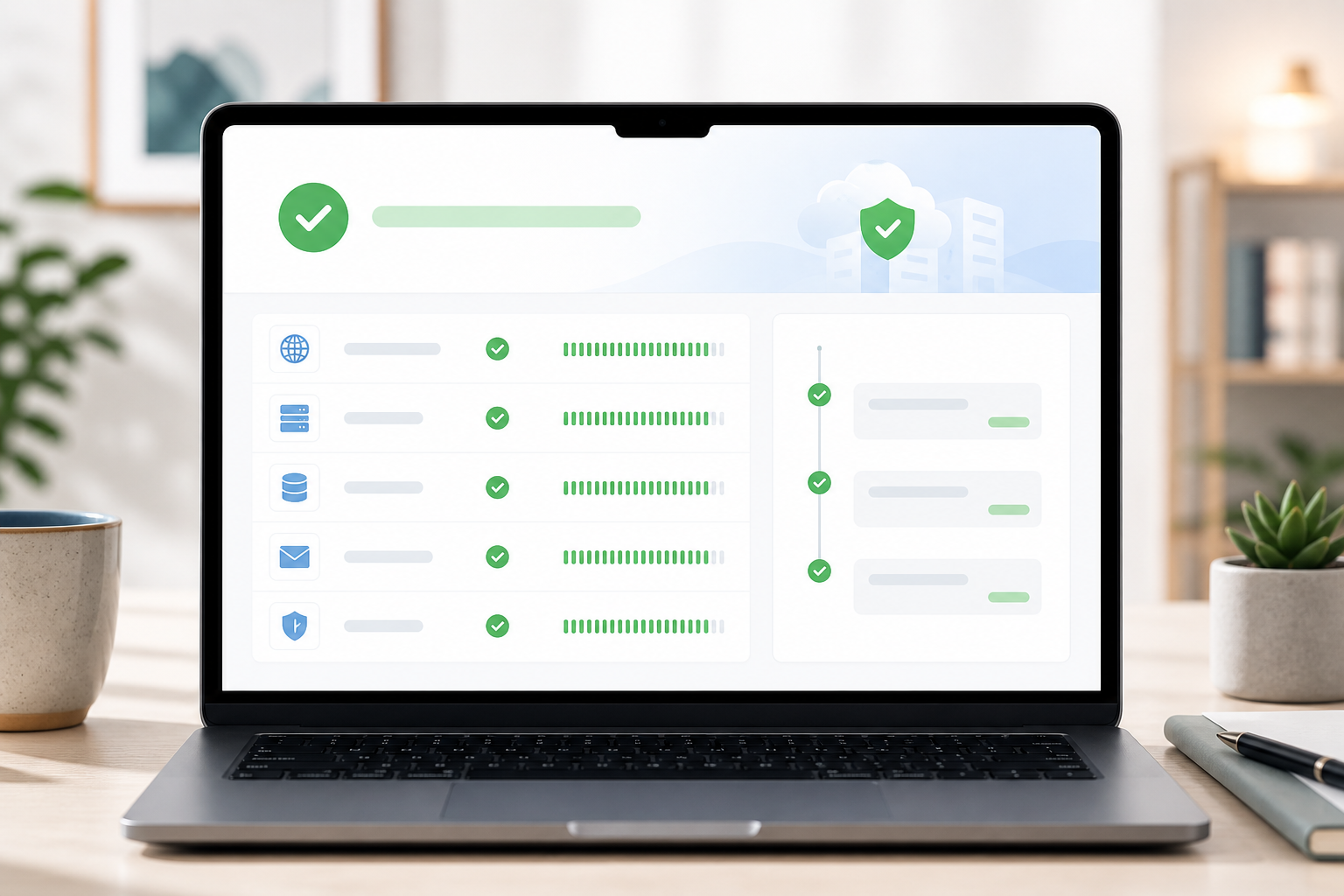
A status page might sound like something only companies with a "Trust & Safety" department need. In reality, it's one of the simplest ways a small business can look more professional and buy itself some goodwill the moment something goes wrong.
Here's why it matters: when your site does go down (and at some point, it will; servers hiccup, hosts have bad days), customers want to know two things. Is it just me, and is anyone working on it? A public status page answers both without you having to personally reply to twenty emails.
Setting one up in Moonitor is quick:
- Go to your dashboard and select the option to create a status page.
- Choose which monitors to display publicly (you don't have to show everything).
- Add your branding, logo and colours, so it feels like part of your site, not a generic third-party page.
- Publish it and grab the link.
Once it's live, drop that link in your site footer, your support email signature, or wherever customers are likely to look during an outage. A branded status page turns "why is your site broken and why won't anyone tell me anything" into "oh good, they already know and they're on it." That shift alone is worth the five minutes it takes to set up.
What to do next as your business grows
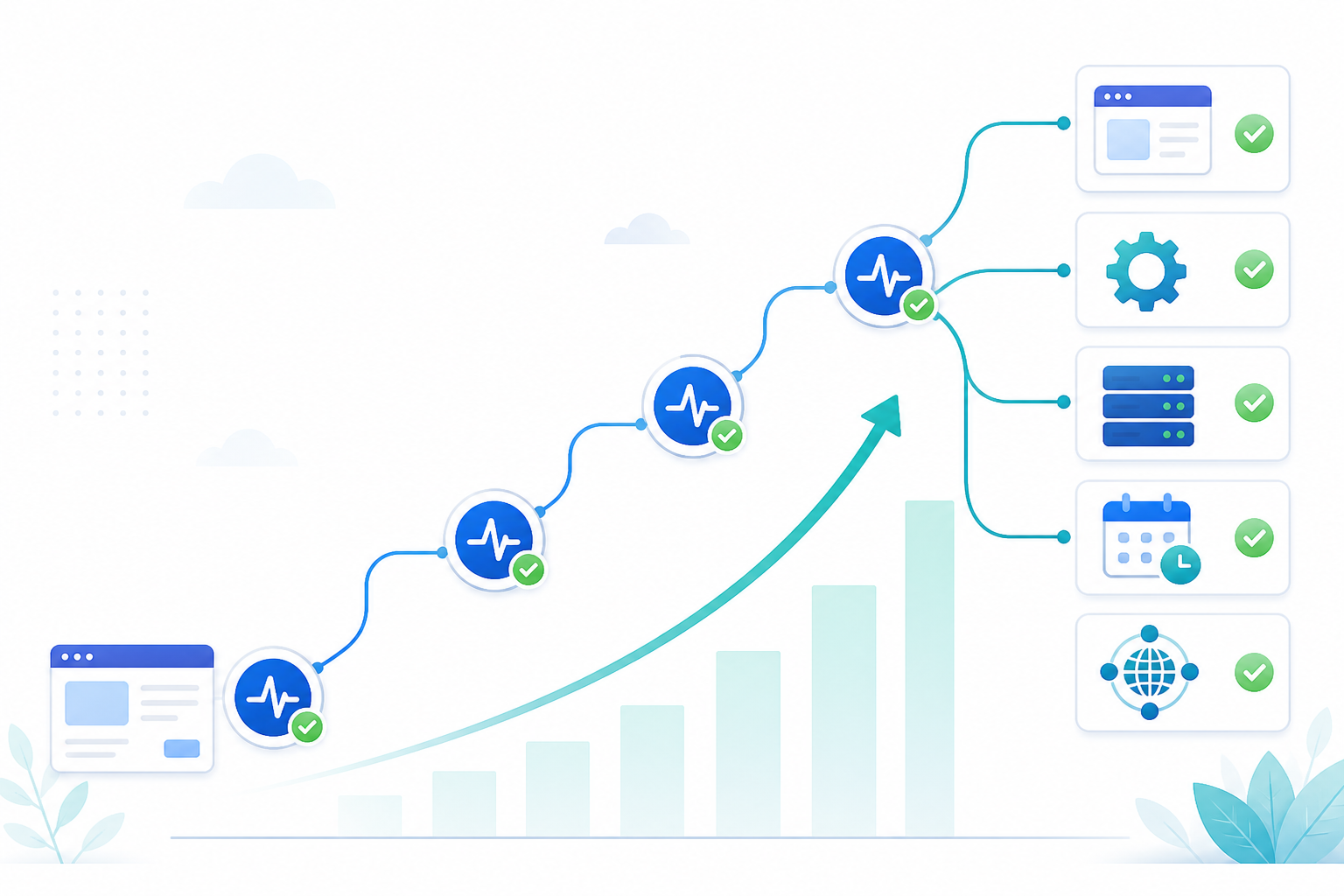
Your website monitor is a great starting point, not the finish line. As your business grows, your monitoring setup should grow with it, gradually, not all at once.
Here's roughly how that progression tends to go:
- Add API monitoring once you build out integrations or launch a public API. If customers or partners depend on your endpoints responding correctly, you'll want eyes on that too.
- Layer in server monitoring and cron job monitoring as your infrastructure gets more complex. Think background jobs, scheduled reports, billing runs, or anything running quietly that you'd rather not discover has failed three days later.
- Use response-time analytics and incident history to spot patterns before they turn into full outages. A site that's been getting slower every week is telling you something, and this data makes it visible instead of just a feeling.
- Export your data via the full API whenever you want it. Moonitor is built to avoid vendor lock-in, so your monitoring history and configuration are never stuck somewhere you can't reach.
- Upgrade your plan as your monitor count grows. The Solo plan ($14/mo, 20 monitors) covers most early-stage setups comfortably. Once you're adding APIs, servers, and multiple background jobs, the Max plan ($49/mo, unlimited monitors) tends to make more sense.
None of this needs to happen on day one. Start small, get your first monitor and alert working, and build out from there as the need becomes real rather than hypothetical.
Frequently asked questions about website monitoring setup
How do I set up uptime monitoring without technical help?
You don't need a developer or IT team to get started. Moonitor's dashboard walks you through adding a monitor with just a URL: no code, no server access, no config files. If you can fill out a sign-up form, you can set up monitoring.
What's the fastest way to start monitoring my website?
Sign up for a free trial, paste your website URL into a new HTTP/S monitor, choose a check interval, and connect an alert channel like email or Slack. That's the whole process, and it genuinely takes under five minutes.
Do I need a credit card to try a monitoring tool?
No. Moonitor offers a 7-day free trial with no credit card required, so you can test real monitors on your real website before deciding if you want to pay for anything.
What's the difference between HTTP monitoring and keyword monitoring?
HTTP monitoring checks whether your site responds and returns a healthy status code. Keyword monitoring goes a step further by checking that specific text still appears on the page, which catches issues like a broken checkout page that loads fine but shows an error message.
Do I really need SSL certificate monitoring as a small business?
Yes, more than you'd think. An expired SSL certificate can make browsers flag your entire site as unsafe overnight, scaring away customers and damaging trust. SSL and domain expiration monitoring catches this weeks before it becomes a crisis.
When should I upgrade from a basic monitoring setup to something more advanced?
Once you're running background jobs, APIs, or multiple services, it's worth adding cron/heartbeat monitoring, port checks, and DNS monitoring so nothing falls through the cracks as your infrastructure grows.
If there's one thing I hope you take away from this, it's that monitoring doesn't need to be intimidating or expensive to be effective. Five minutes, no credit card, and one URL is genuinely all it takes to stop being the last person to know when something's wrong with your own site. Start your free trial and set up one monitor today. You can always build from there.