
How to Set Up a Multi-Client Monitoring Dashboard for Your Agency
A practical guide for UK agencies on structuring one monitoring account for many clients: naming, alert routing, status pages, reporting and scaling.

The most reliable way to run a multi-client monitoring dashboard is to pick one organising principle (usually client first, project second), enforce a strict naming convention, and route alerts to client-specific channels so context is never lost. Add a status page per client and exportable data for reporting, and the setup stays manageable whether you're looking after 20 monitors or several hundred. One caveat up front: naming and filtering make things organised, not secure. We'll come back to that difference, because it matters. The rest of this guide covers how to do it, step by step.
Why a single monitoring account beats a tool per client
Picture it: it's 8:47am, you've barely opened your laptop, and a client emails to say their website is down. Now you're hunting. Was that client on the free tool you set up in 2021? The one with the other login? Or the one a developer who left last spring configured? Four tabs and two password resets later, you finally find the dashboard, and the site has been back up for ten minutes.
I've seen this happen more than once, and it's rarely a technical failure. It's an organisational one. Scattered tools quietly cost you in ways that don't show up on an invoice:
- Duplicated setup. Every new client means configuring checks, contacts and alert rules from scratch, slightly differently each time.
- Inconsistent alert rules. One client gets a text at 3am for a ten-second blip, while another has no SSL expiry warning at all.
- No single view of what's red right now. You can't answer 'is anything on fire?' without logging into everything.
So what should 'centralised' actually mean? I'd say one place to see the health of websites, APIs, servers, SSL certificates, DNS records and scheduled jobs, with client context still intact. That last bit matters. A pile of 300 monitors in one account is only an improvement if you can tell instantly whose problem each one is.
This guide is for agency owners, technical leads and support or DevOps staff who look after multiple client sites and want one low-noise setup rather than a patchwork. By the end, you'll have a naming convention, a baseline checklist for every new client, an alert routing plan, client status pages and a simple reporting routine. I'll use Moonitor for the examples. Going by its documentation at the time of writing, it offers HTTP/S, keyword, port and ping, SSL and domain expiry, cron/heartbeat and DNS change monitors in one dashboard. Features and plans change, so check the current docs before you build around any specific capability. The principles carry over to most tools either way.
How should agencies organise monitors for multiple clients?
Before you create a single monitor, decide how you'll organise them. This is the decision that's hardest to undo later, so it's worth ten minutes of thought.
The approach that holds up best is to treat the client as the top-level boundary and the project, site or service as the next level down. That keeps everything about one client together while still letting you look at a specific project. Here's how the options compare:
| Client-first | Project-first | Hybrid (client, then environment or service) | |
|---|---|---|---|
| Best for | Support teams, account managers, retainer clients with several properties | Agencies built around delivery teams | Most agencies |
| Pros | Easy to answer 'how is Client X doing?'; simple reporting | Mirrors how delivery work is organised | Clear client view, plus separation of production and staging or service types |
| Cons | Project-level views need extra filtering | Gets messy once projects end and maintenance begins; client-wide reviews are harder | Needs discipline in naming |
| Example name | Acme – Main site – HTTP | Acme Rebrand 2025 – Site – HTTP | Acme – Prod – Checkout keyword |
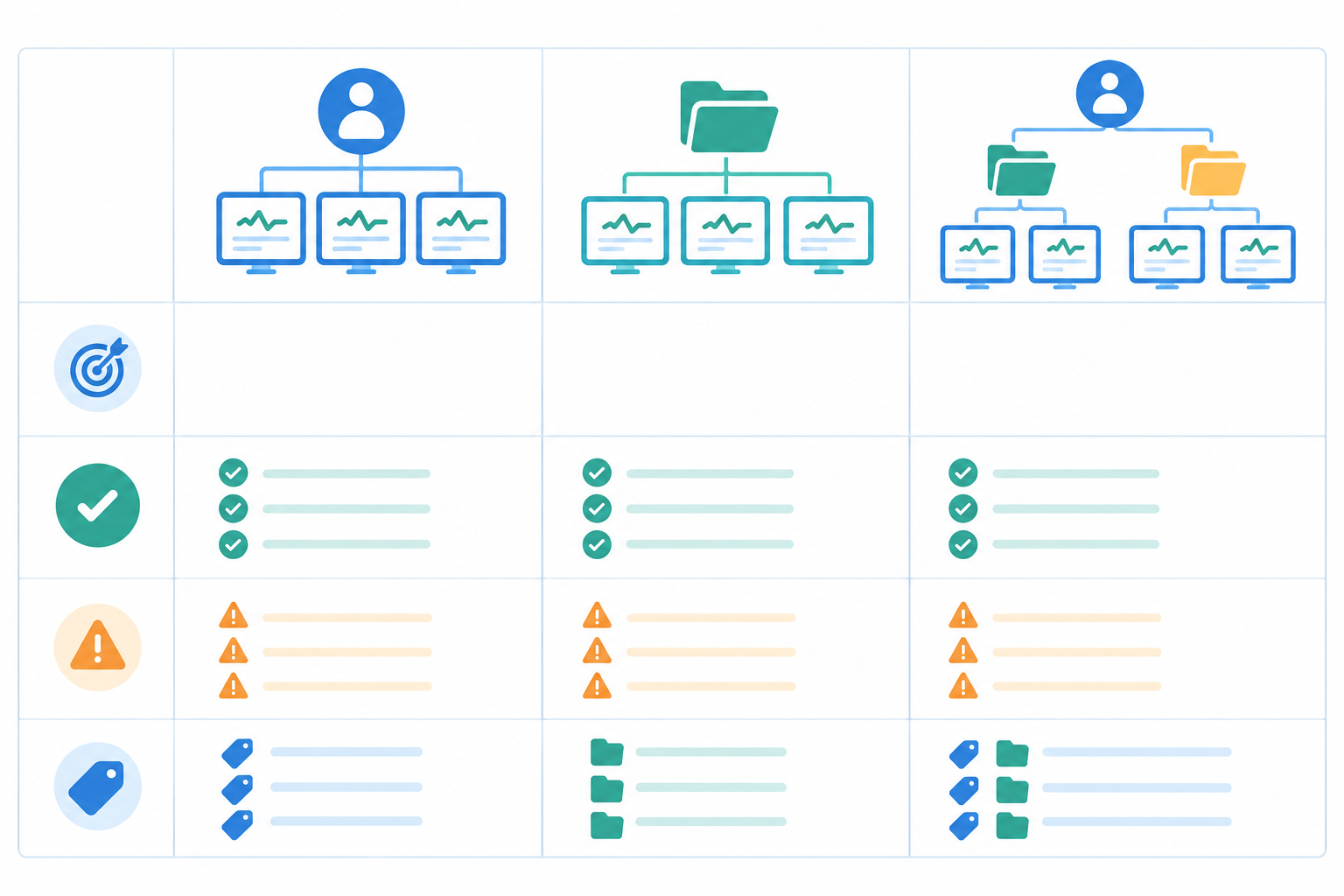
If you genuinely run a project-first shop, that's fine. Just put the client name in every project name and keep a client-level summary somewhere. Otherwise, go client first. Projects end. Clients (with luck) stick around for years, and monitoring is a maintenance job.
A naming convention you can copy
Here's the format I'd suggest: Client – Site/Service – Check type. A few examples:
Acme Plumbing – Main site – HTTPAcme Plumbing – Checkout – Keyword 'Order summary'Acme Plumbing – Nightly backup – HeartbeatBrightside Dental – Prod – SSL expiry
Consistent naming does more work than any clever folder structure. Monitors become searchable, an alert tells you whose problem it is before you even open it, and exports are easy to filter later.
Here's the honest limit, though. A naming convention is a labelling system. It doesn't stop one person seeing another client's monitors, and a filter isn't a data boundary. If client separation matters contractually or legally, confirm how your account actually handles access, and don't assume the names are doing that job.
Which monitor types should you set up as a baseline?
For most clients I'd start with this set:
- HTTP/S monitor on the main domain
- Keyword monitor on one commercially important page
- SSL certificate and domain expiration monitors
- DNS record change detection
- Ping or port checks where the client has their own server or a service like mail or SSH
Then add heartbeat monitors and API checks where the client actually has scheduled jobs or endpoints.
How many monitors does each client need?
Avoid duplicate checks. Monitoring the homepage three different ways doesn't triple your confidence, it triples your noise. As a planning assumption (not a rule), many clients are covered by 5 to 10 monitors, and a client with a shop, several integrations and scheduled jobs will need more.
Plan sizes are where that assumption meets your budget. As of writing, Moonitor lists its Solo plan at $14/mo for 20 monitors and its Max plan at $49/mo for unlimited monitors. Those are US dollar prices. Check moonitor.com for current pricing, and confirm how currency conversion and UK VAT are handled at checkout so your budget isn't a surprise. At 8 monitors per client, 20 monitors covers about two clients. Ten clients at that rate is 80 monitors, which is where an unlimited plan starts to make sense.
A baseline monitoring checklist for every new client
The big win from centralising is repeatability. When every client gets the same minimum standard, nothing slips through because someone forgot. Here's the checklist I'd run for each new client.

- Uptime monitoring on the main domain and key landing pages. If your tool supports multi-region verification (checking a failure from several locations before alerting), switch it on. That way one network blip in one place doesn't wake anyone at 3am. Moonitor's documentation describes this, but check how it's configured on your plan.
- Keyword monitoring on pages that matter commercially. Think checkout, booking or login. A page can return a perfectly healthy 200 status while showing an error message or a blank form. Checking for an expected phrase catches those 'up but broken' failures.
- SSL certificate monitoring and domain expiration. These are the two classic agency embarrassments, and both are completely preventable. Nobody enjoys explaining to a client that their site is showing a security warning because a certificate quietly lapsed.
- DNS monitoring. Get alerted when records change unexpectedly. It's handy when clients, or their other suppliers, make changes you don't know about, like an email provider tweaking an MX record.
- Heartbeat and cron job monitoring. Backups, imports, scheduled emails and other jobs fail silently by nature. The job pings a unique heartbeat URL when it succeeds, and you're alerted when the ping doesn't arrive on schedule.
- API monitoring. If the client's app or integrations depend on specific endpoints, monitor them directly, ideally checking for the response you expect rather than just any reply.
- Document it in an onboarding template. Write down the checklist, the naming format, the alert channel and the status page setup. Once the template exists, a new client can reach your minimum standard quickly, and in my experience adding an individual monitor takes only a minute or so.
That last step is the one people skip, and it's the one that pays off most. A template turns 'how do we set up monitoring?' from a conversation into a checklist anyone can follow.
Can I give team members limited access per client?
This is the part that worries most agency leads, so let's be practical about it.
Start by working out who actually needs what:
- Account managers need read access and reporting. They have to see status and pull numbers, not edit checks.
- Developers and DevOps need to create and edit monitors and manage integrations.
- Directors or owners get billing and everything else.
The guiding idea is least privilege: give each person only the access they need for their work, and review it when their role changes. It's a core access control principle in NIST's security guidance (SP 800-53), and it makes just as much sense for a ten-person agency as for a bank.
It also means dropping the habit of sharing one login across the team. The CIS Critical Security Controls favour individual accounts because you can assign the right access and trace who changed what. Whoever set a monitor to check every hour instead of every minute will be glad you can see it wasn't a mystery. And turn on multi-factor authentication wherever it's offered. Microsoft's security team has said MFA can block over 99.9% of automated account-compromise attacks (see their 2019 post on the topic). Treat that as a headline figure rather than a guarantee, but it's a lot of protection for a minute's effort.
Check what your plan actually offers
Here's where I want to be straight with you. Before you design your whole setup around per-client permissions, verify exactly which roles, team seats and access controls Moonitor's current plans include. I'd rather you check than assume a client-by-client permission model exists when it may not. Treat the account as an internal agency tool unless you've confirmed otherwise.
If per-client access isn't available, there's a tidy workaround. Give clients a branded public status page and scheduled exports instead of dashboard access, and keep the account itself internal. Most clients don't want another login anyway. They just want to know the site is fine.
Offboarding checklist
When a team member leaves, or a client moves on, run through this:
- Revoke the person's access to the account.
- Rotate any webhook URLs and API keys they had access to.
- Remove them from alert channels in Slack, Discord or Telegram.
- For departing clients, export their data, then archive or delete their monitors and status page.
How to consolidate alerts without losing client context
The real problem with multi-client alerting usually isn't too few alerts. It's alerts that don't tell you whose problem it is. 'Monitor 47 is down' is useless at 8:47am. 'Acme Plumbing – Checkout – Keyword failed' gets you moving.
Two routing patterns work well:
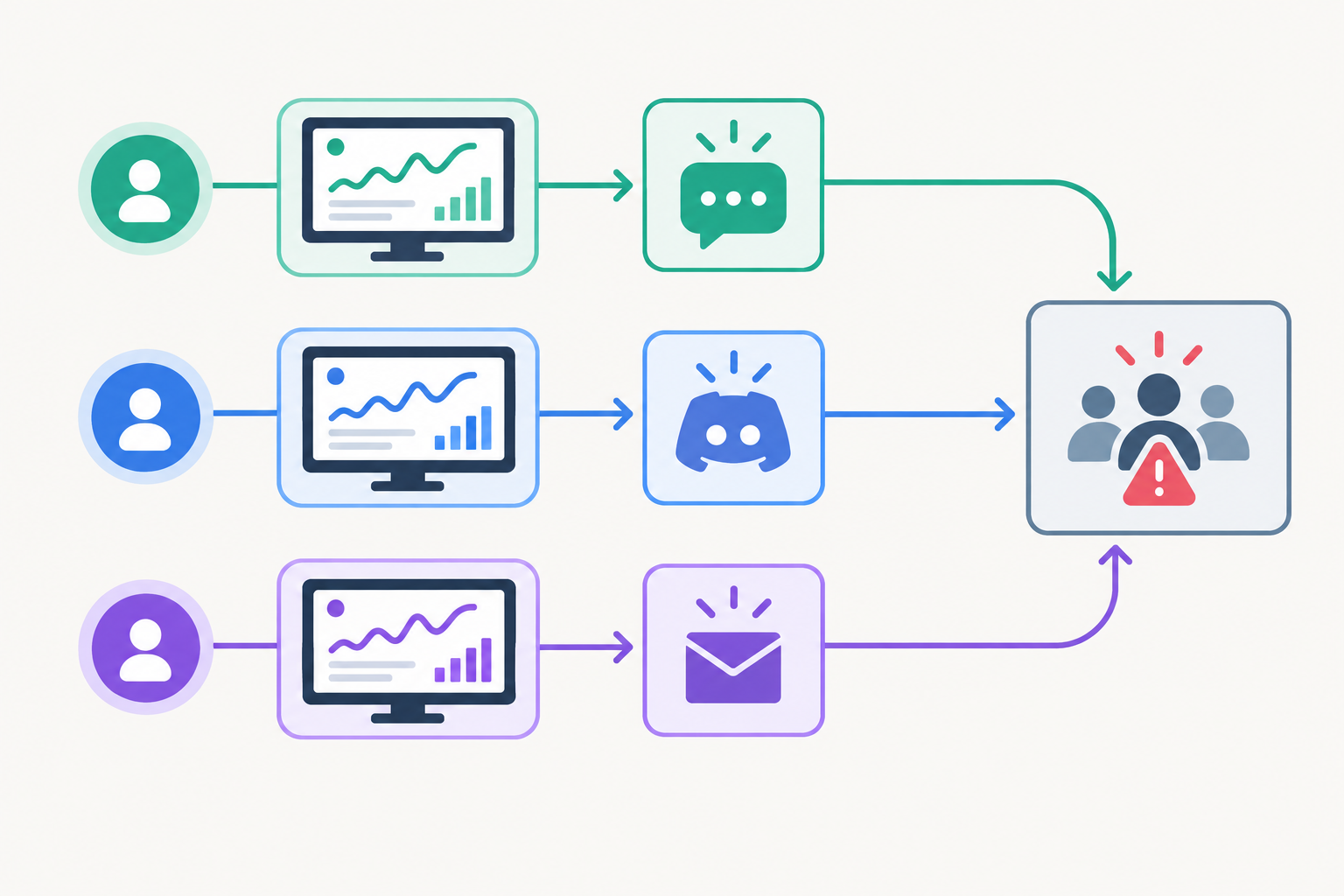
- One channel per client. A dedicated Slack or Discord channel for each client means the channel name does the context work for you. This is lovely for larger retainers where a few people care about one client.
- A shared #incidents channel. It's simpler, but it depends entirely on your naming convention. Because every monitor name starts with the client, the client name appears right in the alert.
Match the channel to the severity
Not everything deserves the same urgency. A sensible split:
- Email for SSL and domain expiry warnings. They arrive weeks ahead, so there's no need to interrupt anyone.
- Slack, Discord or Telegram for downtime, where someone should look within minutes.
- Webhooks into your ticketing or on-call tool for critical outages that need a formal response.
False alarms matter even more at scale. Multiply a single false alarm across 30 clients and you've got a team that learns to ignore alerts, which is the most dangerous outcome in monitoring. Confirming failures from several locations before alerting, and setting sensible retry thresholds, keeps the signal clean.
Agree who owns what
Tools can't settle this, so settle it as a team. Decide who acknowledges an alert, who investigates, who emails the client, and when. Even a one-line rule like 'whoever acknowledges owns it until handover' prevents the classic situation where three people look at an alert and each assumes someone else has it.
And here's the difference a good message makes:
- Vague: 'Monitor down: homepage'
- Useful: 'Brightside Dental – Prod – HTTP is DOWN (confirmed from 3 regions). Started 08:41 UK time.'
The second tells you who, what, how sure the tool is, and when. That's what your naming convention buys you.
Test alert routing before you trust it
Before a client goes live, test the whole chain. Trigger a test alert (or pause and point a monitor at a deliberately failing URL) and confirm it lands in the right channel, with the right name, for the right person. Do the same for email, webhooks and any phone or on-call route. It takes ten minutes, and it's far better to discover a mistyped webhook now than during a real outage.
Keeping clients informed with branded status pages
If I could recommend only one thing to cut 'is the site down?' emails and phone calls, it'd be a status page. It shifts the conversation from the client chasing you to you informing them.
The best approach is a separate branded status page for each client, showing only their own services rather than a cluttered agency-wide view. Keeping each client's page, components and subscribers separate also avoids the nightmare of accidentally exposing one client's information to another. Check how many status pages your Moonitor plan includes, and whether pages are public or can be restricted, before you plan this out. Then open each page in a private browser window before sharing the link, to confirm it shows only what that client should see.
Think about what to show publicly, too. A good rule of thumb: show the website and API, hide the internal stuff. The client doesn't need to see your nightly backup heartbeat or a staging server, but they'll appreciate a clear green tick next to 'Website' and 'Booking system'.
When things go wrong, the incident history is where trust gets built. Clear, honest updates help, and the habits from incident communication guidance, like the incident response chapters of the Google SRE Workbook, translate well to agency life:
- Say what's affected and what the impact looks like.
- Say what you're doing about it.
- Say when the next update is due, even if nothing has changed.
- Use plain states like investigating, identified, monitoring and resolved.
- Don't promise a fix time you can't back up.
For context on why this matters, the Uptime Institute's 2024 Annual Outage Analysis reported that more than half of respondents said their most recent significant outage cost over $100,000. That figure comes from data centre and enterprise operators, so your clients' stakes are likely smaller, but they feel just as large to them. A status page won't prevent an outage. It does show the client you're on it, which can build trust over time. It's no substitute for a direct message, though: for serious incidents, still pick up the phone.
What's the best way to export client-specific data for reports?
Monthly reports are where monitoring turns into something the client can see you earning your retainer on. The trick is to keep it simple. Most clients care about four things: uptime percentage, the number and length of incidents, response-time trends, and which SSL or domain renewals you've handled.
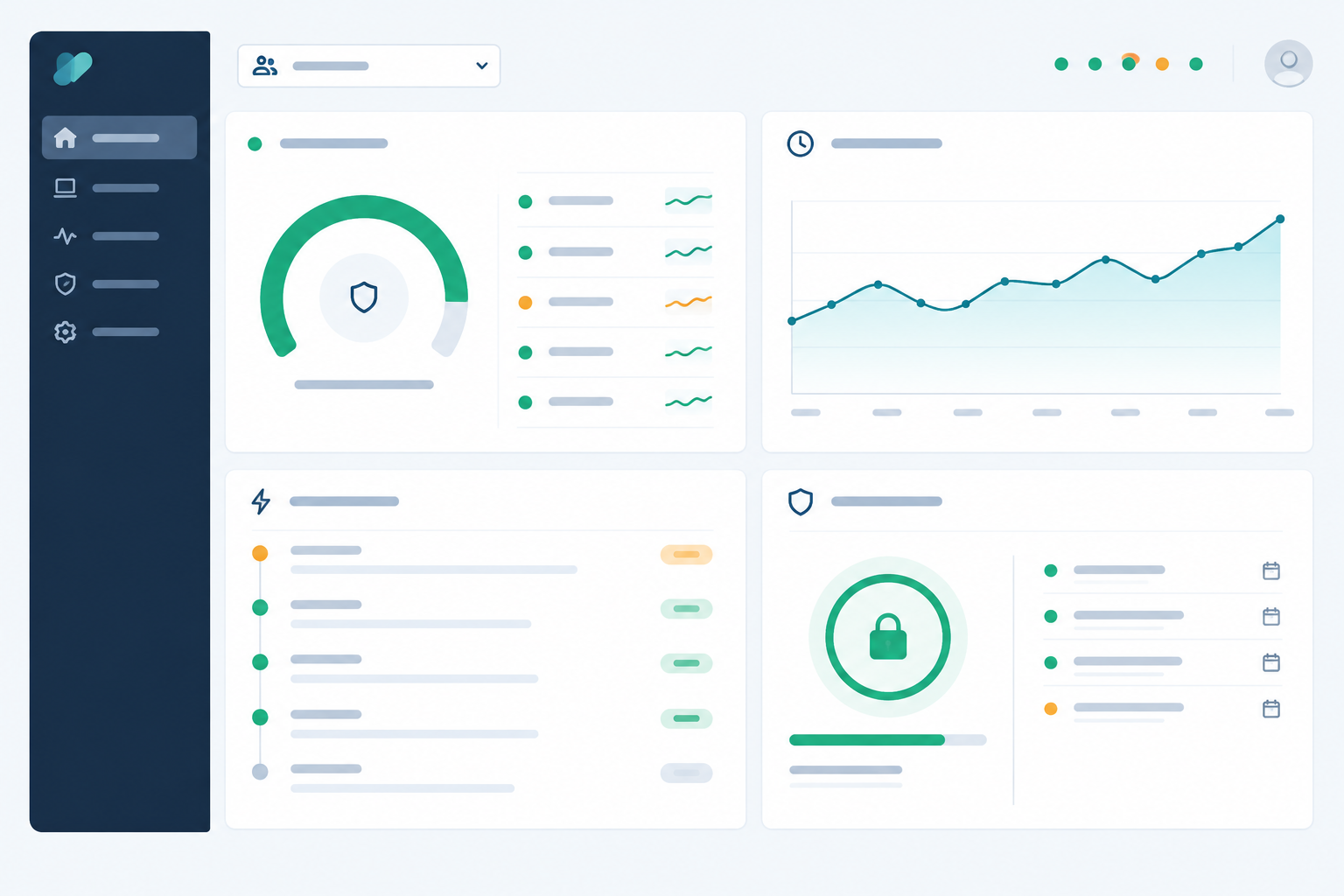
Here's a routine that works:
- Pull response-time analytics and incident history for the reporting period, using exact dates and a stated time zone. For UK clients, say whether you're using GMT or BST, and watch the clock-change weekends so a month doesn't lose or gain an hour.
- Use the API and data export to filter by client. Moonitor's documentation describes both, but check what fields and date ranges your plan exports. Because every monitor starts with the client name, separating one client's data from another's is a filter rather than a chore. Remember, though, that a filter is a convenience and not a safeguard. Before sending, double-check the client name, date range and filters so one client never receives another's numbers.
- Drop the numbers into a simple monthly template, with a short plain-English summary at the top. 'Your site was available 99.97% of the time, with one four-minute interruption on the 12th' beats a wall of charts.
- Automate it where you can. A script or scheduled job can pull and format the data. And since you're already using heartbeat monitoring, point a heartbeat at the reporting job itself, so you find out if the report quietly stopped running.
- Validate the first export. Compare the figures with the dashboard for one client and one week. If they match, you can trust the pipeline.
If you're sending monitoring data about client sites, treat it like any other client data and keep it within the people who need it, in line with your usual UK GDPR and contract obligations.
What a one-page client monitoring report should include
Include headline uptime, an incident list with durations and causes, a response-time chart, upcoming SSL and domain renewals, and a line on what you did. Leave out raw logs, technical jargon, and internal-only monitors like your cron checks, unless they're relevant to something the client noticed.
One more reason to care about open export: it reduces vendor lock-in. Your monitoring history stays yours, and if you ever change tools, you can take it with you.
A worked example: one client from setup to report
Let's make this concrete with a fictional client, Brightside Dental, a three-page booking site with a nightly appointment export.
- Monitors:
Brightside Dental – Prod – HTTP,Brightside Dental – Booking – Keyword 'Choose a time',Brightside Dental – Prod – SSL expiry,Brightside Dental – Prod – Domain expiry,Brightside Dental – Prod – DNS,Brightside Dental – Nightly export – Heartbeat. That's six monitors. - Alert routing: downtime and keyword failures go to #brightside-alerts in Slack. SSL and domain expiry go to email. A total outage also fires a webhook into your ticketing tool.
- Owner: whoever acknowledges the alert owns it until handover. The account manager sends the client update.
- Status page: a Brightside-branded page showing 'Website' and 'Booking system' only. The export heartbeat stays internal.
- Report: monthly, covering the 1st to the last day of the month in UK time, with uptime, incidents, response-time trend and renewals. It's filtered on names starting 'Brightside Dental', then checked against the dashboard before sending.
Once that works for one client, you've got a template for every other.
How to scale a multi-client monitoring dashboard to hundreds of monitors
The good news is that everything above scales. A few habits keep it that way:
- Plan your monitor budget as you win clients. Use the 5 to 10 per client figure as a starting estimate, then count real monitors after your first few onboardings. If you're regularly adding keyword checks, heartbeats and API checks, an unlimited plan can save you from rationing checks. Compare current pricing (quoted in US dollars as of writing) with your real count.
- Run a quarterly tidy-up. Remove monitors for retired sites, fix any noisy checks, and review who receives which alerts. Old monitors and stale contacts are the main source of clutter.
- Use the API to create monitors when onboarding. Once your template is settled, a short script that creates the standard set for a new client beats clicking through the interface every time, and it enforces your naming convention automatically. Check the API documentation for what can be created programmatically.
- Review check intervals and thresholds as sites mature. What suited a brand-new launch may be too chatty or too relaxed a year on. Watch for alert fatigue creeping in.
- Keep a lightweight runbook. A page that explains where to find a client, what its monitors are and how to respond to an incident means a new starter can handle an alert without asking around.
My honest advice: don't try to roll this out across your whole client list in one go. Start with one or two clients, get the naming and alert routing right, then replicate it. Moonitor advertises a 7-day free trial with no credit card required (confirm current terms on its site), so you can set up a couple of real clients and see whether the structure works for your team before committing.
FAQ
How should agencies organise monitors for multiple clients?
Start client first, then group by environment or service type, and use a strict naming convention such as Client – Site – Check type. That keeps alerts readable, searches quick and exports easy to filter, even as the number of monitors grows. Just remember that naming organises monitors but doesn't restrict who can see them.
Can I give team members limited access per client?
It depends on the access controls your plan offers, so check Moonitor's current team and role options before relying on them. If you need to give clients visibility without sharing your dashboard, a branded public status page and regular exported reports are a safe alternative.
How do I keep alerts organised across many clients?
Put the client name at the start of every monitor name and route alerts to client-specific channels in Slack, Discord or Telegram, or into a shared incidents channel. Multi-region failure verification also helps by filtering out false alarms before they reach anyone. Test each route before the client goes live.
What's the best way to export client-specific data?
Use the API and data export, filtering by your client naming convention to pull uptime, incident and response-time data for each client. Drop it into a monthly report template, state the time zone, and check the first export against the dashboard before you automate the process.
How many monitors does a typical agency client need?
Many clients are well covered with 5 to 10: the main site, key pages, SSL and domain expiry, DNS, and any critical API or scheduled jobs. Treat that as a planning figure rather than a rule, and recount after your first few onboardings when choosing between a capped plan and unlimited monitors.