
5 Signs Your Website Monitoring Setup Isn't Good Enough (and How to Fix Each One)
Is your website monitoring setup enough? Spot five warning signs—from missed outages to noisy alerts—and find practical fixes you can make in about an hour.

Your website monitoring setup probably isn't good enough if customers tell you about outages before any tool does, your alerts are noisy or ignored, you only check the homepage, certificates and domains go unwatched, or you can't tell whether scheduled jobs ran. The good news is that each gap has a practical fix. With a modern tool, you can often get a simple setup running in about an hour, and you don't need a DevOps hire to do it. ☕
Let's walk through the five signs together. As you read, ask yourself one question: is this me?
Why a 'good enough' website monitoring setup can stop being enough
Picture a small online shop owner. Let's call her Priya. It's Saturday morning, the busiest trading window of her week, and she's having a lazy coffee. Then an email lands: 'Hi, is your checkout down? I keep getting an error.' She checks. It's been broken since Friday night. No alert, no warning, just a customer kind enough to tell her. Hours of sales are gone.
Priya did have monitoring. Two years earlier she'd set up a single ping to her homepage, and it had been green ever since. The problem is that her business had grown and her monitoring hadn't. She'd since added a checkout, a customer login, a stock-sync API and a nightly backup. None of those were watched.
That's how most setups go. You start with one homepage check, it works, and you forget about it. Meanwhile your business adds moving parts, and every new part is another way to fail quietly.
Think of this article as a self-audit. Each sign below is a symptom you might recognise from your own experience, followed by a quick fix. If you want the short version of 'how do I know if my website monitoring setup is enough?', skip to the 15-minute audit at the end. But I'd read the signs first. They're more fun than they sound.
Sign 1: You learn about website outages from your customers
The symptom: your first alert is a support email, a reply on social media, or a message from a colleague who happened to be browsing your site.
Why customer-reported outages hurt
The obvious cost is lost sales. If someone can't pay you, they go elsewhere, and some of them don't come back. The less obvious cost is trust. Customers who find the problem before you do start to wonder what else you're missing. And then there's the stress of scrambling with no context: you don't know when it started, how many people were affected, or what broke.
Serious outages can get very expensive at scale. The Uptime Institute's Annual Outage Analysis 2024 reported that 54% of respondents said their most recent significant outage cost more than $100,000, and 16% said it cost over $1 million. Those figures are in US dollars and come mostly from larger organisations running data centres and critical IT, so treat them as an illustration, not a benchmark for a small UK shop or booking business. The principle does carry down, though. The longer a problem goes unnoticed, the more it costs, and a few lost hours of orders or bookings can sting when you're running lean.
Common reasons you hear about outages first
- You have no external monitoring at all and rely on 'I'd notice if it was down'. (You wouldn't, not at 2am.)
- You check manually, loading the site now and then. That only works while you're awake and remembering.
- Alerts go to one person's inbox. If that person is on holiday, asleep or in a meeting, nobody knows.
- You check the server, not the experience. Google's SRE guidance on monitoring recommends alerting on symptoms users actually feel, rather than only on internal health. A server can look healthy while your checkout is broken.
Quick fix: Set up external uptime monitoring
Set up external uptime monitoring that checks your site every minute or so, from outside your own hosting environment. Then send alerts somewhere shared, like a Slack or Discord channel, a Telegram group or a team email address, so more than one person sees them.
Most monitoring tools, including Moonitor, offer a free trial, so you can try this on your real site before paying for anything. Check the current trial terms on the provider's site first.
Sign 2: Your website monitoring alerts are noisy or ignored
The symptom: a muted channel. A 'probably fine' reflex when your phone buzzes. Or a 3am notification that turned out to be absolutely nothing, after which you stopped trusting the whole system.
Why do I get so many false alerts?
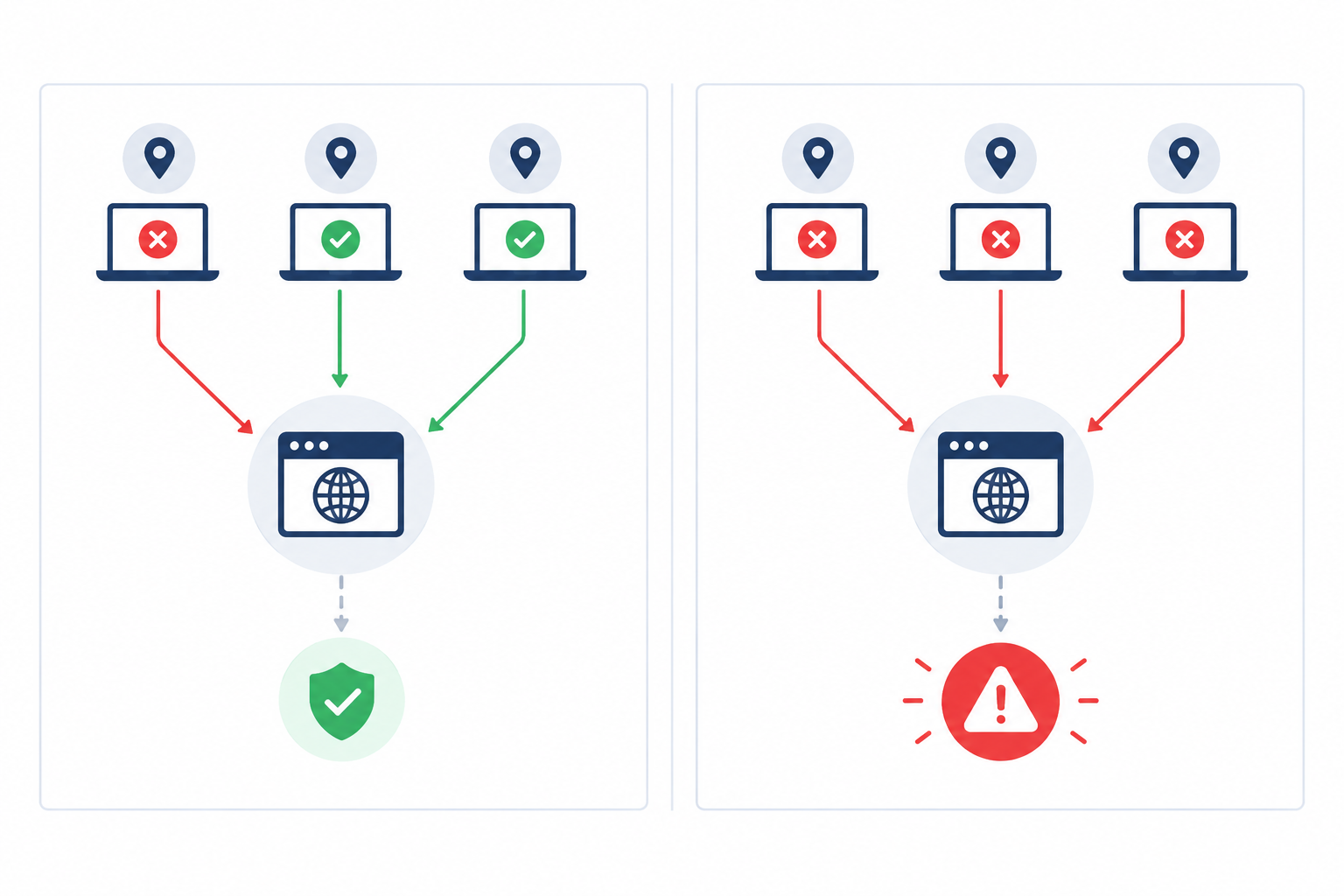
Many false alarms come from checking from a single location. If that one checker has a brief network blip, or there's a routing problem between it and your host, your tool decides your site is down, even though visitors elsewhere can reach it just fine. The problem is on the checking side, but you're the one getting woken up.
Alert fatigue, in plain English
You know the story of the boy who cried wolf? Alert fatigue is that story with a phone. After enough false alarms, people stop reacting. Then one day the wolf is real, and the alert is ignored, muted or dismissed with a sigh. A noisy monitoring tool can be worse than none, because it gives you the feeling of coverage while training you to look away.
Quick fix: Use multi-region failure verification
Look for multi-region failure verification. Instead of alerting the moment one location sees a problem, the tool asks other regions to confirm. If one location says 'down' and two say 'up', that disagreement may point to a checker or regional network issue rather than a problem with your site, so you stay asleep. It doesn't prove your site is healthy for everyone, which is why a persistent disagreement is still worth a look. If several regions agree your site is unreachable, you get the alert, and you can trust it far more. Not every tool does this by default, so check the settings of whichever one you use.
Tips for reducing website monitoring alert noise
- Split alerts by urgency. Send urgent ones (checkout down, API failing) to a chat channel or webhook that people watch, and low-priority ones (a certificate expiring in three weeks) to email.
- Tune your check interval and retries. A one-minute interval with a retry or two catches real problems quickly without crying wolf.
- Review muted channels. If you've muted one, that's your cue to fix the noise, not live with it.
The payoff is simple: fewer, more trustworthy alerts mean faster reactions. When your phone buzzes, you look, because it matters.
Sign 3: Your website monitoring setup only checks the homepage
The symptom: the homepage loads beautifully while login, checkout, your API or a key landing page is broken. Customers can see your shop window but can't get through the door.
A homepage is often the sturdiest page you have. It's frequently cached, mostly static and the least likely to fail. The pages that make you money tend to be more complicated, and so more fragile.
What should I monitor beyond the homepage?
Here's a practical list:
- Login or app pages (HTTP/S monitor). Check for an expected status code. If people can't sign in, the site is effectively down for them.
- Keyword monitoring. Some failures return a cheerful '200 OK' while showing an error message or a blank page. A keyword monitor checks that the page contains the text it should (or doesn't contain text like 'Something went wrong').
- API monitoring. Check the endpoints your app, mobile users or customers rely on, ideally confirming they return the expected status and response content, not just any response.
- Port and ping checks. These are reachability checks. They tell you a server or service (a database port, a mail server, SSH) is answering, but not that your application is healthy or doing its job.
- DNS monitoring. This detects unexpected record changes that could redirect traffic or quietly break your email.
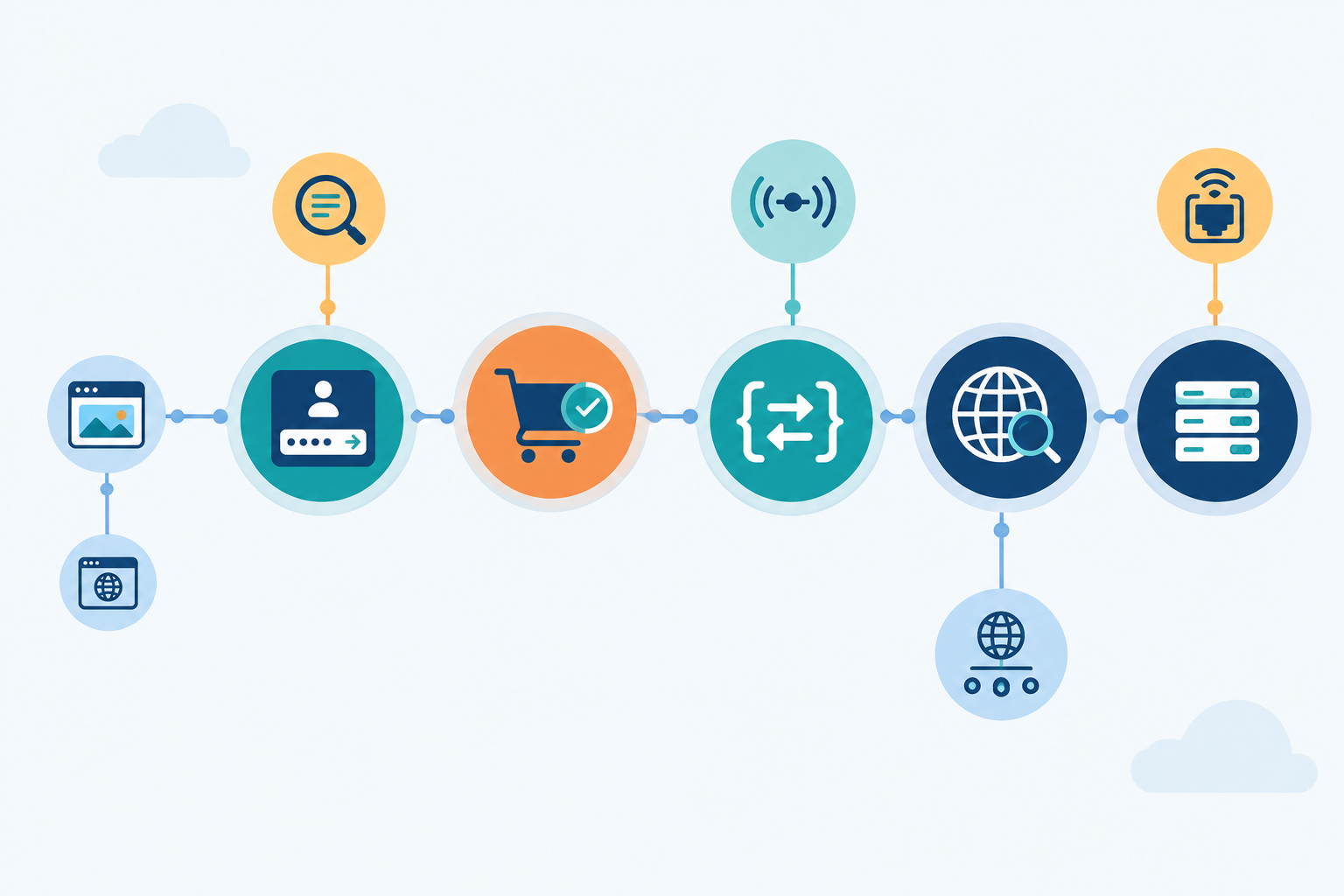
To be honest, these checks tell you a lot, but they don't prove a whole customer journey works. For an online store, the real questions are whether a product page loads, whether an item can be added to a basket, and whether checkout reaches its confirmation step. Testing that end to end usually needs a synthetic transaction (a scripted run-through of the journey), which some tools offer and others don't. Until you have that, page, keyword and API checks on each key step are a sensible start.
Quick fix: Monitor your most important user journeys
Write down your five most business-critical user journeys. Perhaps 'view a product', 'log in', 'pay', 'book a slot' and 'API call from our partner'. Then add at least one check for each. Five monitors beat one, and you don't need to be exhaustive on day one. If you can, keep them all in a single dashboard so you aren't juggling several tools.
Sign 4: SSL certificates and domains aren't monitored
The symptom: if I asked when your SSL certificate and domain registration expire, you couldn't say off the top of your head.
I've seen this one catch out sensible people. A small business owner gets a renewal reminder, but it goes to an inbox belonging to the freelancer who built the site five years ago. Nobody sees it. A few months later, visitors hit a big red browser warning: 'Your connection is not private.' The site is technically up and the servers are running, yet customers leave, because nobody clicks past a security warning to buy something.
Why certificate and domain expiry can cause outages
Expiry is predictable. You know the date months in advance, which is exactly what makes it so frustrating when it bites. And it's becoming more relevant, not less.
- Certificates are living shorter lives. Let's Encrypt certificates last 90 days and are designed to renew automatically (see the Let's Encrypt FAQ). The wider industry is moving the same way. The CA/Browser Forum approved ballot SC-081v3, which steps the maximum public certificate lifetime down from 398 days to 200 days from March 2026, 100 days from March 2027 and 47 days from March 2029. More renewals mean more chances for automation to quietly fail.
- Automation isn't a guarantee. Renewal can fail without anyone noticing, and a renewed certificate also has to be the one your server is actually serving.
- Domain and certificate expiry are separate risks. You can renew your certificate perfectly while your domain registration lapses. Renewal emails going to an old address and an auto-renew payment failing because a card expired are the usual culprits. If you have a .co.uk or any other domain, check how your registrar handles reminders and failed payments, because policies vary. ICANN's expired registration recovery policy sets out what registrars must do around expiry, and some offer a grace period. I wouldn't rely on that, since recovery can be costly or impossible.
There's a UK example worth knowing about. In December 2018, an expired certificate in Ericsson software disrupted O2's mobile data service for customers. It wasn't a website certificate, but it shows how an overlooked expiry date can take down something big.
Quick fix: Monitor SSL certificate and domain expiry
Add SSL certificate monitoring and domain expiration monitoring for every production hostname that matters. Set alerts to arrive weeks ahead, not days: for example, at 30, 14 and 7 days before expiry. That gives you time to sort out a failed card or find the right login without panic.
A couple of extra tips:
- Send expiry alerts to a shared team address or channel, never a single person's inbox.
- Don't forget subdomains such as your app, shop or booking pages, which may have their own certificates.
Sign 5: Nobody knows whether scheduled jobs ran
The symptom: backups, invoice runs, email digests or data syncs fail silently, and you only find out days later, usually at the worst possible moment. 'We can't restore from last night's backup' is a sentence nobody wants to say.
Why normal uptime checks can't catch scheduled job failures
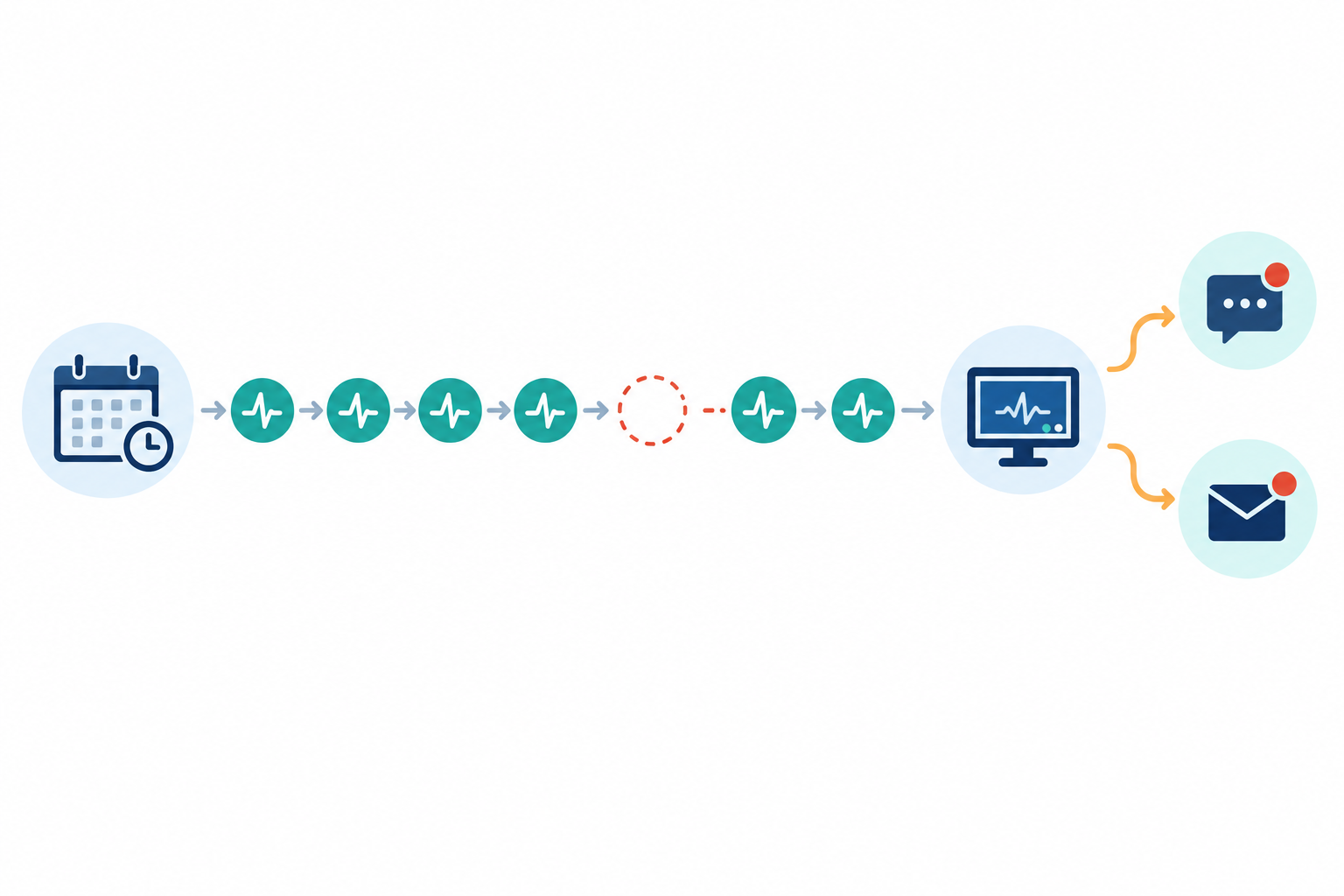
Uptime checks work by asking something a question: 'are you there?' But a scheduled job has no page to ping. If the job simply doesn't run, nothing is down, nothing returns an error, and nothing looks wrong. A normal check can't see something that never happened.
Cron job monitoring and heartbeat monitoring, in plain English
The fix is to flip the direction. Instead of your monitoring tool checking on the job, the job checks in with the monitoring tool when it finishes. That check-in is called a heartbeat. You tell the tool how often to expect it, and if the heartbeat doesn't arrive on time, you get an alert. No check-in, no calm.
Examples of scheduled jobs to monitor
- A nightly database backup
- A weekly newsletter send
- Payment reconciliation or invoice generation
- A stock or data sync between your shop and your supplier
Quick fix: Add heartbeat monitoring to important jobs
Add one heartbeat call at the end of each important job, so it only fires on success. Then set a sensible grace period, such as a few minutes of leeway for jobs that vary in how long they take.
If that sounds technical, it's usually a single line added to a script you already have. Here's an illustration only, with a placeholder URL. Use the exact heartbeat address from your monitoring provider's documentation, and treat that address like a password, since anyone who has it can send check-ins.
./run-nightly-backup.sh && curl -fsS --retry 3 https://your-monitor-url/heartbeat/your-unique-id
The && means the check-in only happens if the backup script exits successfully. That's the catch: the heartbeat is only as honest as your script. If the script reports success even when the backup fails, the monitor will stay calm. Make sure your job exits with an error when something goes wrong. If your developer or hosting provider manages your jobs, forwarding them this idea is a perfectly reasonable ask.
A 15-minute website monitoring audit you can do today
Ready to find out where you stand? Grab a coffee and a notepad. This checklist takes about 15 minutes to work through. Setting everything up takes longer, but we'll get to that.
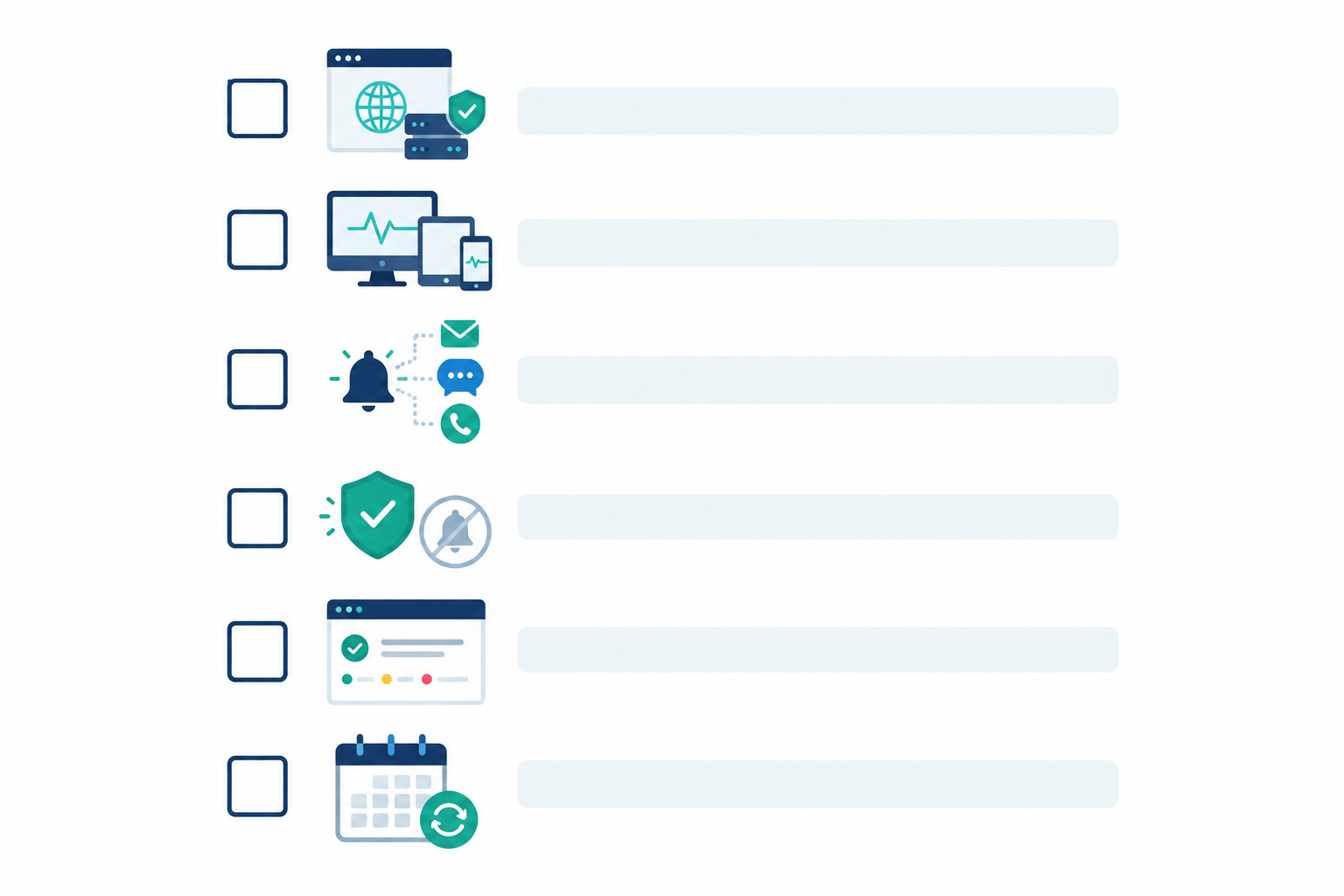
- List what matters. Write down your critical pages, APIs, servers, domains and scheduled jobs. Don't overthink it; if losing it would hurt, it goes on the list.
- Match each item to the right monitor type. HTTP/S for pages, keyword for content checks, port or ping for basic reachability, SSL and domain expiry for certificates and registrations, DNS for record changes, heartbeat for scheduled jobs. Note the gaps.
- Check where your alerts go. Is it a channel people actually read? Are there at least two recipients? If one person is the single point of failure, fix that.
- Confirm false-alarm protection is on. If your tool offers multi-region verification, enable it so alerts only fire when several locations agree.
- Set up a public status page. A branded status page lets customers check for themselves during an incident instead of emailing you. It's one of the cheapest ways to build trust.
- Put a monthly review in the diary. Look at response-time analytics and incident history. A page that's getting steadily slower is often an early warning, so you can catch slow degradation before it becomes downtime.
How long does website monitoring setup take?
As a rough guide for a simple site: your first monitor takes a few minutes, and the basics (homepage, login, checkout and a couple of alerts) might take 10 to 15 minutes. A fuller small-business setup covering certificates, domains, DNS, servers and heartbeats can fit inside an hour or so. It can take longer if you need to track down logins, connect alert channels, edit scripts or test each check. Your hosting and your chosen tool's features will make a difference too.
How much does website monitoring cost?
Costs vary a lot between tools, so compare what each plan includes (monitor limits, check frequency, alert channels, status pages and API access). As one example, Moonitor's published plans were listed in US dollars when I wrote this, with Solo at $14 a month for 20 monitors and Max at $49 a month with unlimited monitors. UK readers should expect currency conversion and possibly VAT to change the final figure, so check the current pricing before you decide.
What does a good website monitoring setup look like?
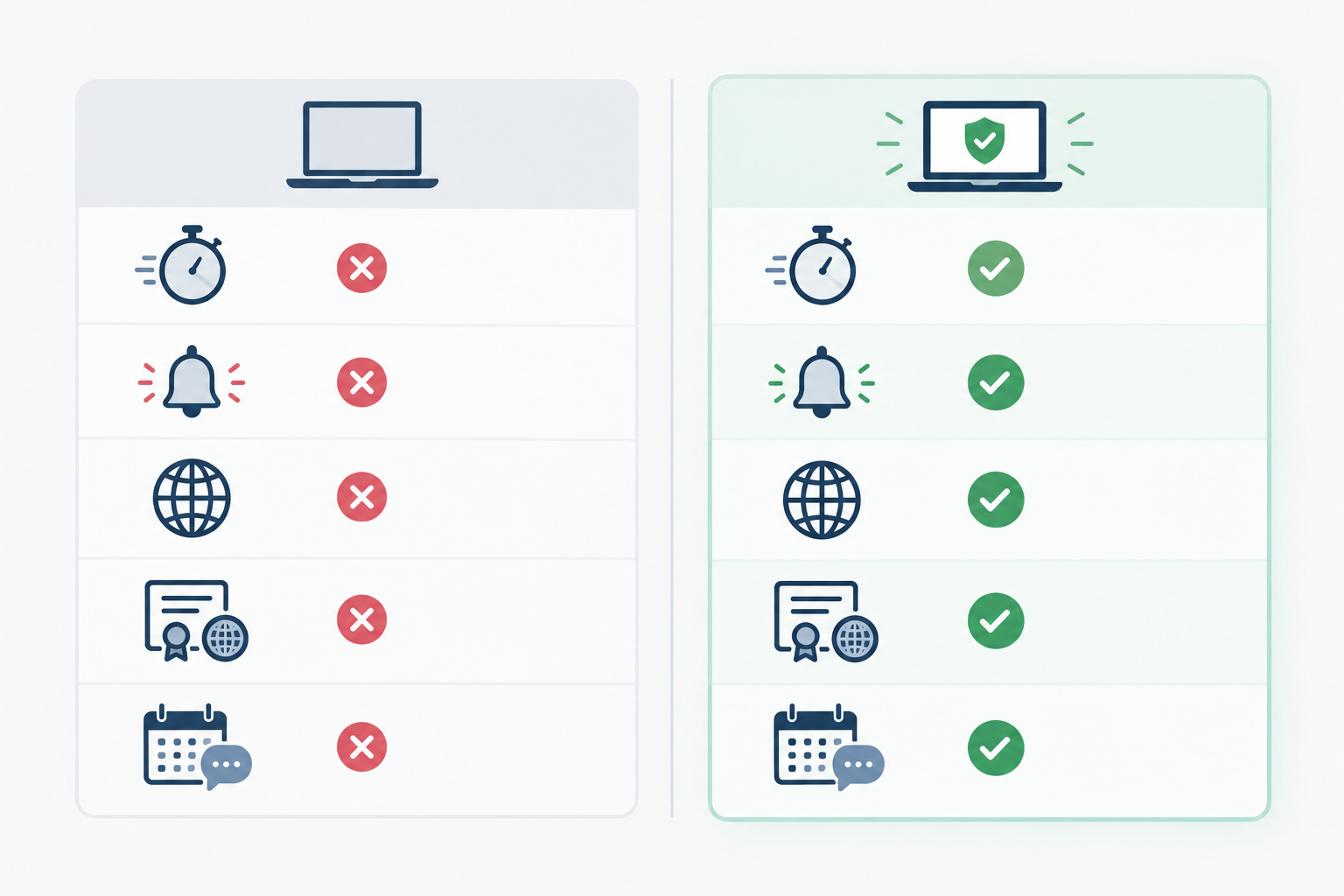
If you want a gentle benchmark, here's how a basic setup compares with a solid one. Treat it as a yardstick, not a pass/fail test. Most businesses sit somewhere in between, and even a solid setup won't catch everything.
| Basic setup | Solid setup | |
|---|---|---|
| Detection speed | Hours, or when a customer says something | Within a minute or two, with alerts to a shared channel |
| False alerts | Frequent, from single-location checks | Fewer, thanks to multi-region verification |
| Coverage | Homepage only | Login, checkout steps, key pages, APIs, servers and DNS |
| Certificates and domains | Checked when someone remembers | SSL and domain expiry monitored with alerts weeks ahead |
| Scheduled jobs | Assumed to be fine | Heartbeat monitoring with sensible grace periods |
| Customer communication | Support emails and apologies | Public status page and incident history |
Here's my encouragement: you don't need to fix everything today. Pick the sign that felt most familiar, the one that made you wince a little, and fix that first. For many people it's Sign 1 or Sign 5. Then work down the list over the next week or so.
If you'd like a tool to try it with, Moonitor has a free trial that covers the monitor types above. Whichever tool you choose, check that it supports the checks you've listed in your audit. 🌙
Frequently asked questions about website monitoring
How do I know if my website monitoring setup is enough?
Ask yourself four things. Would I hear about an outage before my customers? Do I trust my alerts? Do my monitors cover more than the homepage? Do I have eyes on certificates, domains and scheduled jobs? If any answer is no, there's a gap worth closing.
What should I monitor beyond the homepage?
Start with the pages and services that make you money: login, checkout, key landing pages and API endpoints. Then add SSL and domain expiry, DNS records, reachability checks for important servers or ports, and heartbeat monitors for scheduled jobs like backups.
Why do I get so many false alerts?
Often it's because checks run from a single location, where a brief network hiccup looks like downtime. Multi-region verification only alerts you once several locations confirm the problem, which cuts the noise.
How long does website monitoring setup take?
For a simple site, a first monitor takes a few minutes and a fuller setup can take around an hour. Getting access to accounts, connecting alerts and testing can add time.
Do I need a status page?
You don't need one on day one, but it helps a lot. A public status page lets customers see what's happening during an incident, which means fewer support emails and more trust.