
How to Set Up Slack and Discord Alerts for Website Downtime
Set up Slack downtime alerts with webhooks, route incidents to the right channels, add email backups and test your monitoring integrations to cut alert noise.
To get Slack downtime alerts, create an incoming webhook in your Slack workspace, paste the URL into your monitoring tool's Slack integration, and attach it to the monitors you care about. Discord works much the same way with a channel webhook. Where it really pays off is routing: send critical production alerts to a dedicated channel, keep email as a backup, and send a test alert before you trust any of it.
That's the short version. The rest of this guide walks through each step, then covers the part most tutorials skip: how to structure your channels so alerts stay useful instead of turning into background noise. I'll use Moonitor for the examples, but the ideas apply to any tool that supports Slack and Discord webhooks. Menu names and plan details change, so check your tool's current documentation as you go.
Why Slack downtime alerts can beat email for incident alerting
Picture this. It's 2am, your checkout page is returning 500 errors, and the alert email is sitting unread in one person's inbox. That person is asleep. Everyone else on the team has no idea anything is wrong until a customer complains the next morning.
I've seen some version of that story more times than I'd like. Email isn't bad, but it's private by default, and incident response is a team sport. Chat helps in a few ways:
- Everyone in the channel sees the same message, so an alert is no longer one person's inbox problem.
- Threads give you a place to coordinate. Someone replies 'I'm on it', someone else posts a log snippet, and you end up with a rough incident timeline for free.
- It's where your team already is, so nobody has to check a new tool.
There's an honest downside, though. Chat alerts can become wallpaper. If a channel fires ten messages a day for things nobody needs to act on, people mute it, and then the one real outage gets missed. That's why we'll spend a good chunk of this guide on structure.
This is also where failure verification comes in. If your monitoring tool checks from only one location, a brief network blip can ping your channel for no reason. Moonitor describes confirming failures from multiple regions before alerting, which can cut down on alerts caused by an isolated regional problem. It won't remove false alarms entirely, but it gives people more reason to take a message seriously. Once people stop trusting a channel, they stop reading it.
What you'll need before setting up Slack or Discord downtime alerts
The setup itself is quick, but gather these first so you're not hunting for permissions halfway through.
- A Moonitor account and at least one monitor. A simple HTTP/S website monitor is plenty to start with. If you're trialling it, check the current trial terms on the Moonitor site.
- Permission to add apps or webhooks in Slack. Some workspaces restrict app creation. If yours does, ask an admin to approve it, or ask them to create the webhook and send you the URL privately.
- Manage Webhooks permission on Discord, either on the server or on the specific channel.
- A destination channel. Create it before you begin so you're not improvising mid-setup.
- A rough idea of who responds. A chat message alone doesn't mean anyone has acknowledged the problem. Agree on an owner and an escalation path, even if it's just 'Sam first, then Priya'.
One more thing: webhook URLs are effectively passwords. Anyone who has one can post to that channel, so keep them out of public repos, screenshots and shared docs. If one leaks, regenerate it.
How to create a Slack webhook for downtime alerts
Slack's menus move around from time to time, so treat the button labels below as a guide and check Slack's incoming webhooks documentation if something looks different. The same goes for Moonitor's integration screens: if your dashboard differs from my description, the product docs win.
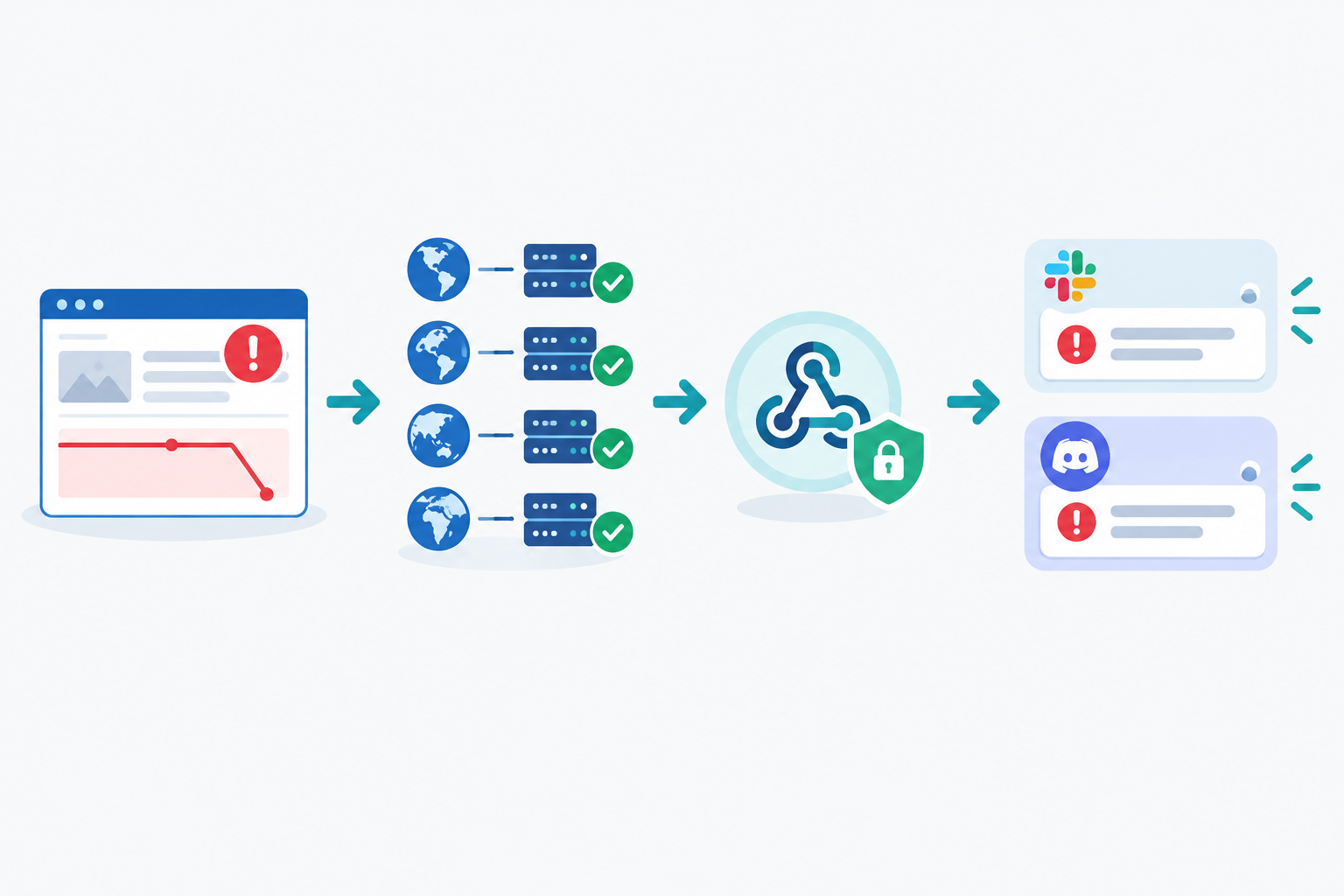
Step-by-step: connect Slack to your website monitors
- Create or choose a dedicated channel. Something like
#alerts-productionworks well. Keep it for automated alerts and human replies about incidents, not general chat. - Create a Slack app with Incoming Webhooks enabled. Head to the Slack API site, create a new app for your workspace, and switch on the Incoming Webhooks feature.
- Add a webhook to your workspace. Choose 'Add New Webhook to Workspace', pick your alert channel, and authorise it.
- Copy the webhook URL. Slack generates one URL per channel. Paste it somewhere safe, not into a team-wide chat.
- Add the Slack integration in Moonitor. Open your alert channel settings, add a Slack integration, and paste the URL.
- Attach it to your monitors. Start with the ones that hurt most when they fail: your main website, your checkout or login flow, and your core API endpoints. You can add the rest later.
Because a webhook is tied to the channel you picked, you'll need a separate webhook for each Slack channel you want to alert. That might feel fiddly, but it's exactly what makes routing possible later.
What should a Slack downtime alert include?
A useful alert answers the questions you'd ask the moment you wake up. Look for these:
- The monitor name and the URL or service affected
- The failure reason, such as a timeout, a 503 status or a missing keyword
- Region confirmation, if your tool offers it, so you know whether it's a verified failure or a single-location blip
- A timestamp showing when it started
- A link back to the incident details
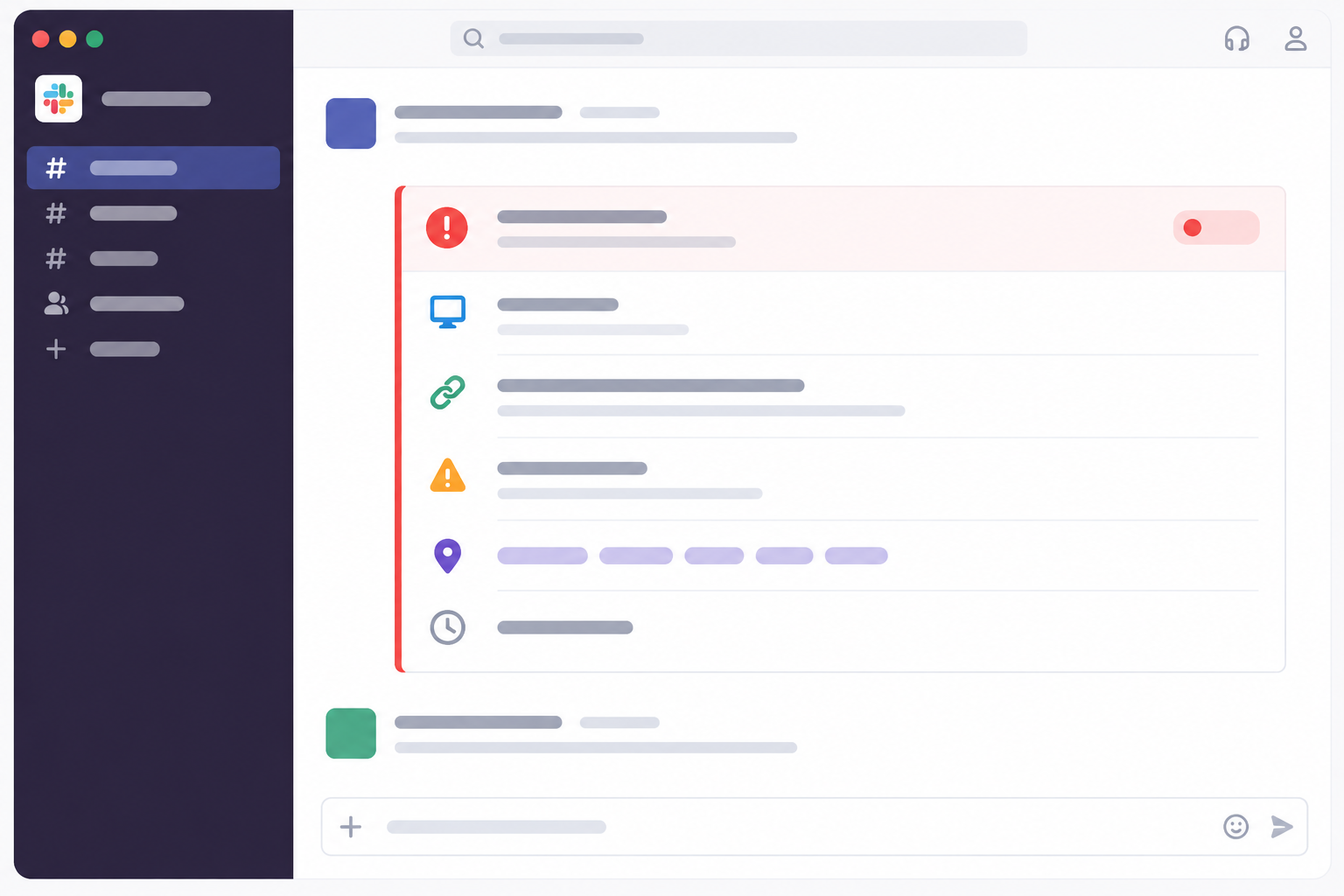
Here's an illustrative example of the kind of message you want (the exact format will differ by tool):
🔴 DOWN: Checkout (https://shop.example.co.uk/checkout)
Reason: HTTP 503, confirmed from 3 regions
Started: 02:07 GMT
Details: link to incident page
That's enough for whoever is on call to decide in seconds whether to get out of bed. If a message doesn't tell you what's broken and since when, it's making your job harder.
Slack downtime alerts not arriving? Check these issues
When nothing shows up, it's usually one of these:
- Whitespace in the URL. A trailing space from copy-and-paste is a classic.
- The app was removed from the channel, or the channel was deleted or archived.
- Workspace restrictions. An admin may have limited what apps can post, or revoked the app.
- The integration isn't attached to the monitor. It's easy to create one and forget this step.
How to connect Discord uptime alerts to your monitors
Discord uptime alerts are a great fit for indie developers, small agencies, open-source projects and community-run services. Many of those teams already live in Discord, and it's free for most needs. Webhooks also post to a channel without a bot needing to be online, which keeps things simple.
Step-by-step: set up a Discord webhook
- Open the settings for the channel that should receive alerts, then go to Integrations, then Webhooks.
- Create a new webhook and give it a recognisable name, like 'Moonitor alerts'.
- Pick the channel and copy the webhook URL. As with Slack, don't share it publicly. If it's exposed, regenerate it.
- Add the Discord integration in Moonitor and paste the URL.
- Attach it to your monitors and send a test notification.
A small tip: use a private channel limited to the people who respond to incidents. If you want specific people pinged, Discord supports role mentions in messages, but whether your monitoring tool can include them depends on its setup, so check the integration options and test it.
Slack vs Discord for uptime and incident alerts
| Slack | Discord | |
|---|---|---|
| Best for | Work teams, companies, agencies | Communities, indie teams, open-source projects |
| Webhook setup | Via a Slack app with Incoming Webhooks | Directly in channel settings |
| Permissions | Workspace may require admin approval for apps | Needs Manage Webhooks on the server or channel |
| Threading | Mature threads, good for incident timelines | Threads available, used less often for incidents |
| Mobile notifications | Solid, with granular per-channel settings | Solid, with per-channel and role-based controls |
| Cost | Free tier has limits, paid plans for full features | Free for most needs |
I don't think either one wins outright. Use whichever your team will actually look at. Some teams use both, with Slack for the engineers and Discord for a community or support group. That works fine as long as you don't send everything everywhere.
Telegram and generic webhooks for incident alerting
Sometimes Slack and Discord don't quite fit. Two other options are worth knowing about.
Telegram suits on-call individuals who want a push notification on their phone without running a full Slack client. It's also handy as a second path for responders outside your main workspace.
Generic webhooks let you pipe incidents into PagerDuty-style tools, ticketing systems or your own automation. People use them to:
- Create a ticket automatically when a monitor goes down
- Post to an internal status channel or dashboard
- Trigger a restart script for a service that tends to hang
That last one deserves a caution. An automated restart is powerful, but a faulty or repeated trigger can make an outage worse. Before you connect alerts to any automated action, make sure it's safe to run more than once, put a limit on how often it can fire, and test it somewhere that isn't production.
The same routes work for heartbeat monitoring and cron job monitoring. If a nightly backup fails to check in, that alert can land in the same place as a website outage, or in a different channel entirely. Payload formats and authentication details vary, so check the docs before building anything critical on a custom endpoint. If you do, use HTTPS, and verify signed requests where your endpoint supports it.
One principle I'd keep in mind: have at least one notification path that doesn't depend on your chat app. Slack being down at the same time as your site is unlikely, but it's not impossible.
Slack alert routing patterns that prevent notification noise
So you've got your webhooks. Now comes the part that decides whether anyone still reads these alerts in three months: where each type of alert should go.
The short answer to a common question: yes, you can alert different channels per monitor. Create a separate integration for each channel, then attach whichever ones you want to each monitor.
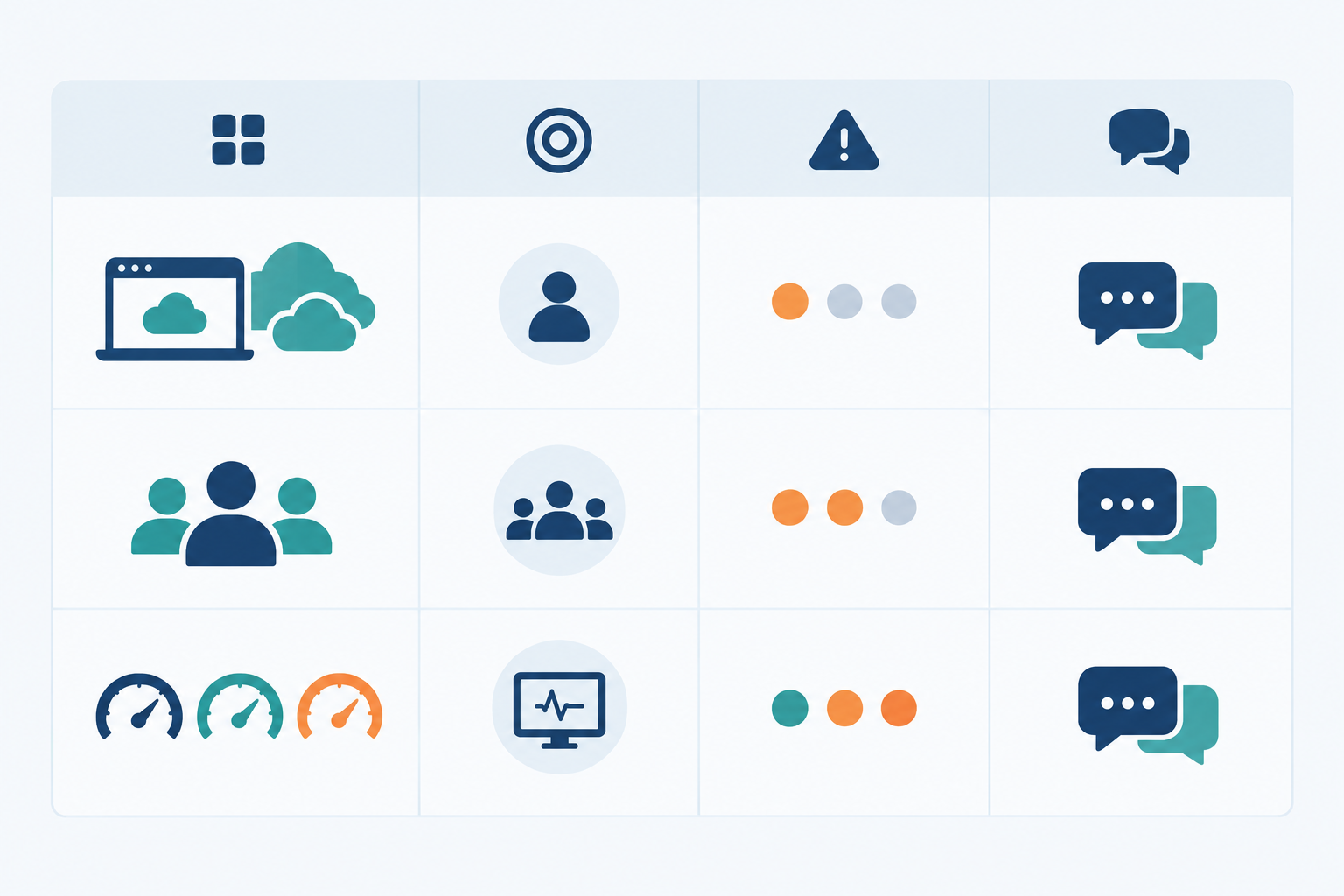
| Pattern | Best for | Urgency | Example channels |
|---|---|---|---|
| Per environment | Teams with clear prod/staging separation | Prod high, staging low | #alerts-prod, #alerts-staging |
| Per service or team | Larger teams with clear ownership | Varies by service | #alerts-payments, #alerts-marketing-site, #alerts-infra |
| Per monitor type | Teams who want to separate outages from warnings | Outages high, warnings low | #alerts-production, #alerts-low-priority |
The third pattern is my favourite for small teams. SSL certificate and DNS warnings, like a certificate expiring in 14 days or a record changing, matter but are rarely urgent at 3am. Server and uptime outages need eyes immediately. Splitting them keeps the urgent channel quiet enough that people respond when it moves.
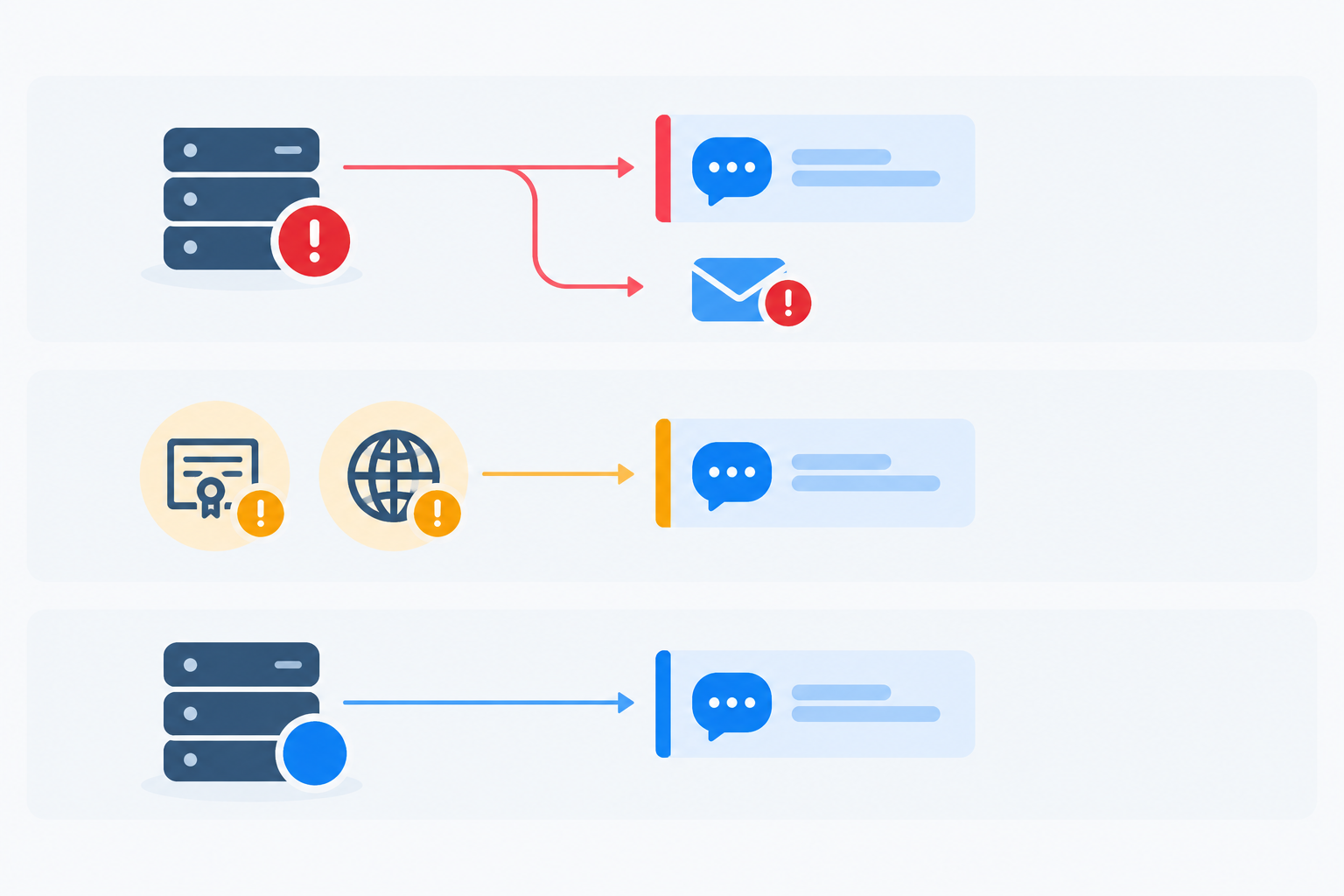
Example alert routing for a small UK team
Say you're a team of six working roughly 9 to 5:30 UK time, with an out-of-hours on-call rota. Here's how I'd route things:
#alerts-productionfor verified outages on your website, API and servers, with email as a backup for whoever is on call.#alerts-low-priorityfor SSL expiry, domain expiry and DNS change warnings, checked during working hours.#alerts-stagingfor test environments, muted outside office hours.- Telegram or phone notifications for whoever is on call this week.
Now follow the 2am checkout alert from earlier. It posts to #alerts-production, the on-call person gets a phone notification and an email, and they reply in the thread to claim it. Meanwhile, the SSL warning that fired at 9:15 the same morning went quietly to #alerts-low-priority, where the team picked it up over a cup of tea. Same tool, very different urgency.
One UK-specific tip: check which time zone your alerts use. A timestamp in UTC reads an hour off during British Summer Time, which causes more confusion than you'd expect when you're reviewing an incident the next day.
Should you use chat, email, or both for downtime alerts?
Both. You can enable multiple alert channels on the same monitor. Use chat for fast team visibility, and keep email as a backup or for stakeholders who aren't in your workspace. For critical production monitors, I'd never rely on chat alone.
Rules of thumb for useful incident alerts
- Limit who gets
@hereor@channel, and save it for confirmed production outages. - Mute staging overnight. Nobody needs a 2am ping about a test environment.
- Keep recovery messages on. People need to know when an incident is resolved, not just when it starts.
- Don't use the alert channel as your customer communication. Publish updates on a separate public status page so customers aren't depending on your internal channel. Check your monitoring tool's documentation to see whether it includes one.
How to test Slack and Discord alert integrations
An alert you haven't tested is a guess. Here's how to turn it into something you can count on, without waking anyone up by accident.
- Send a test notification from the integration settings and confirm it lands in the right channel. Label test messages clearly, or use a separate test channel, so nobody mistakes them for a real incident.
- Run an end-to-end drill in isolation. Create a dedicated test monitor pointing at a URL you control that returns an error, or at a port that doesn't exist. Attach it only to a test channel, not your production one. Switch off any on-call escalation or phone alerts for the drill, tell your team it's happening, and name the monitor something obvious like 'TEST - alert drill'. This checks the whole chain, not just the webhook.
- Check the recovery message. Fix the target, and confirm the recovery notification arrives as well as the down alert.
- Clean up. Delete the test monitor or pause it, and restore any escalation settings you changed.
- Test mobile. Ask whoever is on call to confirm they get the push notification, and check their Do Not Disturb settings. Plenty of missed alerts are just a phone on silent.
- Review the incident history. Compare the timeline in your dashboard with what the channel showed. They should match.
Re-run the drill every few months, and any time you change channels, rotate webhooks or onboard new team members. Think of it like a fire drill: you do it when nothing is on fire.
Common mistakes to avoid with Slack downtime alerts
- Sending everything to one general channel until everyone mutes it.
- Alerting on single-location failures when your tool offers multi-region verification. It's one of the quickest routes to alert fatigue.
- Forgetting to update the webhook after deleting a Slack app or channel. The integration will quietly stop working.
- Never testing, then discovering the integration was broken during a real outage. This one is painful, and entirely avoidable.
Get your Slack downtime alerts working in ten minutes
One channel, one webhook, one test. That's genuinely all you need to get started, so don't try to build a perfect routing map today.
Pick your most important monitor, probably your main website or your core API, connect it to a dedicated Slack or Discord channel, and send a test alert. You can add SSL and DNS monitoring, cron checks and extra channels as you go. If you'd like to try Moonitor, check the site for the current trial details. Your future 2am self will thank you. 🌙
Frequently asked questions about Slack downtime alerts
How do I send uptime alerts to Slack?
Create an incoming webhook for the Slack channel you want to use, copy the URL, and add it as a Slack integration in your monitoring dashboard. Then attach that integration to your monitors and send a test alert to confirm it works.
Can I alert different channels per monitor?
Yes. Create separate integrations, each pointing to a different channel, and attach them to the relevant monitors. For example, production APIs can go to #alerts-production while SSL expiry warnings go to a quieter channel.
What if I want both email and chat alerts?
You can enable multiple alert channels on the same monitor. Many teams use chat for team visibility and keep email as a fallback.
How do I test an alert integration?
Send the test notification first. Then run a drill with a dedicated test monitor that's attached only to a test channel, with on-call escalation switched off, and check that both the down and recovery messages arrive. Delete the test monitor afterwards.
Will I get flooded with false alarms?
You can't rule them out completely, but you can reduce them. Verifying failures from multiple regions, as Moonitor does, helps filter out alerts caused by a problem in a single location. Good routing, sensible channels and muted staging alerts handle most of the rest.